

Note:
Box Forms is available only for Enterprise Advanced accounts. Customers must agree to the Box Forms Addendum in order to use Box Forms.
Box Forms is available only for Enterprise Advanced accounts. Customers must agree to the Box Forms Addendum in order to use Box Forms.
Admin Enablement
Admins can enable Box Forms for their organization by accessing the Admin Console, and thenEnterprise Settings. In the Content & Sharing tab, scroll down to the Forms section and select Edit Configuration under Forms.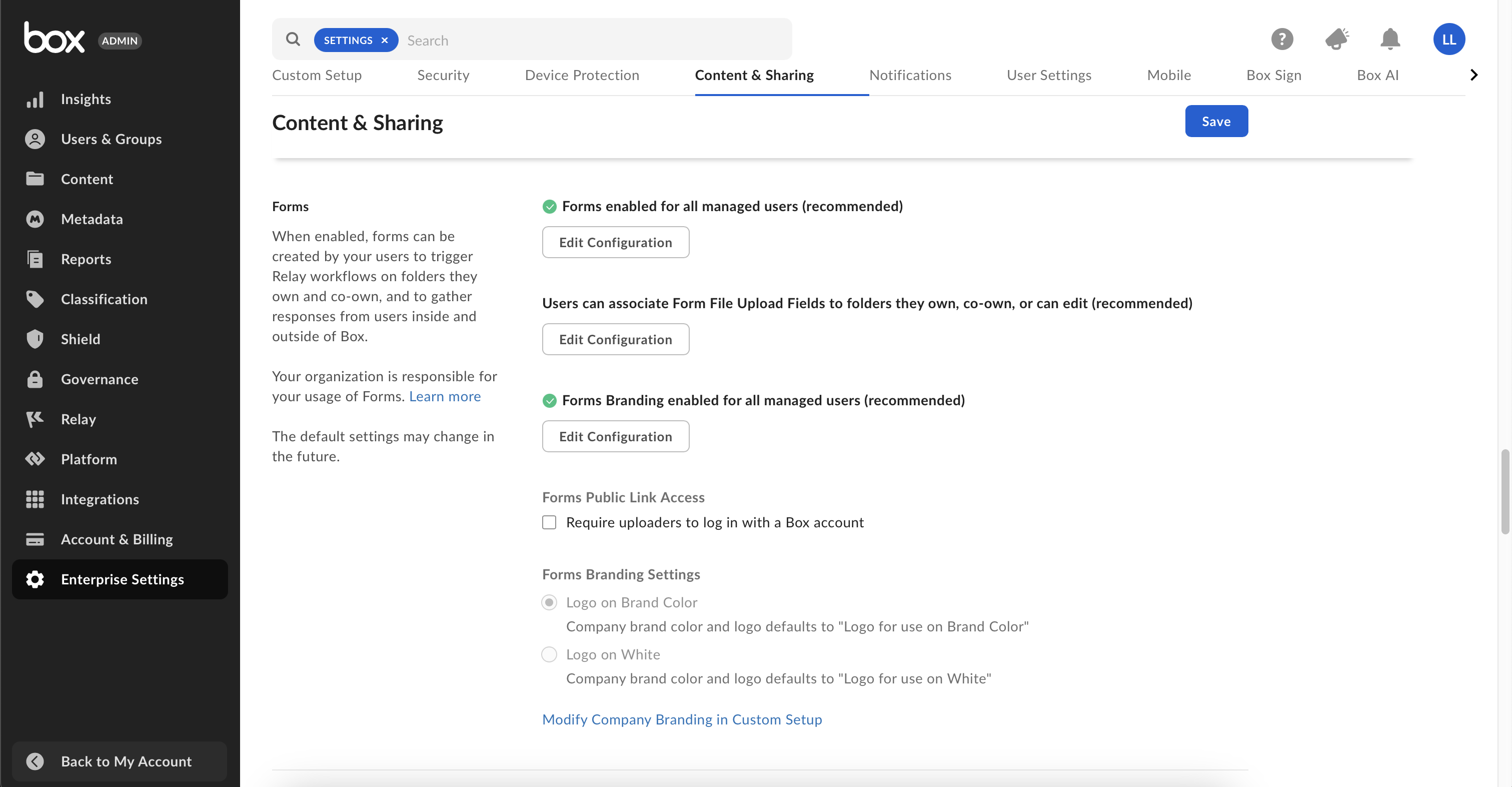
For Select Users and Groups
By default, Box Forms is disabled for all users. You can configure access for your organization:- Disable for all managed users
- Enable for all managed users
- Enable for select users and groups
- Enable for everyone except select users and groups
Form File Upload Fields Configuration
Specify whether to limit form file upload access to folder owners and co-owners (that is, to exclude editors), based on folder permissions. You can set the permissions by selecting Form File Upload Fields Configuration, then selecting from the following options:- Owners/Co-Owners Only
Allows only users who own or co-own the folder to upload files. - Owners/Co-Owners and Editors (Recommended)
Allows owners, co-owners, and editors of the folder to upload files.
Forms Branding
Configure access for forms branding:- Disable for all managed users
- Enable for all managed users
- Enable for select users and groups
- Enable for everyone except select users and groups
- Logo on Brand Color
Company brand color and logo defaults to Logo for use on Brand Color. The selected logo on brand color (icon and background color) is added to the form when a new form is created. - Logo on White
Company brand color and logo defaults to Logo for use on white. The selected logo on white background (icon and background color) is shown on the form whenever a new form is created.