

- Securely request files from anyone, no matter whether they have a Box account, without adding collaborators on a folder
- Solicit additional information with metadata form fields, which they can set as required/optional
- Enable extra security and tracking with link settings, as they would with any Box shared link
- Kick off automated workflows using Box Relay
Setting permissions
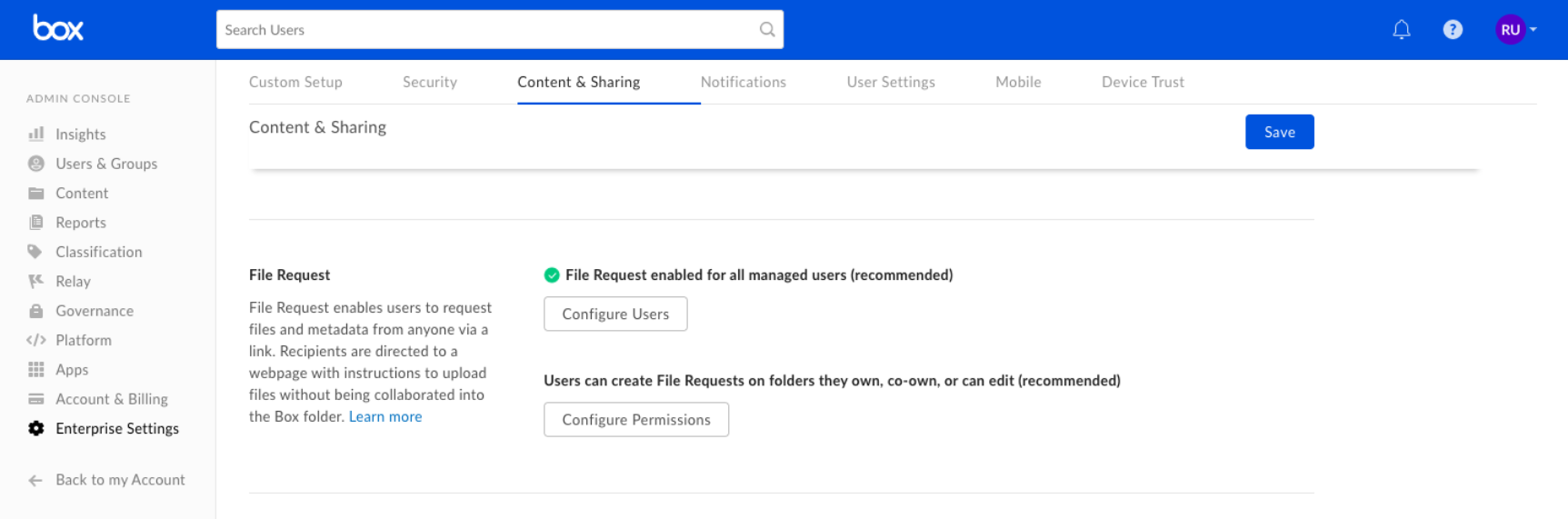
To adjust permissions for File Request throughout your organization:- From your Admin Console, navigate to Enterprise Settings > Content & Sharing.
- Scroll down to the File Request section.
-
By default, the new File Request experience is enabled for all managed users who are editors, owners, or co-owners of a folder.
-
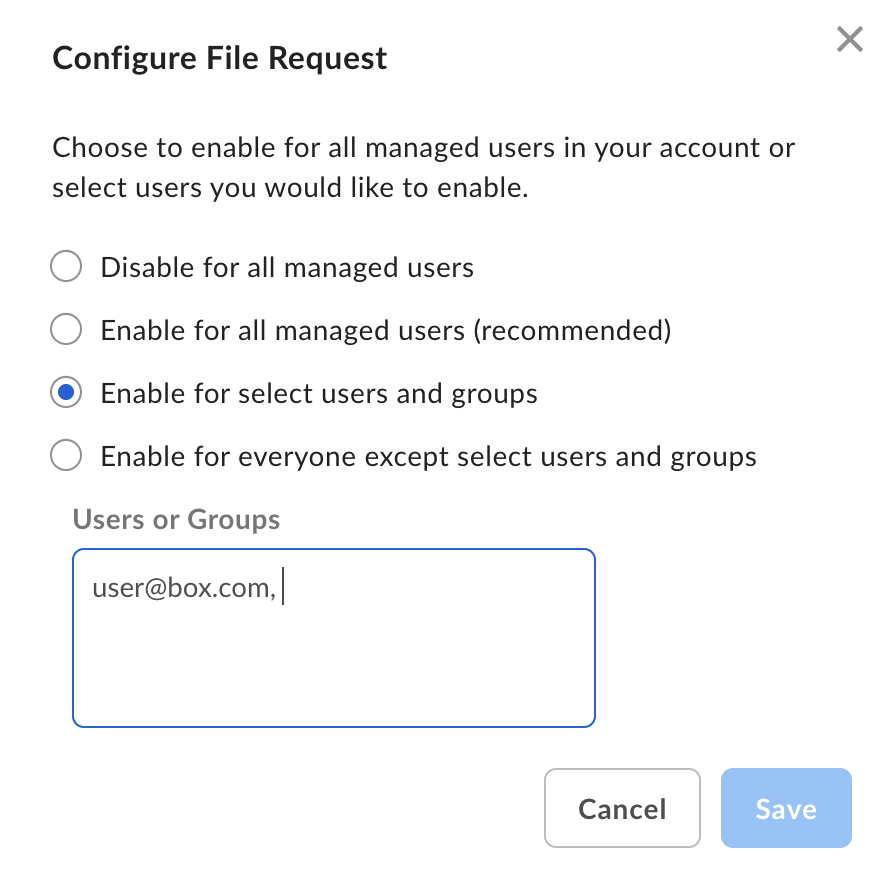
Specify the breadth of access to File Request. You can grant access to all your managed users or groups, only a subset of users or groups, or disable the feature entirely. To do this, click Configure Users, click the option you want, and then click Save.
Note:- You can allow or deny up to 100 managed users and 100 groups.
- You can only select groups that have Permission Setting set to Admins Only. For details, see Creating and managing groups.
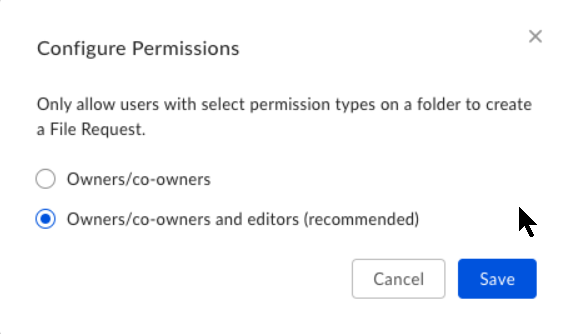
- Specify whether to limit File Request access to folder owners and co-owners (that is, to exclude editors), based on folder permissions. To do this, click Configure Permissions, click the option you want, and then click Save.
- Specify whether to require that the content uploader log in to their Box account before submitting their files. To do this, check Require uploaders to log in with a Box account. This setting:
- applies enterprise-wide; individual Box accountholders cannot change it.
- applies retroactively to all currently active File Requests, in addition to all future File Requests
- disables the option to add an email field to the File Request, as that option becomes redundant when you require a Box login before uploading.
- provides an option for people without a Box account to create one before they can submit.
Applying default custom branding
To learn how to apply default custom branding to new File Requests: see this article. Notes- File Request does not enable access to data in your Box account. It only collects files from other contributors.
- If you disable File Request for all managed users, you restrict the ability for anyone to create or edit a File Request. Any existing File Request links are still live, unless you disable or delete the individual file requests before you disable the feature.