

Creating an app
To create an app:- Go to Box Apps.
- Click New.
- Name your app. You land on a page with an empty section.
- Name the first section.
- Configure the app by adding blocks to your first section and/or adding more sections.
- When you finish adding sections and blocks, click Done to save your app.
Note:
The Done button is inactive if you forgot to add parameters to any of the sections or blocks.
Configuring a section
-
Choose how you want to display the blocks in your section: by
-
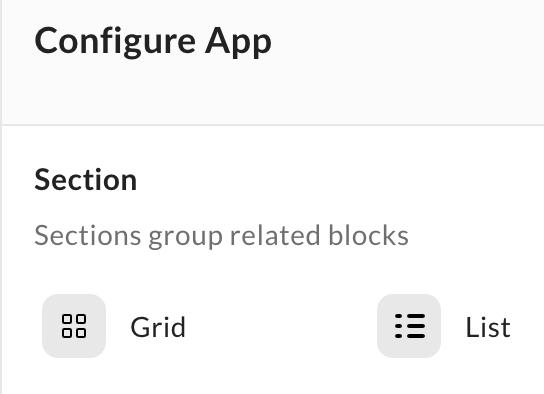
In the Section area under Configure App, select Grid or List.
-
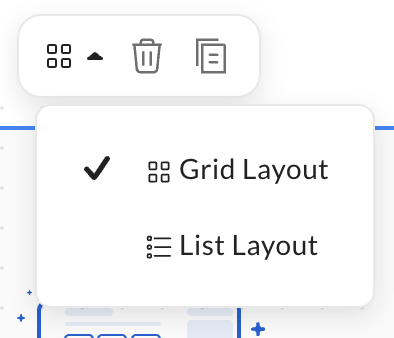
Select a section, click the Layout icon, and then select Grid Layout or List Layout.
The grid view displays blocks in your section next to each other. The list view displays blocks in your section under each other.
-
In the Section area under Configure App, select Grid or List.
-
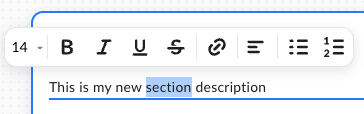
In the Add a description area, enter any text that you want to display, and then format the description by double-clicking the content and choosing from the available options in the contextual menu.
Adding, deleting, and configuring blocks
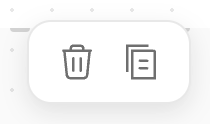
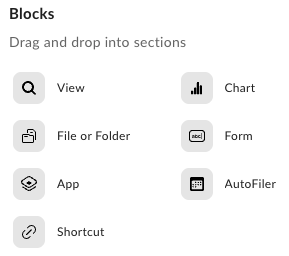
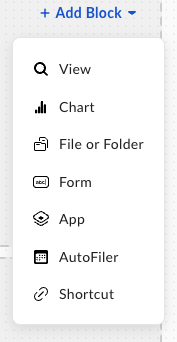
To add a block, drag and drop it to your section from the Blocks area under Configure App, or choose the + Add Blocks drop-down list in a section to add a new block to your app.Note:To delete a block, select it and click the trash icon from the context menu.
- View
- Chart
- File or Folder
- Form
- App
- Shortcut
- Auto Filer
Required and optional block parameters
There is one required parameter for all blocks: Title/Tile Name. You need to add it to every tile to save your app. Other required parameters differ depending on the block type. Optional parameters are the same for every block type:- Description – click Add Optional Description to display the Description field.
- Theme – choose a color theme. Select Light to choose a color for the block icon. Select Dark to choose a color for the whole block.
- View: Create a View
- Chart: Chart Title
- File or folder: Create a file or folder
- Form: Create a form
- App: Link to an App
- Shortcut: Create a shortcut
- Auto Filer: Create an AutoFiler
Block types
Choose the block types you want to have on your app.View
Select the Create tab in Create a new View to configure the View block. Add the following parameters:- View Name – name your View
- Metadata Template – choose one of the available templates from the dropdown list
- Select the Duplicate tab in Save Views & Parameters.
- Add a name to your View.
- Select a recent View from the Duplicate settings from drop-down list.
- Click Duplicate to save your View. You can also add the optional description and a theme to the duplicated view block.
Chart
With the Chart block, you can create a bar or donut chart based on the configuration details that you provide. For more information, see Using Charts in Box Apps.File or folder
When you add a file or folder block, you need to specify a root folder where the app users will add new content. Click the Select Content button under Choose from Box. In the next window, you can see a standard search field and yourFiles view. Select a folder and click Choose to go back to block configuration.NoteWhen you add a name, it changes the folder name in the block. The original folder name in yourFiles is not changed.