

Notes:
- Shared signature requests available for Business, Business Plus, Enterprise, Enterprise Plus, and Enterprise Advanced accounts.
- This feature is enabled ‘on’ by default, however Admins can toggle additional enablement settings at the enterprise level.
- Modify email addresses of recipients
- Modify recipient authentication method
- Remove recipients
- Modify fields and field properties
- Cancel the request
- Delete the request
- Send reminders
- Save the request as a reusable template
- Download the files within the request
- Teams that work in different time zones can easily pick up from where their teammates left off when they start their work day.
- Multiple teams can easily collaborate on projects that need input from multiple people with the ability for team members to view and revise active signature requests.
- Users can take responsibility for signature requests when the original sender takes time off or leaves the company resulting in unmanaged signature requests that still need to be tracked and completed.
Sharing sent requests
Note: Permissions will only affect signature requests created after the feature releases on January 23, 2025. Users will see signature requests listed in the Shared with Me tab created after that date. A user’s ability to view or manage a sent signature request will depend on the user’s permission as a viewer or editor of the save folder location or of the duplicate file that is created when a signature request is initiated.
- The save location folder of the signature request
- The duplicate file(s) that is created from the source file(s) used when a signature request is initiated
- Send reminders
- Save a signature request as a reusable template
- Download the files within a signature request
- Revise
- Cancel
- Delete a signature request
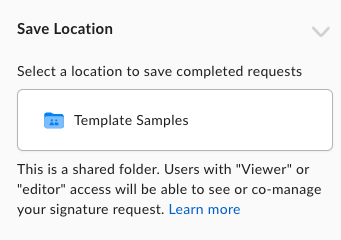
Note: Signature requests that are saved to a shared folder will be shared with managed users who have “viewer” or “editor” permissions within the same folder. Subsequently, these users will be able to view or co-manage this signature request.
Collaboration permission levels and available actions
Depending on the permission given at a file or folder levels within Box, users will have the following “viewer” or “editor” actions available to them:| Not a collaborator | Collaborator Viewer | Collaborator Editor |
| * Previewer uploader (folder level) * Previewer (folder level) * Uploader (folder level) These users do not have the permission to collaborate on the sent request. They won’t see the requests on the ‘Shared with Me’ tab. | * Viewer Uploader (folder level) * Viewer (folder and/or file level) These users won’t be able to directly participate in the sent request. They can view the request and have a set of limited actions available: Request In Progress * Send Reminder * Save as Template * Download Request Completed * Save as Template * Download * Download Signing Log | * Owner (folder level) * Co-owner (folder level) * Editor (folder and/or file level) These users can actively participate in the sent request. They can make changes to the request and have a broader set of actions available. Request In Progress * Send Reminder * Save as Template * Download * Revise Request * Cancel Request * Delete Request Request Completed * Save as Template * Download * Download Signing Log * Delete Request |
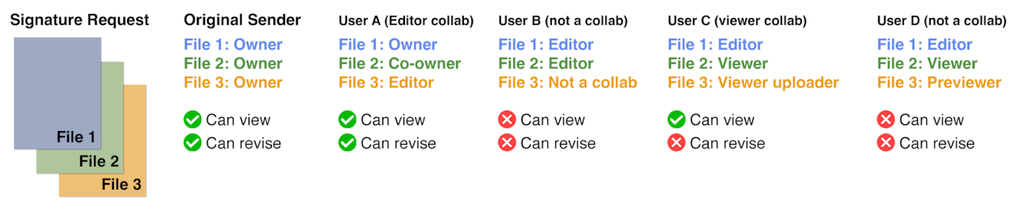
- Managed user - A user can only be a collaborator on a signature request if they are a managed user within that enterprise.
- Box groups - An entire Box group can be a collaborator on a signature request if they have access to the signature request files. Each member of the group will have collaborator privileges.
- Enablement of Box Sign - If a user has access to all the files in a signature request, but they are not enabled to use Box Sign, they will not be a collaborator on the request until they are enabled to use Box Sign within the Admin console.
- 21 CFR Part 11 - Users who are not enabled with the 21 CFR Part 11 workflow setting will not be able to view or manage signature requests sent using the 21 CFR Part 11 workflow regardless of whether they have collaborator access to the files used within a 21 CFR Part 11 signature request. Only users who have been enabled with the 21 CFR Part 11 workflow enablement setting can view and manage signature requests that have been sent using the 21 CFR Part 11 workflow setting.
Note: Signature requests that are “In Progress” can be Revised, Cancelled or Deleted by users with Owner, Co-owner, Editor folder permissions. However, the sender will be notified via email of the action that was performed and the user who performed that action.
Managing Collaborators
Sharing Signature Requests with Collaborators Senders can manage signature request collaborators by accessing any signature request in the “Sent Requests“ page, clicking on the ellipses , selecting “More Options”, and selecting “Manage Collaborators”.
From there, senders can invite other users to view or edit the request depending on their level of permissions. See the “Understanding Collaborator Permission Levels“ for additional details.
, selecting “More Options”, and selecting “Manage Collaborators”.
From there, senders can invite other users to view or edit the request depending on their level of permissions. See the “Understanding Collaborator Permission Levels“ for additional details.
Shared with Me list
In the Shared with Me tab, users will find all signature requests shared with them by their colleagues. Depending on the permission setting they have at a folder and/or file level, they will be able to collaborate and perform different actions on the signature request. See the roles and permissions above.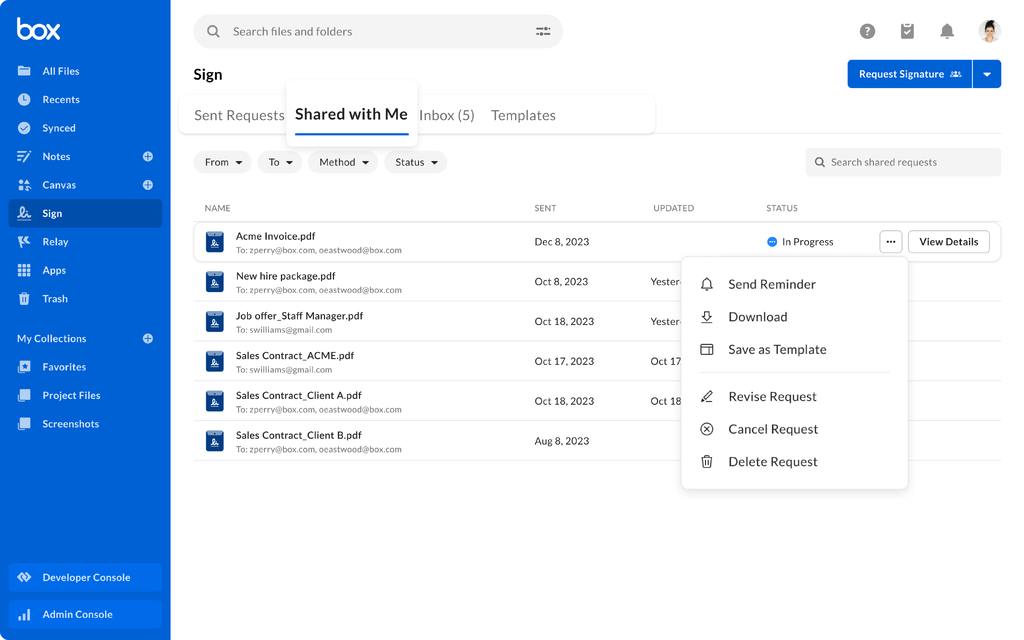
Note: If a user is both a collaborator and signer,the signature request will be displayed in both the Shared with Me and Inbox tabs.
Revising sent request
When revising a sent request, the user cannot add, delete, replace, rename, or reorder files within a signature request that is “In Progress”. If the user revises a request and does not want their changes saved, they can click Discard Changes or exit back to the folder page. Additionally, users will not be able to save the request in a different folder location when revising a signature request. When a user revises a signature request, they become a co-manager. The co-manager will be listed in the Signing Log. If the co-manager is interested in receiving a copy of the signature request file(s) and signing log, they should revise the signature request, add themselves as a recipient and modify the recipient role to ‘Get a Copy’.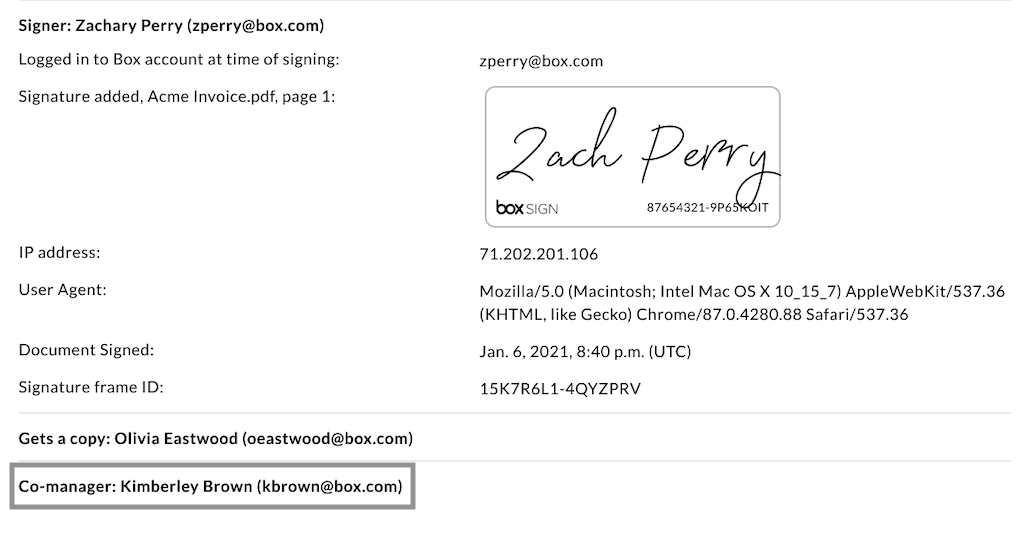
Sender notifications
The sender of a shared signature request will get an email notification when the following actions are taken:- A user revises the signature request
- A user cancels the signature request
- A user deletes the signature request
Note: Users who revise a signature request will be listed within the signing log of the completed signature request. However, they will not receive a final copy of the completed signature request unless they add themselves as a ‘Get a Copy’ recipient when revising a signature request that is in progress and that signature request is completed.
Revoking access
If a user’s access to a shared signature request is revoked, they will no longer see it listed in their Shared with Me tab, and they will not be able to perform any actions related to the signature request from Sign home page.Filter ‘Shared with Me’ list
In the Shared with Me tab the user can filter by:- ‘From’ (Senders)
- ‘To’ (Recipients)
- ‘Method’
- ‘Status’
- ‘Compliance’
Note: If the user is enabled with 21 CFR Part 11 workflows, they will be able to see 21 CFR Part 11 signature requests and standard signature requests. They can also use the filter option to filter 21 CFR Part 11 signature requests (‘Compliance’ filter will then be visible).
Known Limitations
- If the shared signature request contains locked file(s), the user will not be able to edit, cancel, or delete the signature request. Additionally, if the ability to download the file(s) is disabled, the request will not be listed in the Shared with Me tab.
- If the ‘Download and Print Restriction’ Box Shield restriction is applied to the save location folder of the signature request, the signature request will not be listed in the Shared with Me tab for other users (except for Owners, Co-owners, and/or Editor roles depending on the restriction level for managed users).\
- Save As Template option will not be available to the collaborator in case the shared signature request was created based on a template with locked sections (e.g. Recipients locked) or when its status is cancelled or declined.
Admin Enablement
As an admin, you can enable shared signature requests for your organization by going to your Admin Console and then Enterprise Settings -> Box Sign. In the Box Sign tab, select Edit Configuration under the “Shared Signature Requests enabled for all managed users” option. From here, you can select from four options for your users and groups:- Disable for all managed users
- Enable for all managed users (selected by default)
- Enable for select users and groups
- Enable for everyone except select users and groups
Note: If “Shared Signature Requests” is enabled for a user, they will be able to view the signature requests that are shared with them. If the feature is disabled for them, users will not be able to view or take action on sent signature requests even if they were given permission at a file/folder level within Box.