

Home Tabs
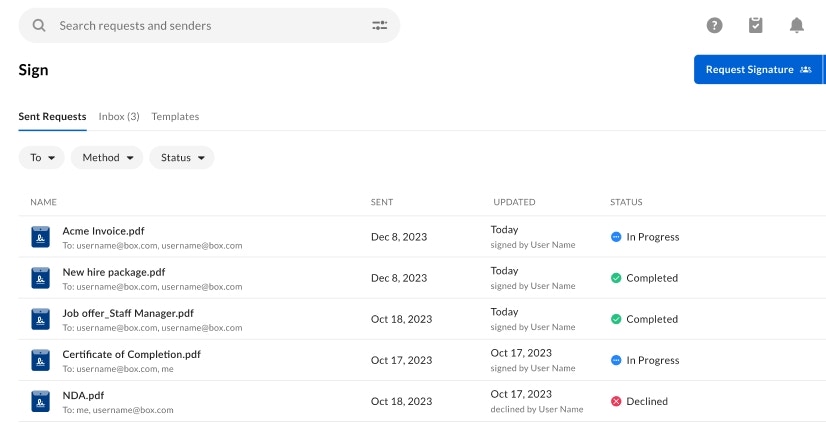
Sent Requests
View details associated with your current signature requests such as:- The signature request name and recipients
- The date the request was sent
- The date the request was last updated
- Who last signed, approved, or declined the request
- The status of the signature request
Inbox
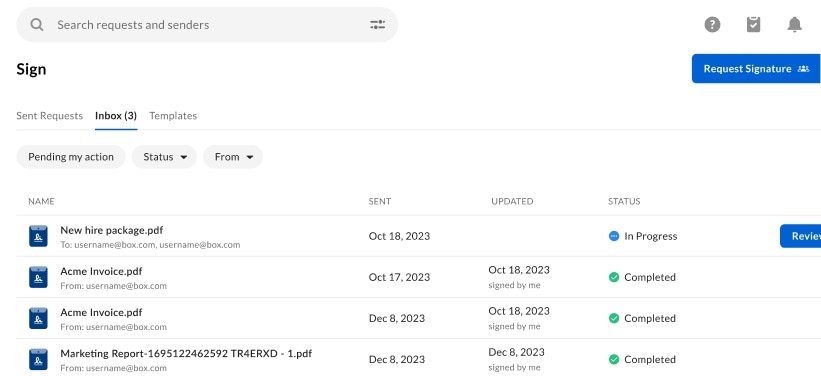
Review and complete pending signature requests waiting for your signature or approval. Details include:- The signature request name and recipients
- The date the request was sent
- The date the request was last updated
- Who last signed, approved, or declined the request
- The status of the signature request
- A button to access any pending signature requests
Templates
Select from a variety of templates within your organization to use for signature requests.Details include the template name, location, and when the template was last updated.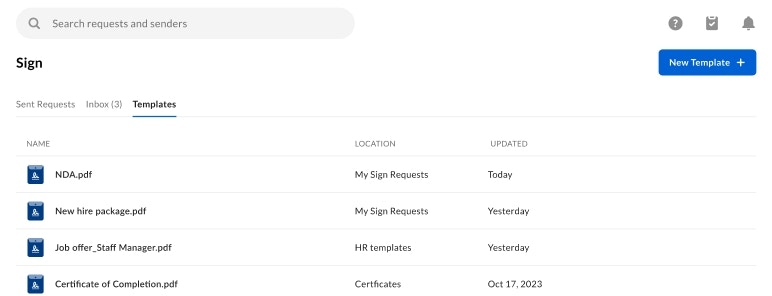
Filters
Use the filter menu to narrow down specific Sent Requests and Inbox requests, including the following details:- To (Sent Requests only)
- Filter by requests sent to specific recipients.
- Method (Sent Requests only)
- Filter by all requests, batch send requests, and requests completed via ready-sign links.
- Status
- Select from ‘In Progress’, ‘Completed’, ‘Canceled’, ‘Expired’ and ‘Declined’. See below for more information on statuses.
- Pending my action (Inbox only)
- Filter by requests that are in progress and require you to sign or approve.
- From (Inbox only)
- Filter by requests sent to you by specific senders.
- Compliance (only available for users with 21 CFR Part 11 settings enabled)
- Select from all requests or those sent out with support for 21 CFR Part 11 compliance enabled.
Status
From Sent Requests and Inbox, view real-time status updates for each request or received, including: In Progress — Displays signature requests that are pending action from one or more recipients. Completed — Displays signature requests that have been completed by all recipients. Expired — Displays signature requests with an expiration date that has passed. Canceled — Displays signature requests that have been canceled by the sender. These requests cannot be signed or approved and the requests are rendered invalid. Declined — Displays signature requests that have been declined by a recipient. These requests are rendered invalid.More details
To see additional details about a request you have sent, hover on the document’s title, and click View Details. In the detailed view:- View the list of recipients.
- View the request creation date.
- View the request email notification.
- To see the document, click the document’s title.
- Download the request’s files
- Download the signing log
- Review the request
- Send reminders to recipients who have not taken action
- Save the request as a reusable template
- Cancel or delete the request
- Revise the request