

Configuring text input validation
To configure the Text Input field validation settings within a signature request or reusable template:- Add a Text Input field to the request or template.
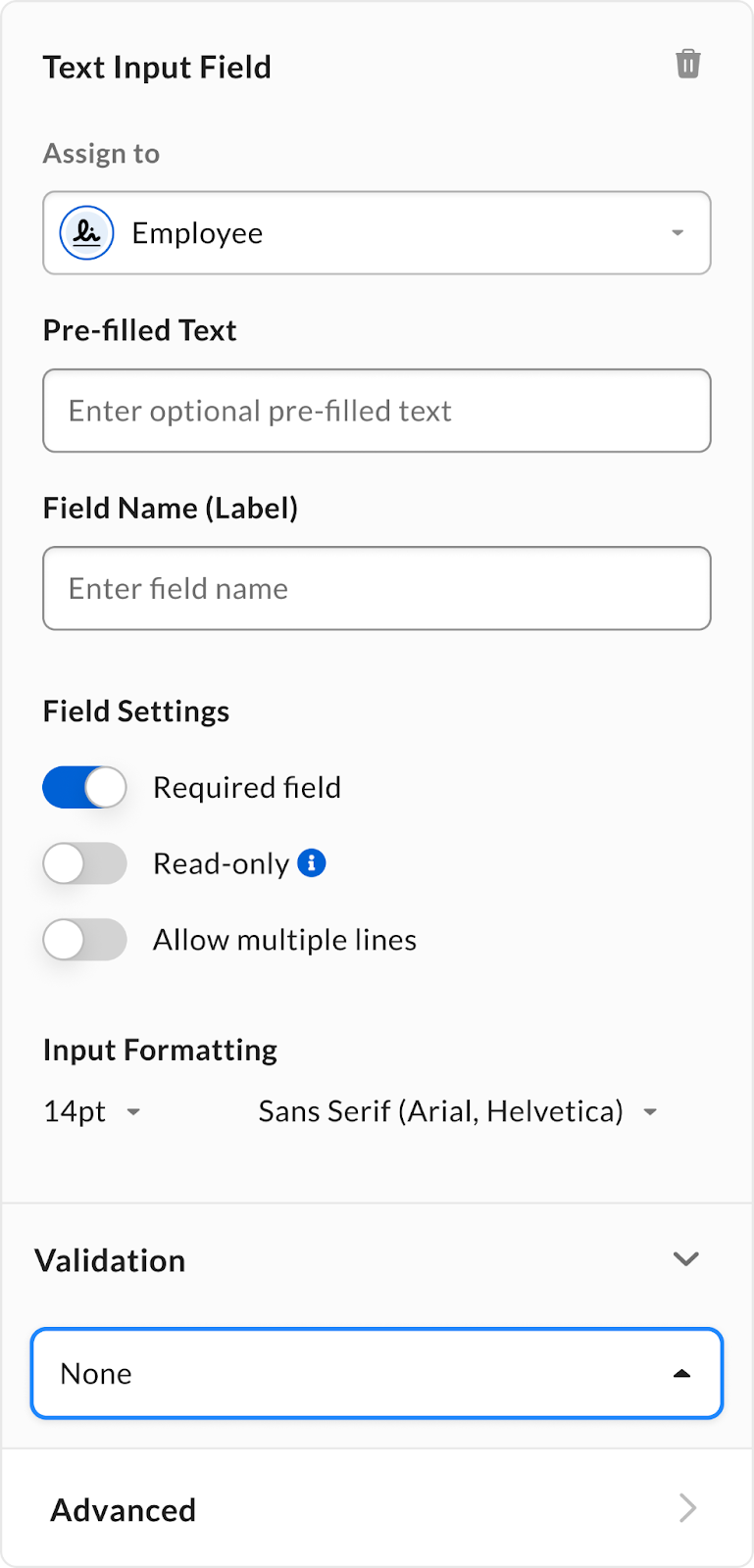
- Select the Text Input field to configure field settings.
- Click to expand the Validation section.
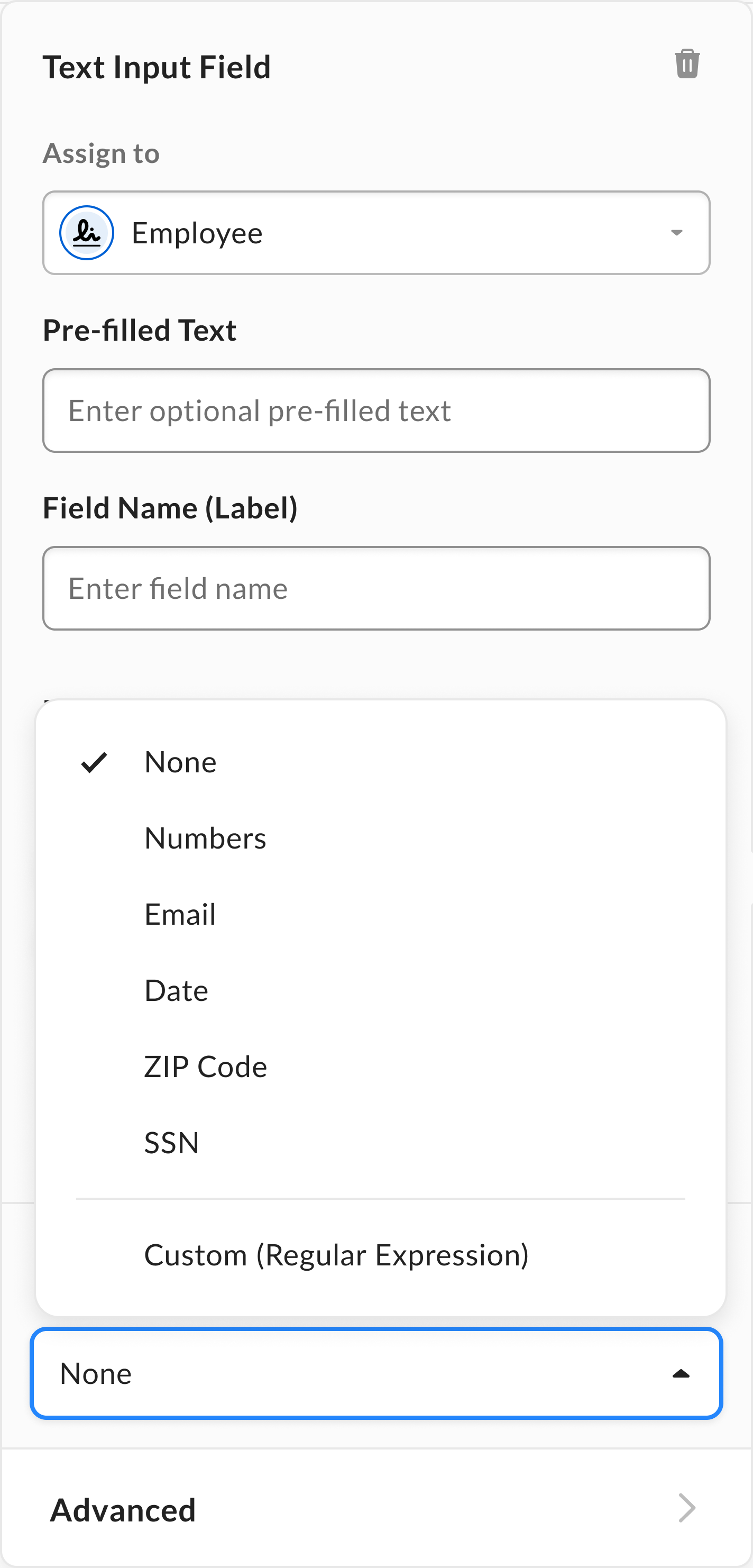
- Select your validation option:
- Predefined validation types: Choose from standard formats like numbers, email, dates, ZIP codes, or SSN.
- Custom (Regular Expression): Create your own validation pattern for organization-specific requirements. See Custom (Regular Expression) validation for setup instructions and examples.
Notes:
- Fields configured with text input validation cannot be configured as read-only fields and do not support multiple line data entry.
- Predefined validations are supported via template tags, but the Custom (Regular Expression) option isn’t supported. For more information on template tags, see Creating Templates Using Tags. For more information on the Custom (Regular Expression) option, see Custom (Regular Expression validation) below.
- All text input validations are supported via public API. For more information, see the Box Sign API Reference.
Supported validation types
The following table lists the various supported validation for Text Input fields:| Validation option | Validation requirements | Valid input example |
|---|---|---|
| None (default option) |
| N/A |
| Number |
|
|
| ||
| Date |
|
|
| ZIP Code |
|
|
| SSN (Social Security Number) |
| 000-00-0000 |
| Custom (Regular Expresion) | Custom regex pattern defined by sender. See Custom (Regular Expression) section for details. | Varies based on pattern |
Custom (Regular Expression) validation
Beyond the standard validation options, Box Sign offers a Custom (Regular Expression) option to customize validation for fields that need to meet requirements specific to your organization or region. Custom validation uses regular expressions (regex), which are sequences of characters that describe a specific pattern of allowed input for a field.Note: Custom regex validation is supported through the public API. For more information, see the Box Sign API Reference.
Setting up custom validation
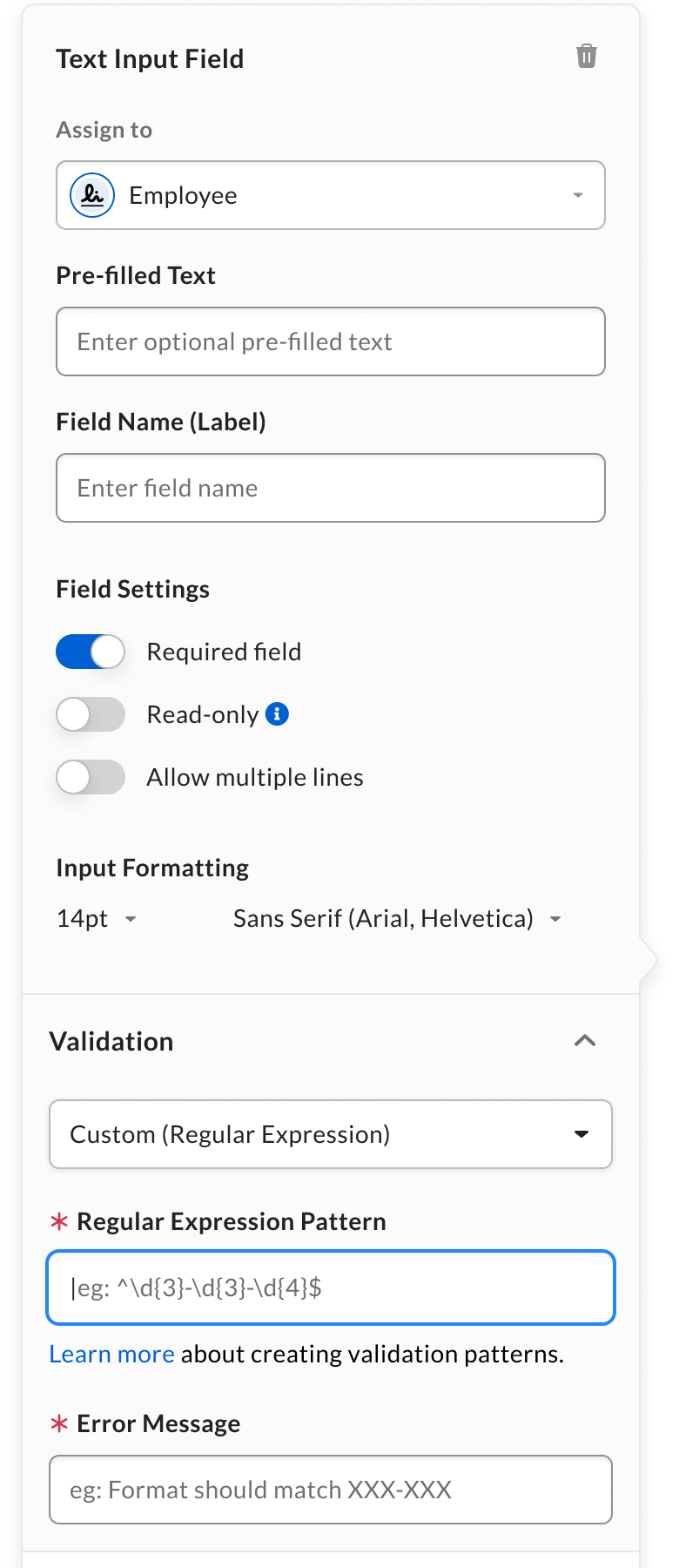
To configure custom validation:- Select Custom (Regular Expression) from the validation dropdown menu.
- Enter your regex pattern in the Regular Expression Pattern field. Provide an Error Message to display when the signer’s input is invalid.
- (Recommended) Fill in the Field Name (Label) field to inform signers what data to populate in the field.
Regex pattern requirements
To ensure your custom regex pattern works correctly, follow these guidelines: Supported characters:- Unicode letters (
\p{L}) - Unicode numbers (
\p{N}) - Whitespace (
\s) - Common punctuation:
- ( ) . , ' \ / @ _ : % ! ? ^ - Common international currency symbols:
$ € £ ¥ ₹ ₩ ₽ ₺ ₫ ₴ ₱
- Matching back references (
\\[1-9]) - Nested quantifiers (
++, **) - Lookbehinds (
(?<=, (?<!) - Recursive and conditional checks (
(?R), (?&))
Example regex patterns
Below are useful examples of valid and supported regex patterns:Phone numbers
| Use case | Regex pattern | Description |
|---|---|---|
| US phone number | ^(\+1[-.\s]?)?(\(?\d{3}\)?)[-.\s]?\d{3}[-.\s]?\d{4}$ | Acceptable examples:
|
| Japan phone number | ^(\+81[-.\s]?)?(0?\d{1,4})[-.\s]?\d{1,4}[-.\s]?\d{4}$ | Acceptable examples:
|
| International format (flexible) | ^\+?[0-9][0-9\s.\-]{6,14}$ |
|
| International Format (E.164-aligned) | ^\+?\d{7,15}$ |
|
Alphanumeric identifiers
| Use case | Regex pattern | Description |
|---|---|---|
| Alphanumeric Only | ^[A-Za-z0-9]+$ | Letters and digits only, any length |
| Alphanumeric with underscores | ^[A-Za-z0-9_]+$ | Letters, digits, and underscores |
| Alphanumeric with hyphens | ^[A-Za-z0-9-]+$ | Letters, digits, and hyphens (common for contract IDs, tracking numbers) |
| Alphanumeric with underscores and hyphens | ^[A-Za-z0-9_-]+$ | Letters, digits, underscores, and hyphens |
| Prefix + digits (e.g. ABC-12345) | ^[A-Za-z]{2,5}-\d{3,10}$ | Common for invoice or document numbers |
Other common patterns
| Use case | Regex pattern | Description |
|---|---|---|
| Street Address | ^[0-9A-Za-z\s.,'-]+$ | Allows numbers, letters, hyphens, and punctuation |
| Uppercase Letters Only | ^[A-Z]+$ | Accepts only uppercase letters |
| Lowercase Letters Only | ^[a-z]+$ | Accepts only lowercase letters |
Known limitations
- Text input validation is not available for CFR Part 11 signature requests or templates.