Note: Support for 21 CFR Part 11 e-signatures are not compliant with the following signing workflows and options:
- Box Sign APIs
- Ready-Sign Links
- Sign Myself
- Box Sign Salesforce integration signature requests
Admin Enablement
As admin, you can configure 21 CFR Part 11 workflow settings for your organization by going to your Admin Console and then Enterprise Settings -> Box Sign. In the Box Sign tab, select Edit Configuration under the first Sign enablement setting.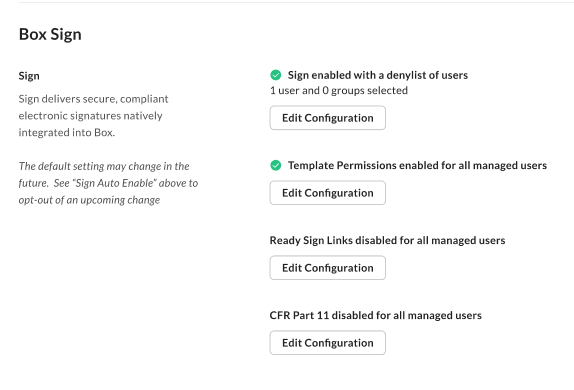
- Disable for all managed users
- Users cannot send any signature requests
- Enable for all managed users
- Users can send both CFR Part 11 requests and standard signature requests
- Enable for select users and groups
- Select users and groups can send both CFR Part 11 requests and standard signature requests
- Enable for everyone except select users and groups
- Select specific users and groups cannot send any signature requests
- Disable for all managed users
- Users are not restricted to only sending CFR Part 11 requests and have the option of sending both standard and CFR Part 11 signature requests unless otherwise configured within reusable templates by the template creator
- Enable for all managed users
- All managed users are restricted to only sending CFR Part 11 requests
- Enable for select users and groups
- Select specific users and groups are restricted to only sending CFR Part 11 requests
- Enable for everyone except select users and groups
- Select specific users and groups are not restricted to only sending CFR Part 11 requests
Signing Reasons
Admins can customize signing reasons, but should ensure the customized reasons they include meet the 21 CFR Part 11 requirements. To Customize Reasons: Within the Admin Console, select Enterprise Settings. In the Box Sign tab, within the CFR Part 11 settings, determine if you want signers to either:- Select from a list of default or pre-defined signing reasons; or
- Select from a list of customized signing reasons as set out by the Admins
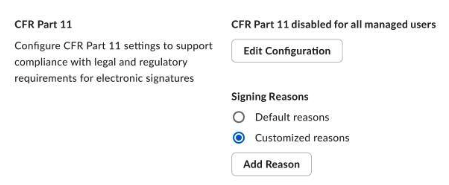
- Admins are required to add a minimum of 2 reasons
- Admins can add up to 25 reasons
- Each entry can only be 60 characters long
- The default signing reasons cannot be changed
Sending Process
To begin the sending process:- Select Request Signature or initiate a signature request via a reusable template
- In the recipient panel, under CFR Part 11 Settings, select CFR Part 11 Request or Standard Request. If the signature request was initiated using a template, these settings will not be available, as they are preset by the template creator at the time the template was created.
- Follow the sending process from Sending a document for signature to continue.

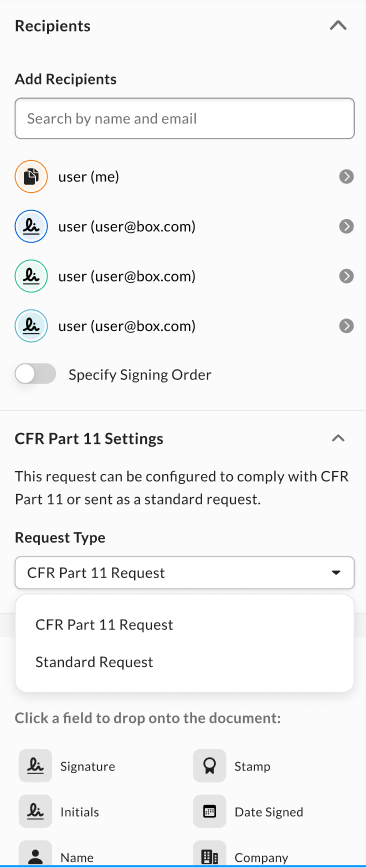
- For a single signer or a recipient group that was assigned the “signer” role, senders can add a required signature field or an initials field or both. Stamps, and any other fields are not included in the Part 11 e-signature process.
- Senders can add no fields at all to a single signer or recipient group. In that case, those recipients will need to drag and drop the fields they need to complete and will then be required to add at least one signature field or one initials field before the signer can complete the signature request.
Note: The option selected in the CFR Part 11 settings will be remembered for the user’s next signature request. For example, if the user selects “CFR Part 11 request” in the first request, the same option will be pre-selected by default in the second request to provide consistency and guidance.
The sender can choose if they want to add an additional password of their choice to the signature request by toggling Require Password.
Templates
For templates, follow the process in Creating, using, and sharing templates under To create a template. Template creators can select between CFR Part 11 Request or Standard Request in the recipient panel during document preparation and lock the request type to ensure anyone who leverages the template must utilize the configured request type.21 CFR Part 11 Signing Process
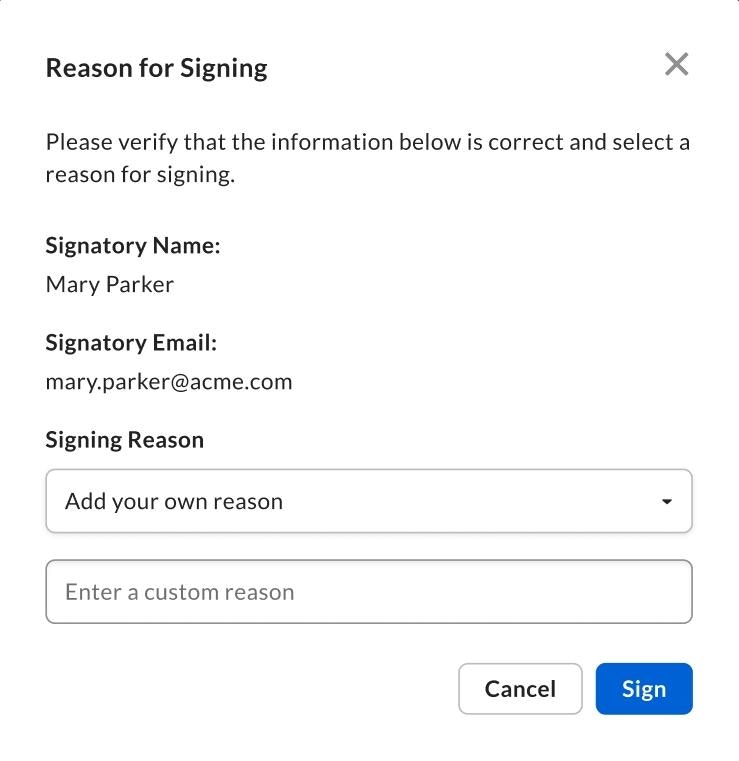
Once a recipient initiates a signature request, they will be required to log in to their Box account to authenticate their identity to continue with the CFR Part 11 e-signature request. If the signer does not have a Box account, Box will prompt the recipient to create a free account in order to authenticate to the Box service. After logging in, you follow the same process as in Signing a document, with two additional steps:- If the request includes a signature or initials field assigned to a recipient, that recipient must select the reason for applying their signature or initials to the request.
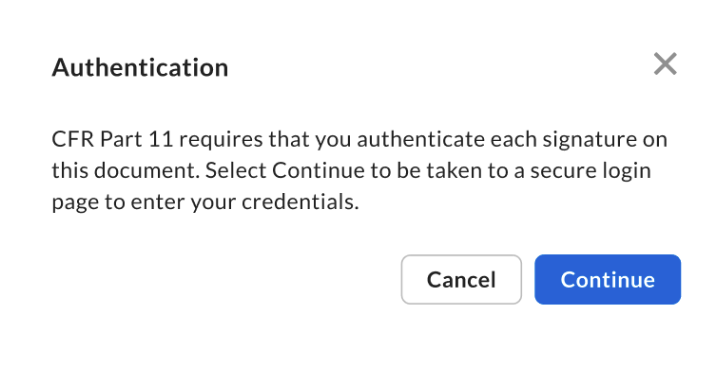
- Once the signing reason has been applied to the signature or initials field(s), recipients must re-authenticate your log-in after each Part 11 e-signature
Note:
- The 21 CFR Part 11 signing process only applies to the application of signature and initials fields. It does not apply to the application of stamps or any other fields.
- The customer is responsible to ensure the identity of each recipient is verified to the organization’s satisfaction prior to providing such recipient with account login access credentials for Box. The customer must authenticate each user’s identity prior to sending a Part 11 e-signature request.
Reason for Signing
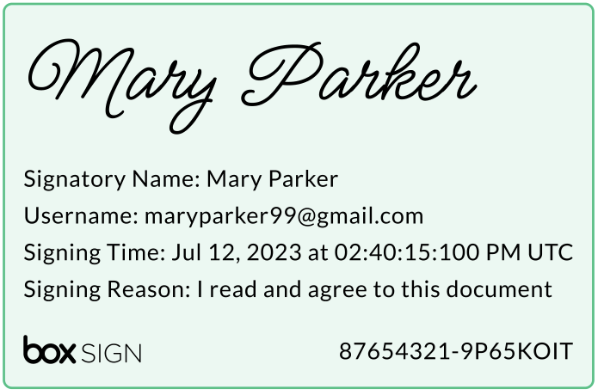
After the recipient selects their signature or initials, the recipient can select the following reasons in order to proceed:- Default signing reasons, which include:
- I read and approve this document
- I read and agree to this document
- I read and authored this document
- A custom signing reason configured by the Admin or Co-Admin
- Important: this option is only available if the Admin or Co-Admin have enabled custom reasons for recipients
Re-authenticating each Part 11 e-signature
Note: The Part 11 e-signature workflow will log you out of any open Box account browser-based sessions and reinitiate your account session by logging you back in at the time of signing. Be sure to save your existing work before initiating a Part 11 e-signature workflow.
Automatic resizing of the CFR Part 11 e-signature and initials fields
Signature and initials fields within CFR Part 11 signature requests will have preconfigured sizing dimensions and may be automatically resized to ensure that the final CFR Part 11 signature and initials frame, including details within the frame, are legible. These predefined dimensions do not apply to signature or initials fields included within batch send signature requests.Note: For legibility purposes, Box Sign may automatically resize signature and initials fields within CFR Part 11 signature requests initiated from reusable templates, regardless of how the fields are configured within the template. We recommend reviewing the signature request in the document preparation process to confirm the field properties are properly sized and meet the sender’s requirements prior to sending the request.
Signing Log
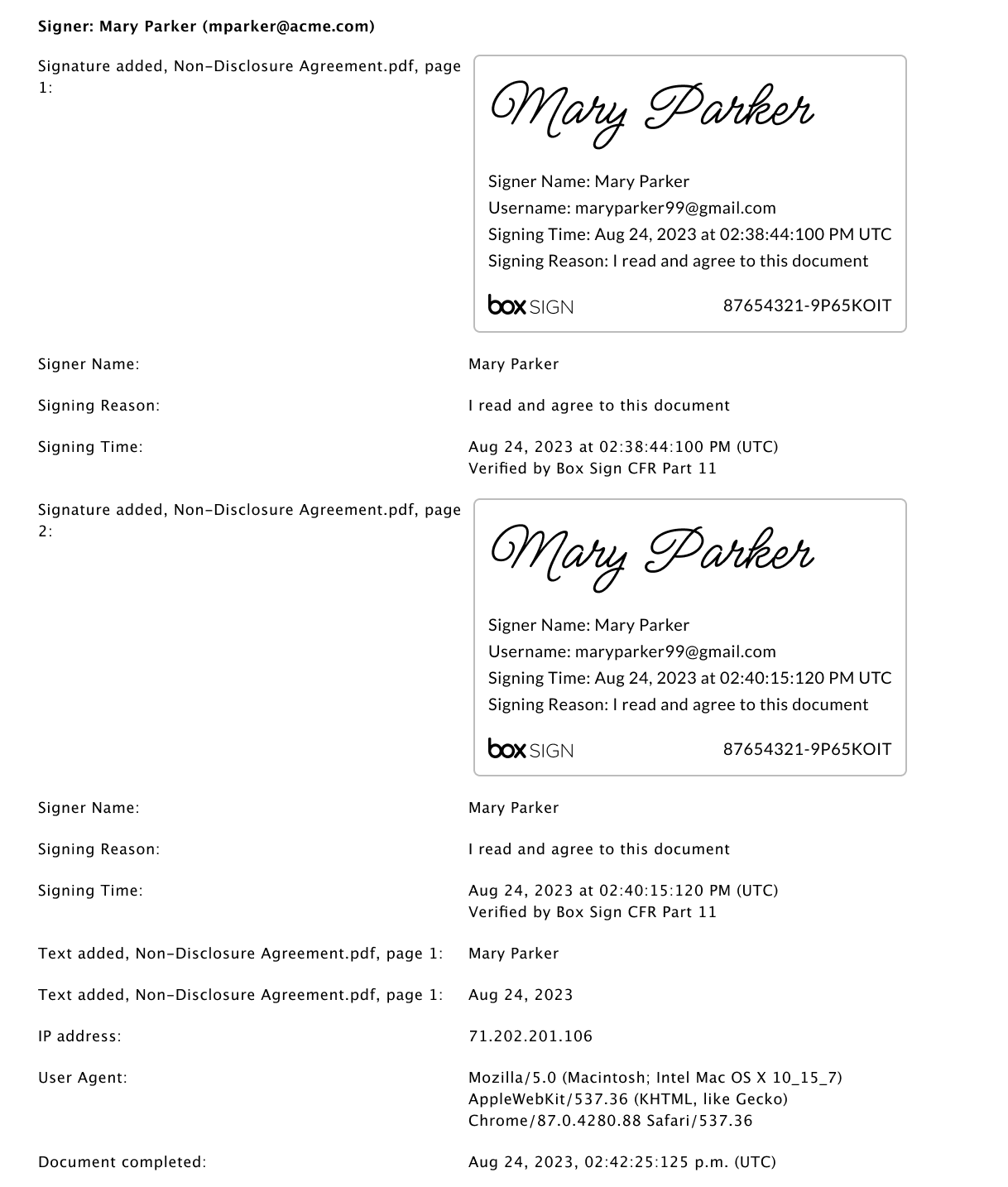
Once the Part 11 e-signature request is complete, the Signing Log is available for review and reference. The signing log displays each Part 11 e-signature or initials or both, authentication details, and the signing reason as pictured below. You can learn how to access the Signing Log associated with your document here.