Box Tools vs Box Edit
Box Tools is the installer package that installs both Box Edit and Device Trust functionality. The Device Trust component is only used if Device Trust is enabled for your Box account.Deploying Box Tools on Windows
This information applies to physical Windows environments. For more information on using Box desktop applications in virtual environments, see Using Box in Virtual Environments.User installer vs. Admin installer
We offer two variations of Box Tools:- user installer (.exe)
- admin installer (.msi)
User installer
The standard Box Tools .exe installer available from https://www.box.com/resources/downloads installs Box Tools under the user’s profile. You should use this installer only for single-user machines. (If there are multiple users on the machine, then use the admin installer (.msi installer) because it supports installation of multiple users on a single machine). The user installer (.exe installer) does not require administrative rights and is designed to be easily installed by end users. The user installer installs into the following locations on the computer:- C:\Users\USERNAME\AppData\Local\Box\Box Edit
- C:\Users\USERNAME\AppData\Local\Box\Box Local Com Server
Admin installer
The admin installer (.msi) installs Box Tools as a machine-wide program and supports multi-user machines. Use the .msi installer, and anyone on the machine can use Box Tools functionality (Box Edit and Device Trust). The machine-wide installer requires administrator rights to install Box Tools. After you install with the .msi installer, people must log out of Windows and then log back in again before Box Tools is enabled for them. The .msi installation location:- C:\Program Files (x86)\Box\Box Edit → C:\Program Files\Box\Box Edit
- C:\Program Files (x86)\Box\Box Local Com Server → C:\Program Files\Box\Box Local Com Server
System Image Deployments
If you are using a system image to deploy Box Tools, verify that the Box Edit Documents folder on your source machine (C:\Users\USERNAME\AppData\Local\Box\Box Edit\Documents) is empty before capturing the image.Deploying Box Tools on macOS
User installer vs. Admin installer
We offer two variations of Box Tools on macOS- user installer (.dmg)
- admin installer (.pkg)
User installer
The standard Box Tools .dmg installer is available from https://www.box.com/resources/downloads. Prior to installing anything, the installer performs any necessary uninstalling, including getting rid of any outdated plugins and .app files that might cause problems with Box Tools. The installer then creates the folder ”~/Library/Application Support/Box/Box Edit/” and adds the .app files “Box Edit.app” and “Box Local Com Server.app” to that directory. Next, the installer launches both .app files, verifying they are both running before exiting the installation. The .app files register themselves to start up at login time for the person for whom they’re running for.Note
If the .app files are not started for a user, the Web app won’t be able to verify that Box Tools is installed, and the user will be prompted to install Box Tools when they try to edit a file.
If the .app files are not started for a user, the Web app won’t be able to verify that Box Tools is installed, and the user will be prompted to install Box Tools when they try to edit a file.
Admin installer
Unlike the Windows admin installer (.msi), the Mac admin installer (.pkg) only runs on single-user machines (multi-user machines are not a supported configuration on macOS for Box Tools at this time). The admin installer (.pkg) installs Box Tools into ~/Library/Application Support/Box/Box Edit/. It doesn’t require admin-rights to deploy, but is intended for use by admins to silently mass-deploy Box Tools to users. The following configurations are required by admins to ensure you can properly deploy the .pkg installers in your software management tool of choice:- Copy .pkg installer to a shared folder on the user’s computer (example: /Users/Shared/)
- Configure a policy to be triggered when the end user first logs in, which executes the following commands:
currentUser=/bin/ls -la /dev/console | /usr/bin/awk '{print$3}'
sudo -u ${currentUser} installer -pkg <shared_folder>****/BoxToolsInstaller.pkg -target CurrentUserHomeDirectory
Configuration Guidelines
Box Tools uses a loopback network interface connection between the browser (Box.com) and the desktop. This interface may require you to configure your network to support Box Tools.Box Tools v4:
Box Tools v4 requires browsers (Box.com) to communicate with the Box Local Com Server by making requests to 127.0.0.1:17223 (or 127.0.0.1:17224 if port 17223 is occupied) over HTTP. The ability to communicate to 127.0.0.1 over HTTP is acceptable by following the W3c standard. DNS: Because Box Tools v4 uses the 127.0.0.1 loopback address, you should not need any DNS configuration for Box Tools v4.Proxy: If the proxy configuration is specified by a PAC file or a wpad.dat file (i.e., a PAC file published via DNS WPAD discovery), requests to http://127.0.0.1:17223 and http://127.0.0.1:17224 should be allowed to connect DIRECT.
An example PAC file code snippet: // If the protocol or URL matches, send direct. if (shExpMatch(url, “http://127.0.0.1:17223”) || shExpMatch(url, “http://127.0.0.1:17224”))
return “DIRECT”;
Note
DIRECT is intentionally all upper case. Do not change to lower case.
DIRECT is intentionally all upper case. Do not change to lower case.
On Windows:
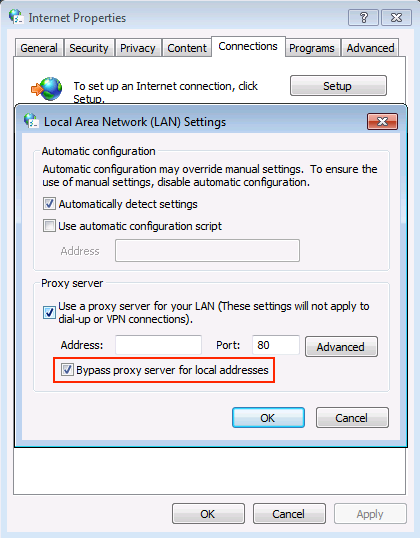
- Navigate to Control Panel > Internet Options > Connections > LAN Settings (or Settings for a selected Connection)
- Check the Bypass proxy server for local addresses box
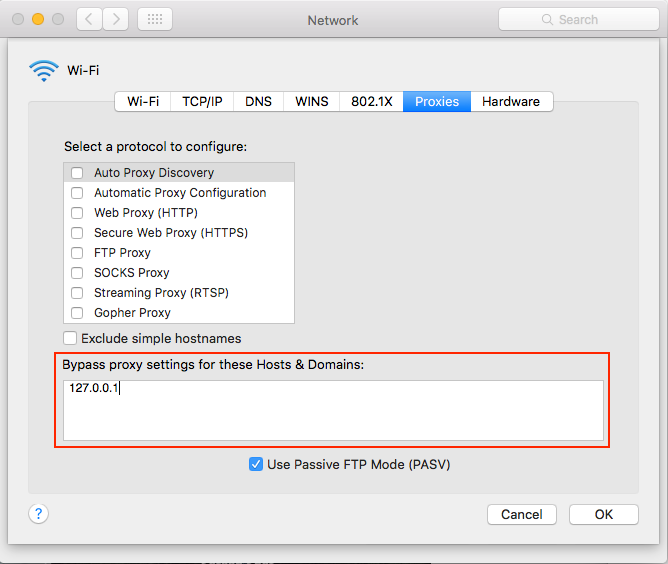
- Navigate to System Preferences > Network > select your connection > Advanced… > Proxies.
- Add 127.0.0.1 to the box under Bypass proxy settings for these Hosts & Domains.