

Note: Box AI for Hubs is available only for Enterprise Plus and Enterprise Advanced accounts.
Using Box AI
To get started, go to the Hubs tab on the Files page and open a Hub in the Box web app. From the Hub, click on the Box AI button from the Preview toolbar.
In the Box AI window, type your question or request into the textbox and press enter or click the “Ask” button:
from the Preview toolbar.
In the Box AI window, type your question or request into the textbox and press enter or click the “Ask” button:
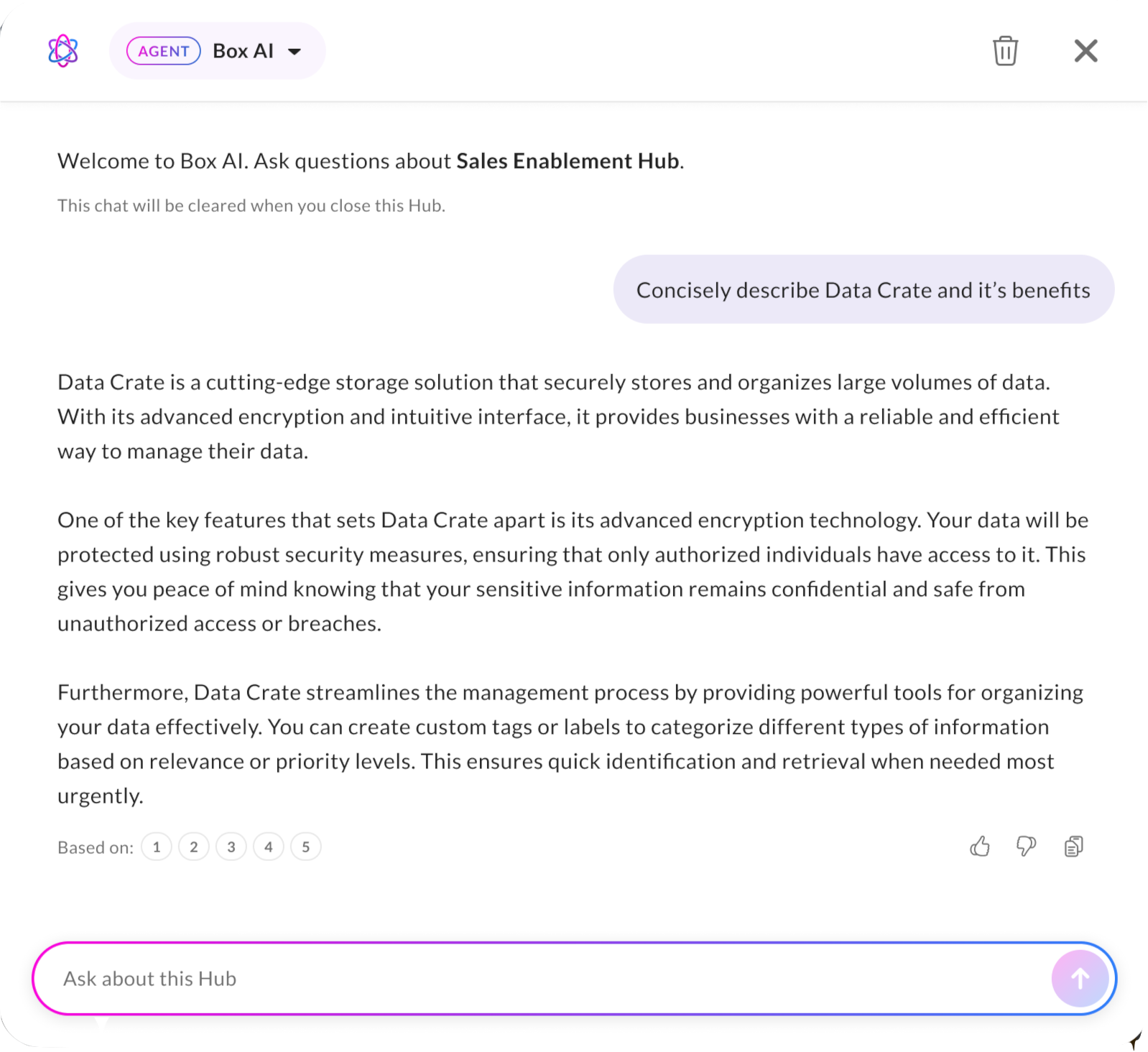
Working with Responses
After submitting the question or request, Box AI generates responses in real time. If you want to stop the response, select Stop Response. Following a response, you can ask follow-up questions to gain better insights. These questions help build context and narrow down results. To save a response, select Copy ( ). It is sent to your clipboard, and you can then paste it elsewhere.
To give feedback on a response, see Giving Feedback on AI Responses.
To clear the chat history, select Clear conversation (
). It is sent to your clipboard, and you can then paste it elsewhere.
To give feedback on a response, see Giving Feedback on AI Responses.
To clear the chat history, select Clear conversation ( ), which gives you the option to start a new topic, or exit out of the document. Your chat history is refreshed when you reopen the document.
To review citations, showing which parts of the source document were referenced when generating the response, hover over the number(s) in the bottom left corner of the response. A small window shows the source text from the document.
), which gives you the option to start a new topic, or exit out of the document. Your chat history is refreshed when you reopen the document.
To review citations, showing which parts of the source document were referenced when generating the response, hover over the number(s) in the bottom left corner of the response. A small window shows the source text from the document.
Agents Selection
Notes: Box AI Studio is available only for Enterprise Advanced accounts.
- Click on the Agent
 button next to the Box AI icon.
 - From the list, select from available agents.
- Ask Box AI your questions to test responses.
Guidelines for Box AI questions
Box AI pulls information from the files in the Hub you are viewing. If you ask any questions about information not contained in the Hub, Box AI informs you that it cannot answer the question based on the information in the Hub. As you ask Box AI to analyze information in your Hub, consider these suggestions:- Be as specific as possible.
- Use parameters, such as:
- numbered lists,
- length,
- central themes,
- key points, and
- tables
- Stay within the scope of the documents in the Box Hub.
- Focus on text-based responses only.
Box AI Unit Usage
For pricing information and AI unit usage rules, contact your Box account executive or visit our pricing page.Troubleshooting
If you are unable to use Box AI, check the following with your admin:- Is Box AI enabled for your organization?
- Is Box AI for Hubs enabled in your organization? (Enterprise Plus and Enterprise Advanced)
- Do you have the correct permissions to view the files and folders?
Known Limitations
Supported file types:- Box AI for Hubs supports the following file types:
- Text files (up to 4 MB of text representation per file)
- Spreadsheet files
- Box AI for Hubs doesn’t support spreadsheets that are embedded within text files.
- Questions on, or including these topics or commands, return mixed and sometimes inaccurate information, such as:
- Calculations, table structures, and numbers
- Counting words or phrases
- Document metadata such as page number, authors, file size, word count, and collaborators
- Images, videos, charts, graphs, etc
- Following up on chat history from a previous question or answer is not supported
- This means Box AI cannot, in one document session, incorporate questions or answers from a prior document session, because the chat history is cleared every time you exit a document preview
- Non-English languages may produce lower quality results
- 20,000 file limit per Hub
- 10 million file limit across all Hubs in the organization.