

Using Box AI
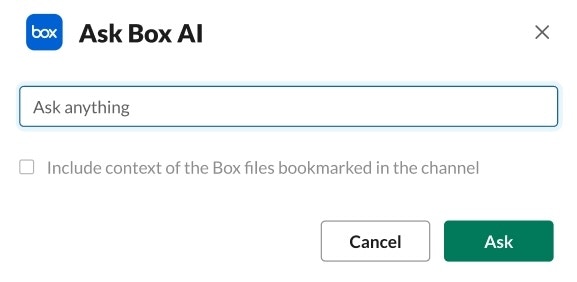
Get started asking Box AI questions with the following methods:- Sharing a file and clicking the ‘Ask Box AI’ button
- Using the ‘Ask Box AI’ message shortcut
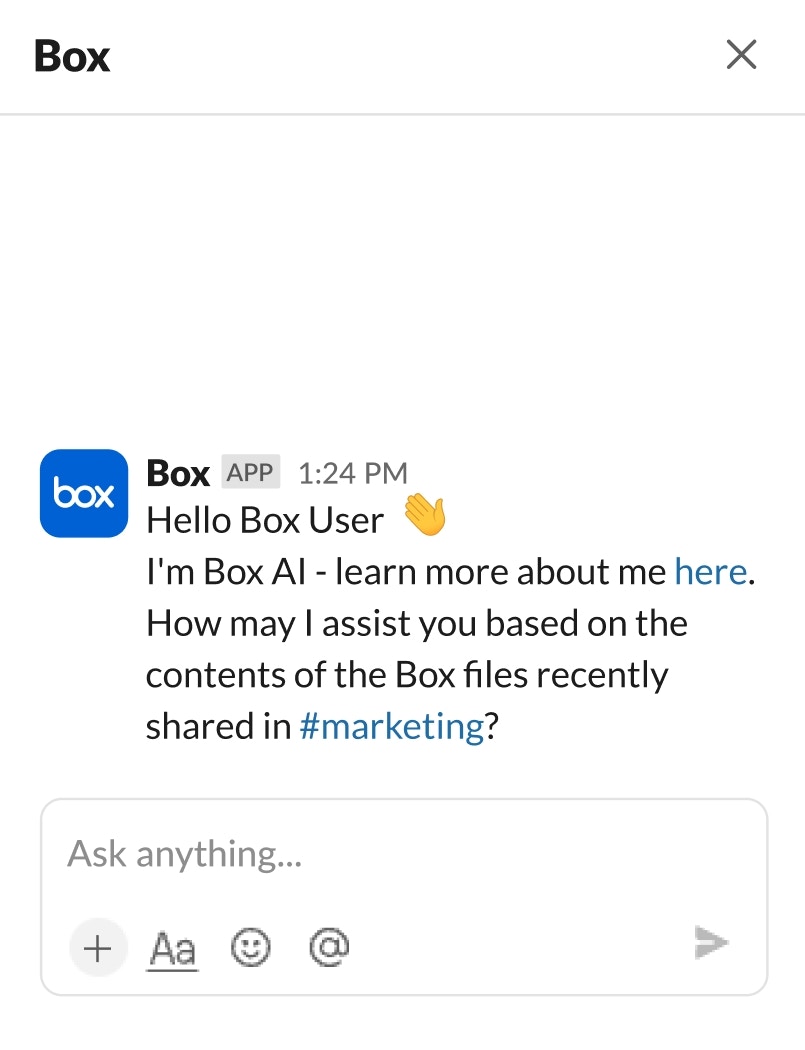
- Typing ‘@Box [your question]’ in a thread under a shared Box document or directly in any channel with bookmarked Box files
Note: You may need to authorize Box for Slack to access your Slack account when asking Box AI to include bookmarks as context.
Working with responses
After a response has been generated by Box AI, you can either post it to the Slack thread directly or refine your question to Box AI’s response. If needed, once Box AI’s response is posted, you can remove it by clicking Remove Box AI Response from the shortcut menu in the message. For reference, you can see what file(s) Box AI used when generating the response at the top next to Files.Guidelines for Box AI questions
Box AI pulls information from the files shared in the Slack channel you are viewing. If you ask any questions about information not contained in files shared in the channel, Box AI will inform you that it cannot answer the question. As you ask Box AI to analyze information of files shared in your channel, consider these suggestions:- Be as specific as possible.
- Use parameters, such as:
- numbered lists,
- length,
- central themes,
- key points
- Stay within the scope of the files in the Slack channel.
- Focus on text-based responses without calculations only.
Content Referenced within Content
Depending on how you asked Box AI in Slack a question, the following content is referenced:- “Ask Box AI” from a shared file in the thread
- Content referenced
- Initial Box file(s) shared
- (Optionally) Channel bookmarks
- (Optionally) Other files shared in the thread
- Content referenced
- ‘Ask Box AI’ shortcut
- Content referenced
- Box files in the message
- (Optionally) Bookmarked Box files
- (Optionally) Box files shared in the thread
- Content referenced
- @Box in a thread under a shared Box document or directly in any channel with bookmarked Box files
- Content referenced:
- Box files linked in the question directly
- Box files shared in the thread
- If no files are shared, then bookmarked Box files
- Content referenced:
- Using Box AI in assistant view
- Content referenced:
- Box files linked in the question and chat directly
- Bookmarked Box files within the selected channel
- Recently shared files in the related channel/conversation
- Content referenced:
Troubleshooting
If you are unable to use Box AI, check the following with your admin:- Is Box AI enabled for your organization?
- Is Box AI for Slack enabled in your organization? (Enterprise Plus and Enterprise Advanced)
- Do you have the correct permissions to view the files and folders?
Known Limitations
- Questions on, or including these topics or commands, return mixed and sometimes inaccurate information, such as:
- Calculations, table structures, and numbers
- Counting words or phrases
- Document metadata such as page number, authors, file size, word count, and collaborators
- Images, videos, charts, graphs, etc
- Limited to 1,000 characters per question
- Text content size limit is 2MB, with larger files only processing the first 1MB of text
- Non-English languages may produce lower quality results
- Slack channels with restricted posting permissions will apply to Box AI for Slack.
- Box AI for Slack can currently access up to 50 Box files in its source reference.
- Using @Box mention is not available within direct conversations between two users or multiparty direct messages.
- Box AI is not available within Slack Connect channels.
- Box AI responses are limited to approximately 2,500 characters
- Box AI currently does not support a Box folder as the question’s context.