

Adding drawings
To add a drawing to your Canvas:- Click the pen icon
 in the Canvas toolbar.
 - Choose the desired setting from the following options:
- Pen color,
- Pen size,
- Pen tool,
- Eraser tool,
- Cancel.

Note:
The default color of a pen drawing is black, and the default size of the pen is medium.
Adding shapes
To add a shape to your Canvas:- Click the shapes icon
 in the Canvas toolbar. A context menu with different shapes appears.
 - Choose a shape.
- Click anywhere on Canvas. Box places the shape where you clicked. If you didn’t select a specific shape, the default shape is placed on Canvas.
Note
When you select a shape, your cursor will change into the selected shape.
The default shape is a square with a black outline and white fill.
Editing shapes
Double click inside your shape to add text to it. To further edit a shape you placed, click on it.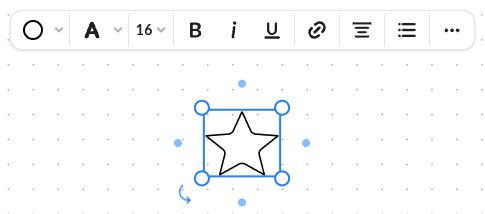
- color of the outline and fill for the shape,
- text options:
- color,
- highlight color,
- font size,
- format text,
- add hyperlink,
- change text alignment:
- vertical (align to top, middle, or bottom),
- horizontal (align to left, center, or right),
- create a bulleted or numbered list,
- more options:
- copy,
- send to front,
- send to back,
- delete.
Adding icons
To add an icon to your Canvas:- Click the shapes icon in your toolbar.
- Click View All to open a scrollable gallery of shapes and icons in a side panel.
- Select the icon you want to use. When you select an icon, it will appear next to your cursor.
- Click anywhere on Canvas. Box places the icon where you clicked.
Editing Icons
A context bar appears when you place the icon on Canvas. Here you can:- change the icon’s color,
- copy the icon,
- send the icon to front,
- send the icon to back,
- delete the icon.