

- Clicking the + icon next to Box Canvas from the left side menu or
- Clicking New + on the home page and selecting Canvas.
Note: If your company restricts content creation in the top level folder, then instead of having your first Canvas saved in the default folder “My Canvases”, you will be prompted to select a default folder to save your new Canvases that are created from the Box Canvas + left navigation menu or from the ellipses of an existing Canvas file.
Sharing
To share your Canvas, click the Share button in the top right corner of your screen. You can share Canvas as other Box files - by inviting collaborators or creating a shared link and choosing a specific level of access for each option.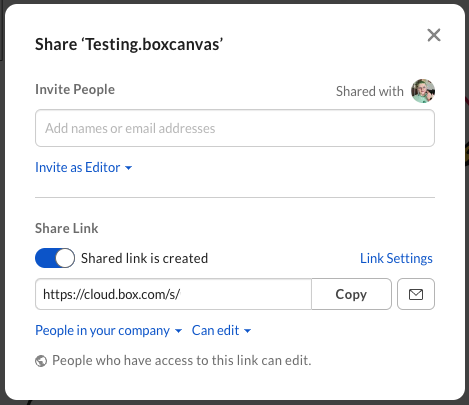
Exporting Canvas
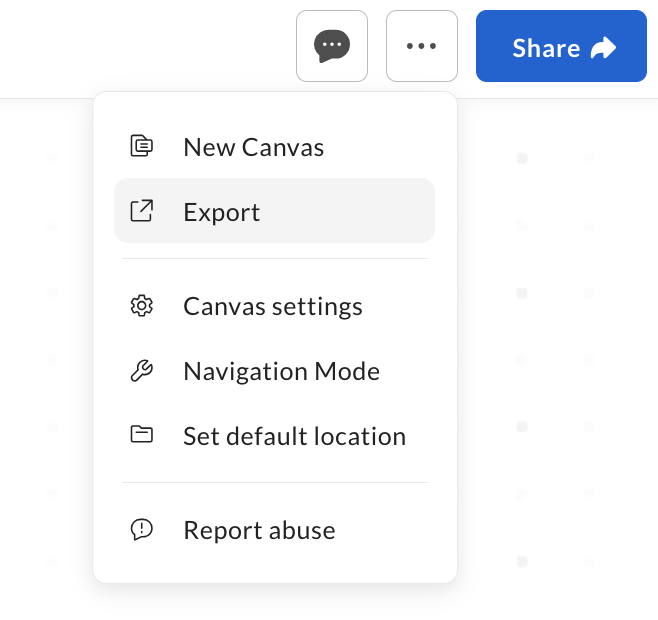
Export your Canvas to a .PNG file to share in an email or upload it to other applications. To export your Canvas:- Open the More Options menu.
-
Select Export from the dropdown list.
-
Select the area you want to export. By default, all contents of your Canvas are selected, but you can crop it to include only some parts or expand to include the whole Canvas.
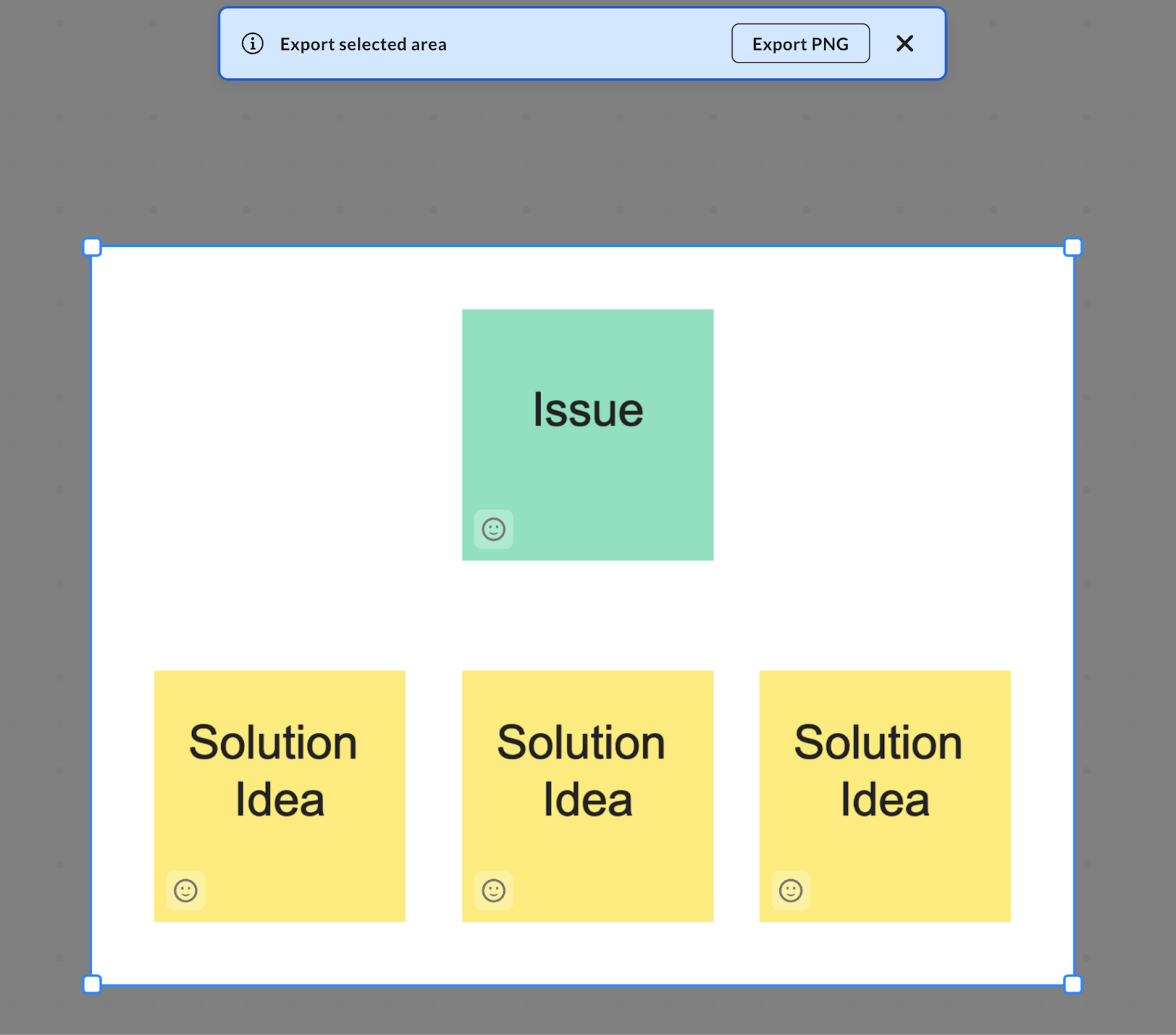
- Click Export PNG to save your selection.