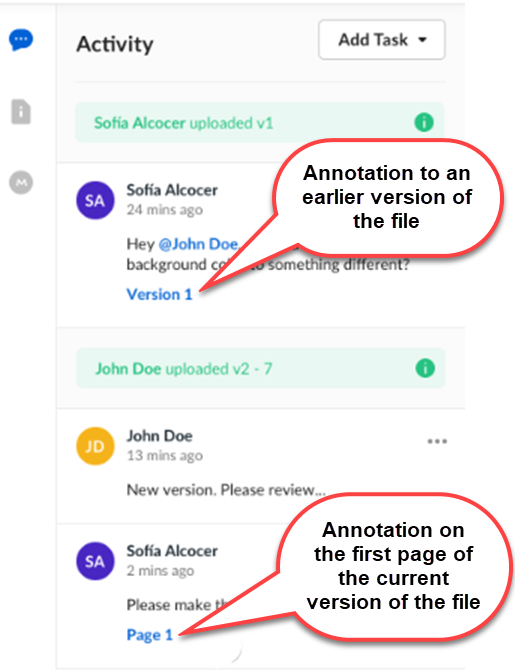
), including the name of the commenter, the time of the comment, and the page number of the annotated section.
The next time someone opens the document, they can view all existing comments in the File Activity pane. They can also add their own comments. And if they click the page number in a comment, Box immediately jumps to the page where you made your annotation.
Viewing annotations and comments on Android devices
Viewing annotations and comments on iOS devices
In addition to highlighting sections of images and text, you can also view and draw freehand annotations on iOS devices, as well as on the Box Web app.
Important
If you have Uploader, Previewer, or Previewer Uploader permission, you cannot use the Highlight and Comment feature.
If the Disable commenting on this folder setting is enabled for a folder, you cannot use the Annotations feature for the folder contents.
You can edit or delete your own annotations. You can also share the annotated document via a shared link, or directly notify people in your organization by using the @ command and their user name – for example, @johnsmith – within the comment. Box sends them an email with a link to the document. They also receive a notification in their Box Web Notification Center; clicking the notification opens the file preview to the annotated section, regardless of where in the document it may be.
When the recipient clicks the link, Box opens the file preview to the annotated area, regardless of where in the document it may be.
Annotations make it easy to locate information buried in large files. They also make it easy and fast to collaborate on content – especially visual content – as they make clear the detail you’re referring to. For example:
), including the name of the commenter, the time of the comment, and the page number of the annotated section.
The next time someone opens the document, they can view all existing comments in the File Activity pane. They can also add their own comments. And if they click the page number in a comment, Box immediately jumps to the page where you made your annotation.
Viewing annotations and comments on Android devices
Viewing annotations and comments on iOS devices
In addition to highlighting sections of images and text, you can also view and draw freehand annotations on iOS devices, as well as on the Box Web app.
Important
If you have Uploader, Previewer, or Previewer Uploader permission, you cannot use the Highlight and Comment feature.
If the Disable commenting on this folder setting is enabled for a folder, you cannot use the Annotations feature for the folder contents.
You can edit or delete your own annotations. You can also share the annotated document via a shared link, or directly notify people in your organization by using the @ command and their user name – for example, @johnsmith – within the comment. Box sends them an email with a link to the document. They also receive a notification in their Box Web Notification Center; clicking the notification opens the file preview to the annotated section, regardless of where in the document it may be.
When the recipient clicks the link, Box opens the file preview to the annotated area, regardless of where in the document it may be.
Annotations make it easy to locate information buried in large files. They also make it easy and fast to collaborate on content – especially visual content – as they make clear the detail you’re referring to. For example:
- Marketers can provide feedback on graphic designs or collateral developed by agencies and contractors.
- Executives can provide feedback on sales presentations to prospects.
- Insurance adjusters can annotate photos of damages to help in claims adjustments.
- Researchers can take notes in lengthy documents they can later use as references.
- Reviewers can call out specific text in documents ranging from a PowerPoint slide to a full-length manuscript for revision or clarification.
- Preview the file you wish to annotate.
- Hover over the file until a preview toolbar displays at the bottom of the screen.

-
Depending on whether you’re annotating text or an image, do the following:
- To highlight text, click the Highlight and Comment icon (
 ).
). - To border a portion of the screen, click the Comment on Region icon (
 ).
).
- To highlight text, click the Highlight and Comment icon (
- When the cursor changes to an annotation icon, click and drag the cursor over the section you wish to annotate. As you do so, the system draws a highlight (for text) or a box with a colored border (for images).
- When you’ve captured the section you want, release the mouse button. A window opens in which you can enter text.
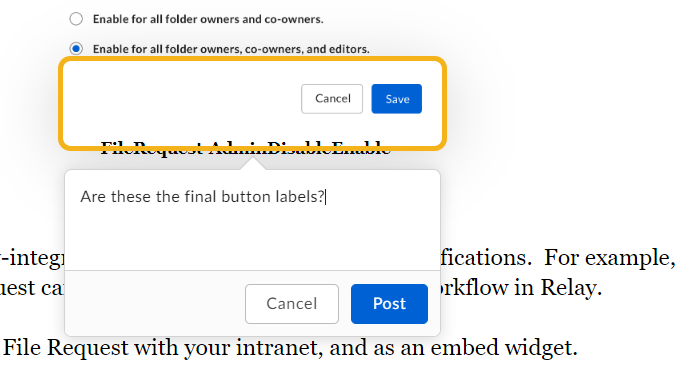
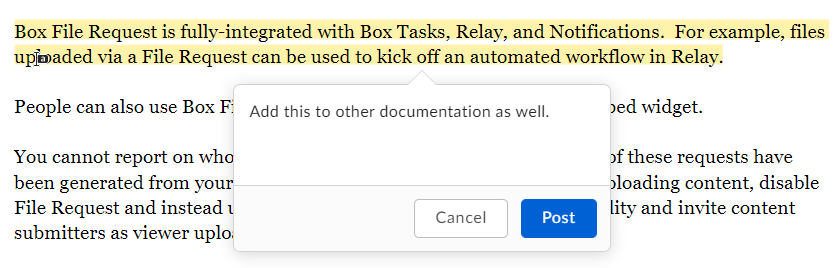
- When you’re done typing, click Post. Your annotation now displays in the File Activity pane on the right.
- Repeat steps 3 through 6 for each additional annotation you wish to make.
- In the box of the comment you want, click the ellipsis (…).
- From the menu that displays, click Modify. Your annotation becomes editable.
- Make your changes and then click Post.
- In the box of the comment you want, click the ellipsis (…).
- From the menu that displays, click Delete, and follow the prompt.