

Create a new Embed Widget
To create a widget, first check the embeddable element settings to verify that the element is set for sharing and that you have Viewer or higher collaboration permissions.- Next to a file, a folder, inside a Hub, inside a Box Note, or inside an App click the ellipsis (”…”), then:
- for a file or folder, go to More Actions > Embed Widget, or
- in Hubs, select Embed Widget, or
- in Box Notes, select Embed Box Note, or
- in Box Apps, select Embed.
- You will be presented with a window which includes HTML iframe code for your new widget. Here you can also configure the size, sorting, view of the widget, and other settings depending on the embeddable element: choose to hide the folder path, to expand the navigation and sidebar by default, to select an AI chat-only mode in case of a Hub, and to hide Hubs navigation.
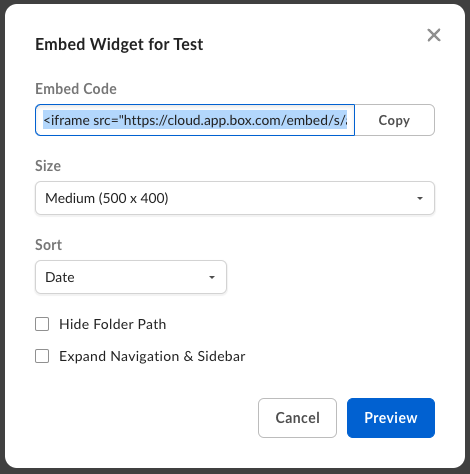
- Preview your embedded element by clicking Preview.
- When you have finished customizing, copy the HTML code in the Embed Code field and paste this code into any website or page that supports embed code, and your widget will be published.
Box logo settings
The Embed Widget displays the Box logo by default. This can be toggled off:- Navigate to the Admin Console, then Enterprise Settings.
- In the Custom Setup tab, scroll down to Embed Widget Customization.
- Toggle Display Box Logo to off, then click Save.
Customize a published Embed Widget
After publishing your widget, Box enables you to further customize it through shared link settings and the Box API.- To adjust the expiration date, password, and allowed downloads, see shared link settings.
- To customize the widget’s display, see Box Developer Documentation.
Notes:
- If an embeddable element is not set for sharing and a user clicks the Embed Widget, the default sharing setting will be applied. For files, this setting is People in your company | can view and download and for Hub, it is Anyone with the link | can view.
- The Box Embed Widget is not optimized for mobile browsers. You should not use it in Web experiences designed for mobile devices.
- The Embed Widget may not load on your website if third party cookies are blocked in the browser or if Allow cross-website tracking is not enabled on mobile browser.