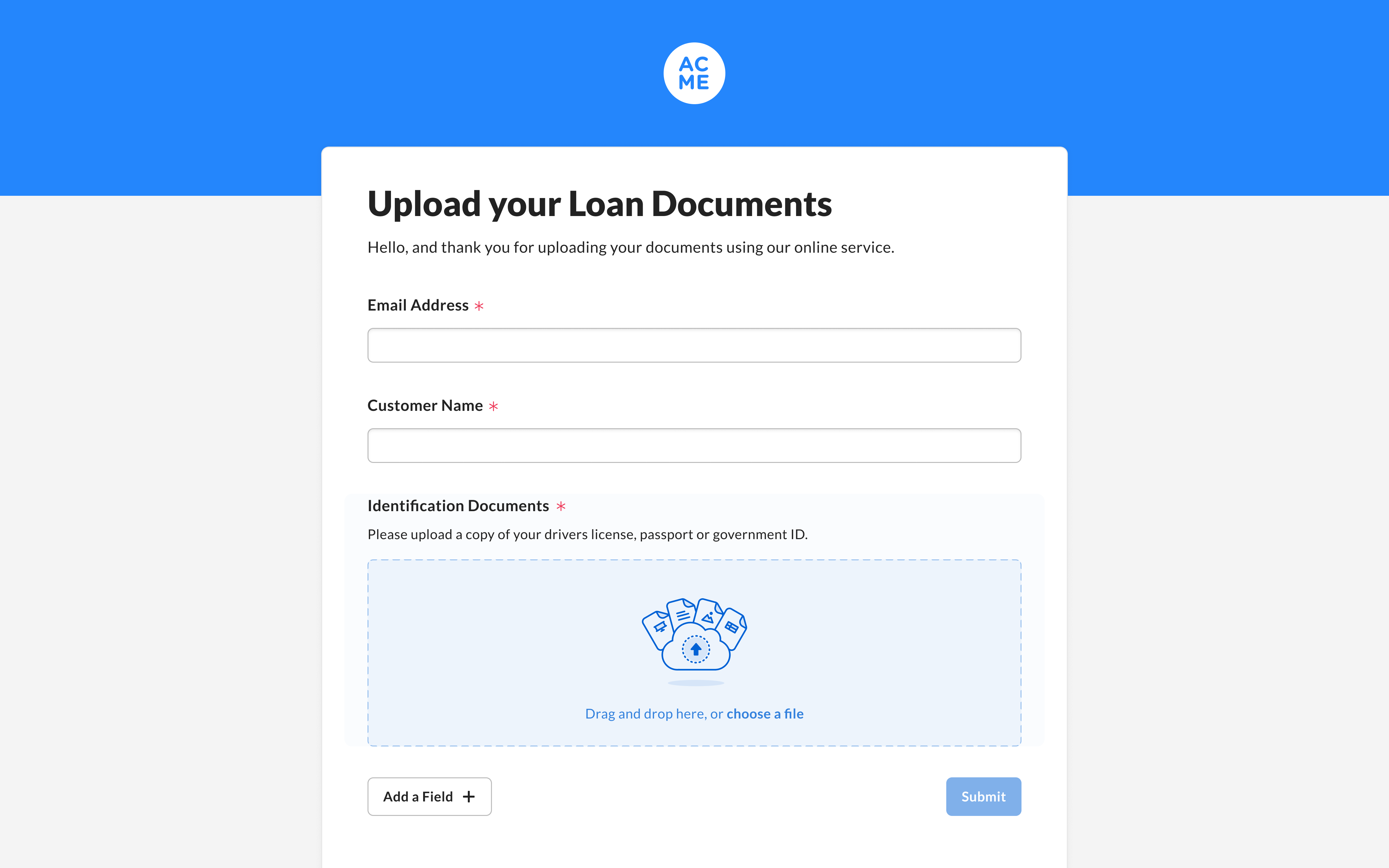
- Default logos and colors will be available to select for any File Requests but can be overridden by the user
- For more information on Account Branding, here is our help article: [/en/box-fundamentals/for-admins/getting-started/customize-your-accounts-branding)
Working with Custom Branding
Here’s how you would setup branding for your File Request:- Create a File Request on the folder as before (If you need a refresher use this article: Using File Request to get Content from Anyone )
- Click Edit to apply custom branding.
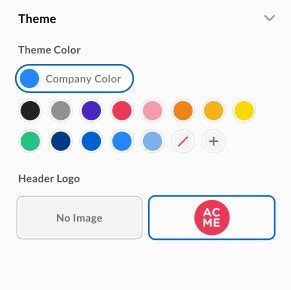
- Select Theme to open Header Logo and Theme Color section
- If your Box Admin has set a default logo and color for your enterprise, the logos will be visible. If not, the defaults will be ‘No Image’ and a no color icon
 .
.
- If your Box Admin has set a default logo and color for your enterprise, the logos will be visible. If not, the defaults will be ‘No Image’ and a no color icon
Adding a Header Logo
- Click + to start.
- Click Add an Image and select the logo you would like to upload.
- Click Upload.
- Uploading a new logo does not make it a default for all your File Requests. You can still select different logos for different file requests
- Images look best at 80 pixels height, png format, and transparent background.
- Image files must not exceed 1 mb.
- Next, let’s select a color. Theme Color is where you will set the background color for the file request.
- You can select any of the predefined colors or use the + icon to select a different color. You can use the HEX code to select a color.
-
- You can add any number of custom colors to the palette. However, upon saving the form, all custom colors are deleted except the one you selected.
- After selecting your logo and color, click Preview to review your updates.