

If you are working on a file with other collaborators, be sure to lock files before opening them with Box Edit. This will prevent other users from making changes to documents that you are working on until you unlock the file. Locking files is not currently supported on our mobile applications.
Note When you lock a file, you will see a lock icon, but you are still be able to edit the file. If another user locks a file, any collaborator with Co-owner, Editor, or Viewer Uploader access can unlock it.
- Right-click a file (or click the ellipses (…)) to open the More Options menu.
- Click Lock.
- Choose a duration for the lock. If you choose unlimited, the file will be locked until you unlock it manually. You can also choose to prevent users from downloading the file while you are editing it.
- A lock icon to the left of the file’s name will indicate that the file has been locked. If you use Box Sync, you will also see a lock icon over the file icon in your Box Sync folder.

- Right-click a file (or click the ellipses (…)) to open the More Options menu.
- Click Unlock.
- Click the three dots icon in the top right corner.
-
Click Request Unlock.
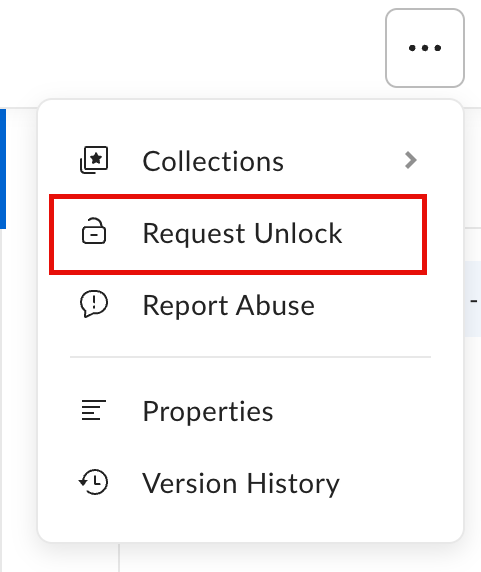
- Add a message if necessary and check Email me when this file is unlocked option to receive a notification.
Known issue
Currently, the notification is not sent even though the file is unlocked. Check the file manually to see the status.
Currently, the notification is not sent even though the file is unlocked. Check the file manually to see the status.
- To lock a file, right click on the name of the file in your Box Sync folder, navigate to Box Sync, and select Lock. A lock icon will appear over the file icon to indicate that the file has been locked.
- When you lock a file from your desktop, a lock icon indicating that the file is locked will also appear to the left of the file’s name in the web application.
- Once you have finished your work, simply right click on the name of the locked file, navigate to Box Sync, and select Unlock. If you forget to do so, any other collaborator who has editing capabilities is also able to unlock the file.
- Click Open with …
-
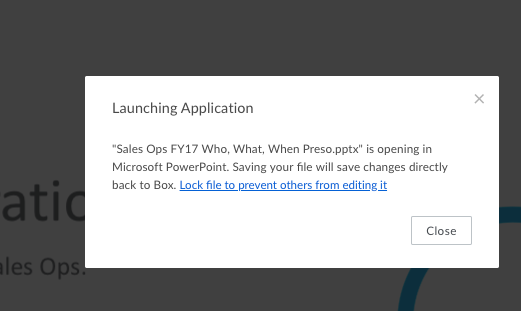
A prompt will pop up stating that Box is launching your file within the native application chosen.
-
Choose the blue text “Lock file to prevent others from editing it”.
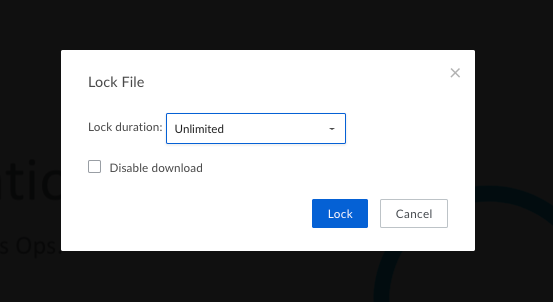
- Select the dropdown next to duration in order to choose how long to lock the content.
-
You can also choose Disable Download.
- In Office, if you open a document via Box for Office, the content will be opened and Locked automatically.
- Once you select which content you would like to open:
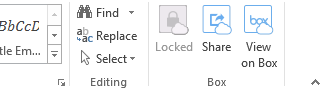
- On the Home tab you will see in the upper right hand corner an icon which lists “Locked” upon opening the content.
- Locate the file you would like to lock in your Box Drive folder structure.
- Right-click on the file.
- In the menu that appears, select Lock File.
- To unlock, right-click the file and select Unlock File.