

Logging in with Box Credentials
You can log in to your Box account from your web browser on app.box.com/login or on any Box app (on your mobile device or Box Drive on your desktop). To do this:- Type in the Email Address associated with your Box account. Click or tap Next.
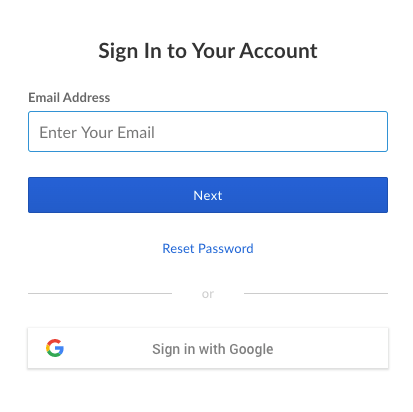
- Type in your Password.
- Click or tap Log In.
Forgot your password?
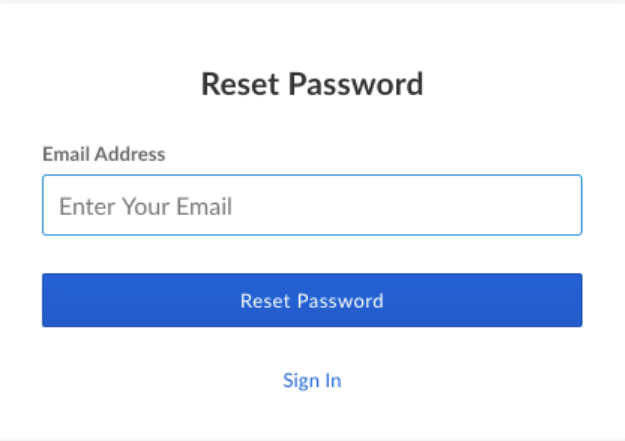
To reset your Box password:- Navigate to https://app.box.com/reset and enter the email address associated with your Box account.
- Click or tap Reset Password.
- Box sends you an email that contains a link to reset your password.
- Password reset links sent via email expire 3 hours after they are sent. If you need a new link after your current one has expired, visit https://app.box.com/reset to have another link emailed to you.
- If you do not receive an email from Box for this password reset, check to see if your Box account is associated with that specific email address or another email address.
- Also, check the spam folder in your email client, as it may have been sorted there by mistake.
Logging in with Google Credentials
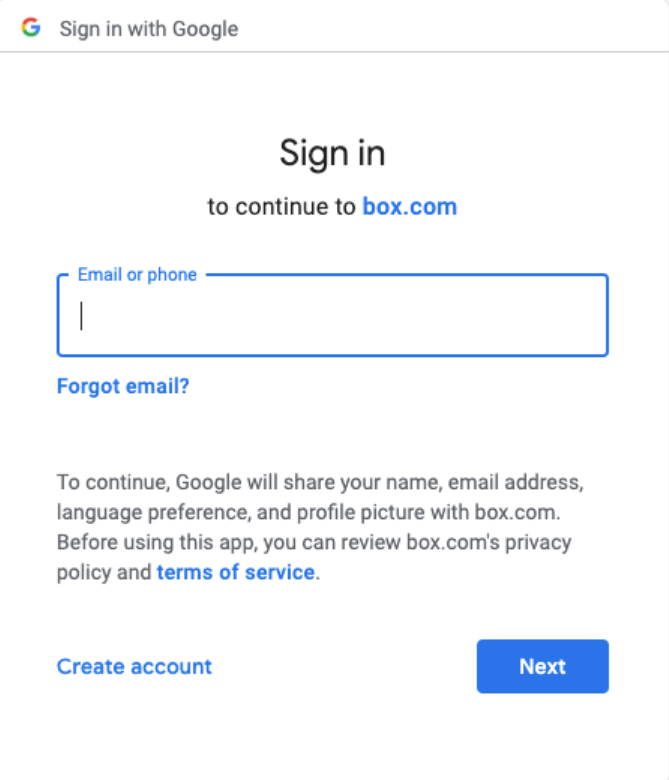
You can use your Google account information (username and password) to access Box via Google OpenID authorization. To use your Google account while logging in to Box- Navigate to the Box login page: http://app.box.com/login
- Click or tap Sign In with Google.
- Navigate to the Google account login page and log in to your Google Account as you normally would.
- Navigate to the Box login page: http://app.box.com/login
- Sign in with the email address you currently use with your Box account.
- If you do not know the password, click or tap Reset Password.
- After you sign in, change your primary Box email address to match your Google account address. Here are instructions for doing that.
Logging in with Single Sign On (SSO)
If you’re using Single Sign On (SSO) through your company or organization, you can log in to Box using the same password you use to log in to your organization’s network. To do this:- At the bottom of the login box, click or tap Sign In with SSO.
- Type in the Email address you use to log in to your organization’s network.
- Click or tap Sign In. The system redirects you to your company’s login page.
- Follow the steps from your SSO provider to log in to your organization’s network.
Two-step verification
Two-step verification (sometimes referred to as two-factor authentication) is an additional layer of security to protect your account. The first factor is your password. The second factor typically is a code sent to your mobile device via SMS or a voice call, or accessed from a security application. Enter this code after typing in your username and password. This further verifies your identity before the system grants you access to your data. You or your account administrator can enable two-step verification. After you’ve done this, then after every time you enter your username and password, the system prompts you to enter a passcode. More information on enabling two-step verification.NoteTwo-step verification requires a device with which you can receive a passcode by an authentication app or SMS. If you do not have your device available, you can also log in with one of the backup codes you saved when you enabled multi-factor authentication for your account.
- Go to the Box login page: app.box.com/login
-
Enter your email and password. The system redirects you two-step verification screen.
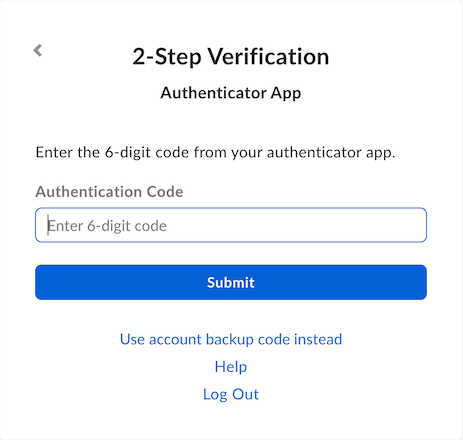
- Enter the passcode you received.
-
Click Submit.
- If you didn’t receive a code, click Resend Code.
NoteThe use of a backup code for login is available only if you are using 2-step verification. You must have access to your saved backup codes.
- Go to the Box login page: app.box.com/login
-
Enter your email and password. The system redirects you two-step verification screen.
- Click Use account backup code instead.
- Enter a backup code. (The backup code you enter cannot have been used previously; each backup code can be used exactly once.)
- Click Submit.
If you are having a problem logging into your Box account
There are several things you can do if you’re unable to log in to Box. Verify the following:- You signed up for a Box account and not another service.
- You are using the correct email address associated with your Box account to log in.
-
You are using the correct Box password. If you cannot remember your Box password, please go to https://app.box.com/reset to reset your password.
- Password reset links sent via email expire 3 hours after they are sent. If you need a new link after your current one has expired, visit https://app.box.com/reset to have another link emailed to you.
- If you do not receive an email from Box for this password reset, verify whether your Box account is associated with that specific email address or another email address.
- Check the spam folder in your email client for this email.