

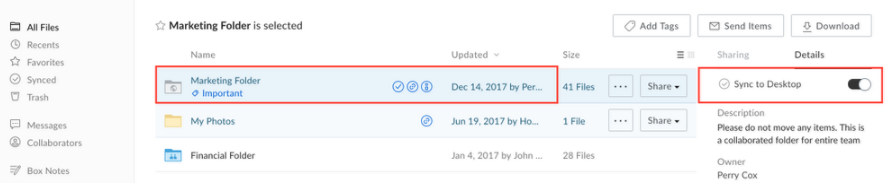
Note: You must have Editor Access or higher to use Box Sync in a folder.
- Select a folder by clicking beside its name, or click the folder name to open the folder. The right hand sidebar should display information about the folder you’ve selected or opened.
- Click Details in the sidebar.
- Click the Sync to Desktop slider to mark this folder for sync. By default, this will mark all contained folders for sync as well. You can unmark specific subfolders within a synced folder, if you only want certain content to be synced.
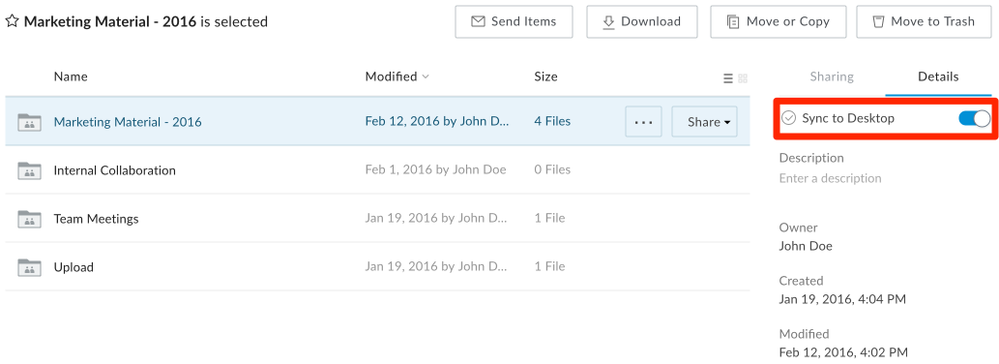
Note: If you have content that appears in Box but is not appearing locally, the parent folder may be partially synced.

Viewing All Synced Items
You can view a list of all items marked for sync on the Synced page. Click Synced in the left hand sidebar.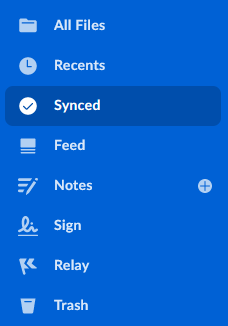
Syncing Subfolders
The subfolder sync feature in Box Sync 4.0 allows you to selectively sync or unsync any subfolder in Box.Using Subfolder Sync
- Identify a directory structure in the Box website where nothing is synced.
- In your Box website account, select the folder and mark it for sync. Verify the corresponding sync status in your Box Sync directory on your computer.
- Within the folder, you can decide to only sync the one subfolder and unsync the other subfolders. Simply select the subfolder you’d like to unsync and ensure that the Sync to Desktop slider is disabled.
- You cannot unsync individual files within a synced folder. If you sync a folder to your desktop, all individual files contained will be synced as well.
- If you mark a subfolder for sync, its parent folder will be marked for sync as well, meaning that the individual files in that parent folder will be synced to your desktop in addition to the marked subfolder. No unmarked subfolders contained by the parent folder will be synced.
- Any subfolder created in a parent folder that is partially synced will not be synced by default. New folders created in that same directory on Box to be unmarked for Sync by default.