

- When items are deleted from a collaboration folder, both the owner and the person who deleted the item can recover the items from the Trash.
- If you are removed as a collaborator from a file or folder that you’ve deleted, you no longer see that item in Trash. To see the item in Trash, you must be again added as a collaborator to that item.
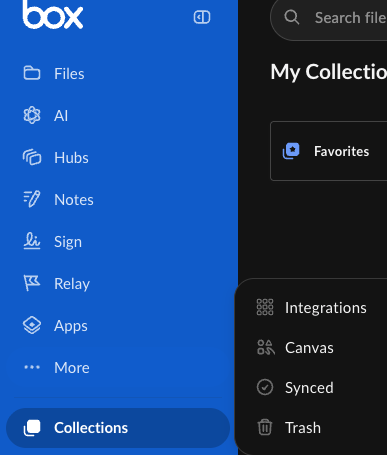
Sorting, Filtering, and Searching
You can search for specific files or folders in Trash. Search through your Trash folder the same way you would search any other Box folder. The trash search returns items in the trash that the user has Viewer Uploader access to. The results include “Items I own,” “Items I deleted” and also other trashed items that the user has edit access to. To search through your Trash folder:- Navigate to your Trash folder.
- Toward the top, click the Search Files and Folders
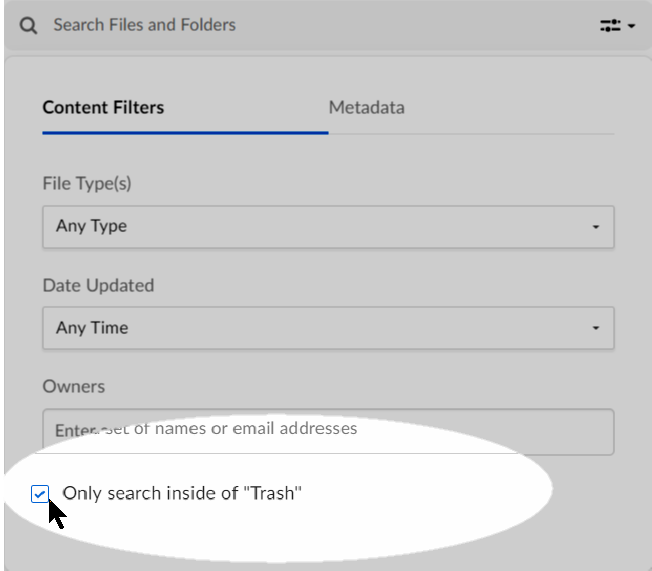
- In the box that displays, enter any search parameters.
- Check Only search inside of “Trash.”
- Press Enter.
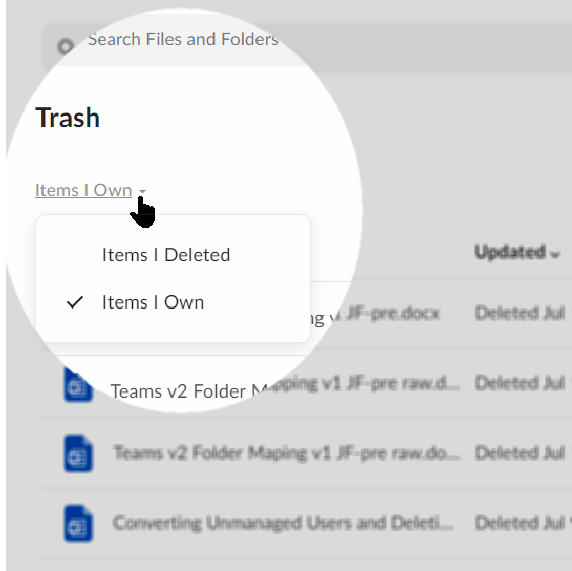
- The Items I deleted filter displays all items you have deleted, regardless of who created or owns the item.
- The Items I own filter displays all deleted items you own, regardless of who deleted the item.
Recovering and Deleting Items
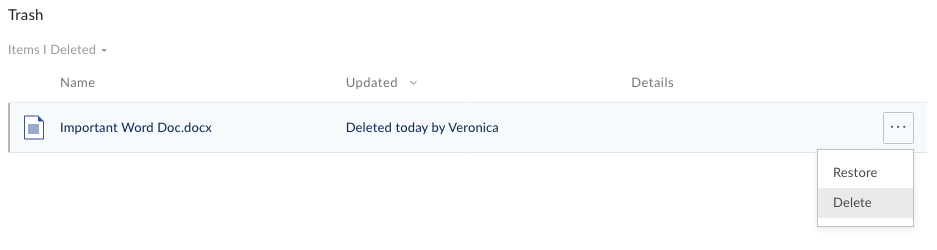
You can manually restore or permanently delete any file or folder in your trash. To delete an item, however, you must have permission to do so. To restore or permanently delete specific items in Trash: The steps below apply whether you’re selecting from search results or from all Trash items.- Hover to highlight the row of the item you want. The More Options ellipsis (…) displays.
- Click the ellipsis (…). Then:
-
- To return the item to its original location in Box, click Restore.
- To delete the item permanently, click Delete.
- At the prompt, click Okay.

- Description
- Tags
- Comments
- Tasks
- Share state (whether the shared link is enabled or disabled)
- Collaborators
- Expiration setting on shared links
- Expiration settings for deletion
- To restore the entire contents of your trash, towards the top-right, click Restore All.

- To permanently delete the entire contents of your trash, towards the top-right, click Delete All.
- Both Restore All and Delete All affect all files in your trash, not just those displayed.