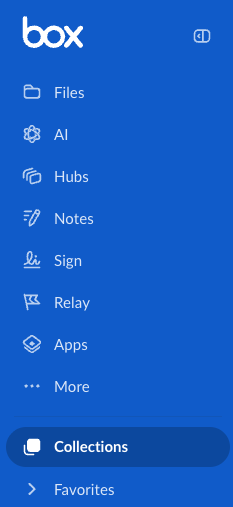
- intuitively organize your Box content into logical groupings of your choice,
- name these groupings to provide clear and meaningful context, and
- quickly find the content you need right now.
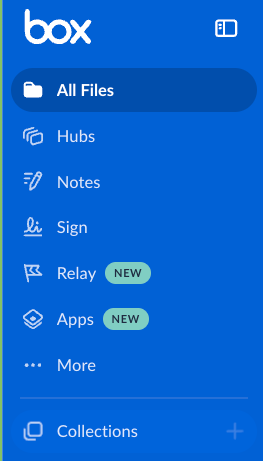
- In the left sidebar, besideCollections click the + icon. Box displays the Create a Collection window.
- In the Create a Collection window, under Name type the name of the collection.
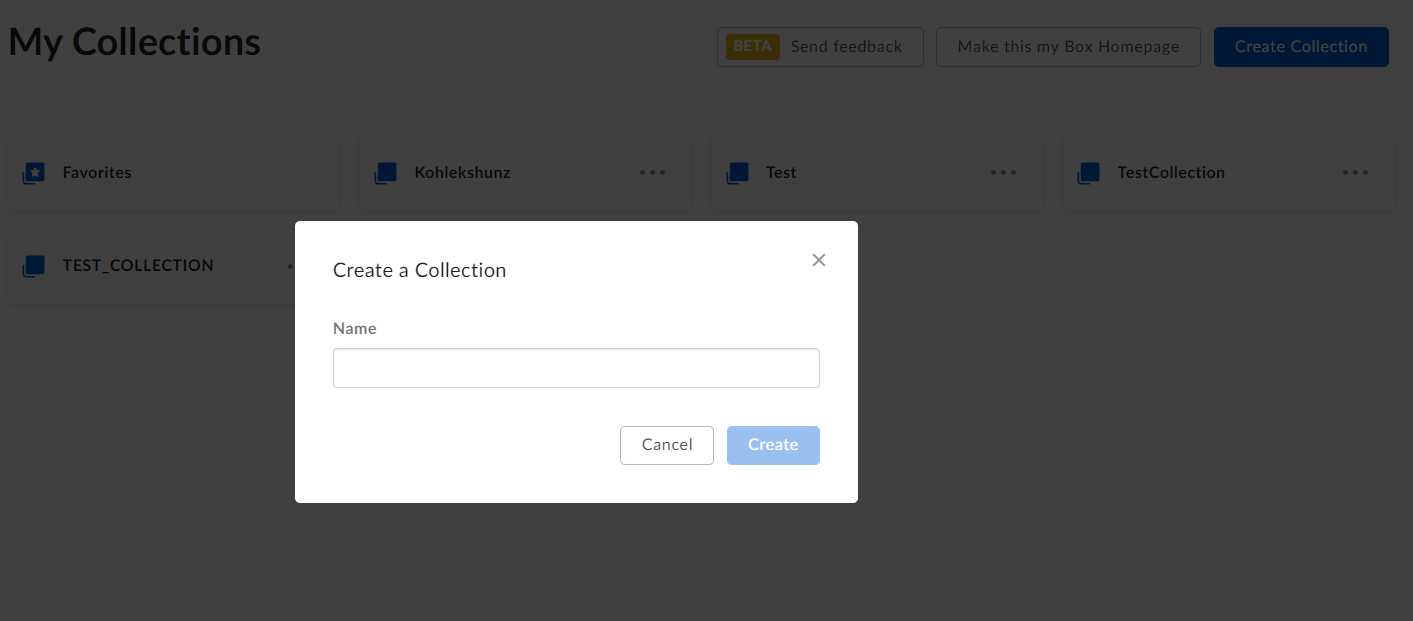
- Click Create.
- In yourFiles window, highlight the items you want to add.
- Drag-and-drop the items from yourFiles window into the collection listed underCollections in the left sidebar.
 , click it.
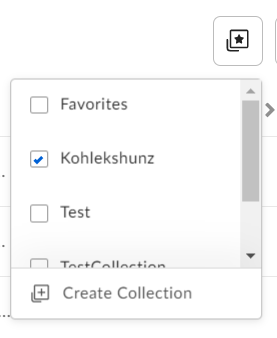
To add the item to a collection, click the checkbox beside the collection’s name.
, click it.
To add the item to a collection, click the checkbox beside the collection’s name.
- After you add files and folders to a collection, the name of the collection appears next to the names of these files and folders throughout your Box account.
- Your Favorites category is now a collection.
- In the left sidebar, click a collection. Box opens the collection in your Box window.
- In the opened collection, highlight a file or folder.
- Drag the highlighted item into the left sidebar, and drop it onto a collection.
- In the left sidebar, underCollections, click the name of a collection. Box opens the collection in your Box window.
- In the top of the window, next to the name of the opened collection, click the ellipsis, ”…” and select either Rename, or Delete.
- In the left sidebar, open the collection.
- On the My Collections page, hover on the item and right-mouse click.
- Hover on Collections.
- In the drop-down menu, clear the checkbox next to the collection’s name.
- In the left sidebar, clickCollections. Box opens the My Collections window.
- In the top of the My Collections window, click Make this my Box Homepage.
Using collections in collapsed state
You can also use your collections in the collapsed state. To do so, click the Expand icon next to the collection you want to access. A list of files in the collection appears.