- Right-click the file or folder you want, and from the menu that displays click Move or Copy. The Move or Copy window opens.
- Scroll down if necessary to find the destination folder you want.
- If you need to, click on any folder you see to access its subfolders.
- Click anywhere in the row of the folder you want. The corresponding circle fills in, indicating your choice.
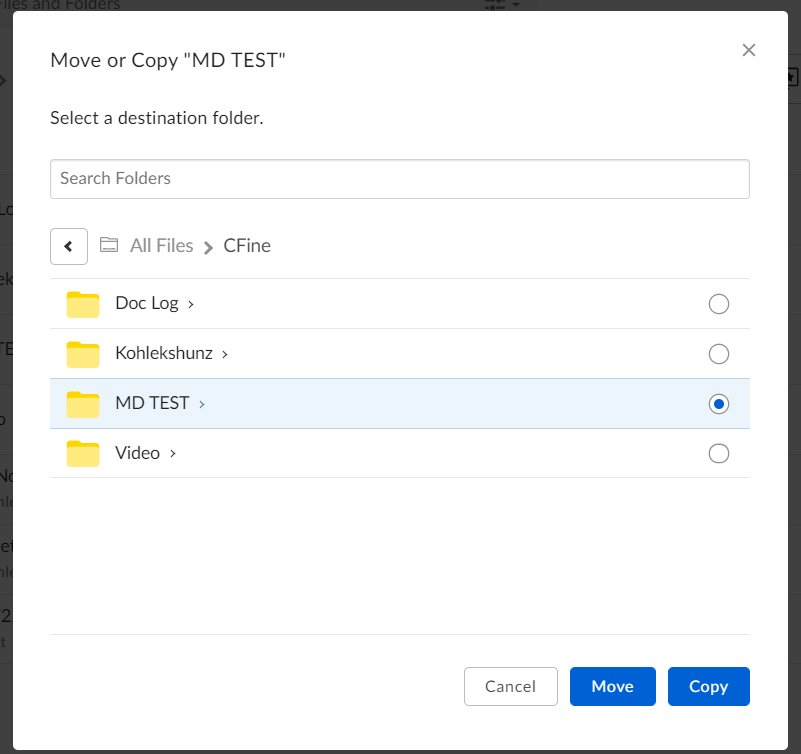
- Click Move or click Copy.
- Do the same actions as you do when selecting multiple items on your desktop:
- On Windows machines, to select multiple items in a group, press and hold SHIFT and click anywhere next to the items you want. To select multiple scattered items, press and hold CTRL anywhere next to each of the items you want.
- On Mac machines, to select multiple items in a group, press and hold SHIFT and click anywhere next to the items you want. To select multiple scattered items, press and hold CMD and click anywhere next to each of the items you want.
- In the top-right portion of the screen, click the ellipsis (…) to open the Move or Copy window.
Moving large folders
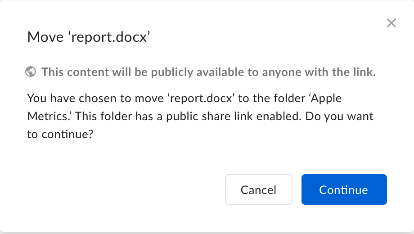
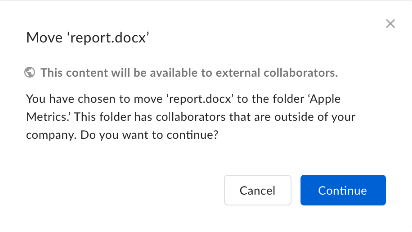
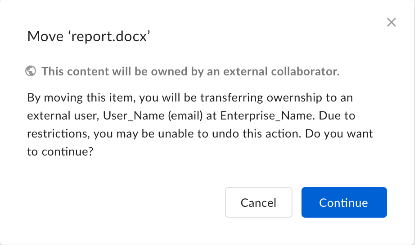
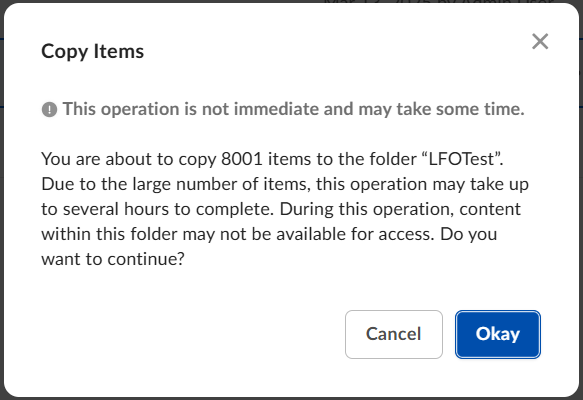
Moving large folders, that is, folders with thousands of files and folders with many sub-folders, may take an extended period of time, potentially several minutes or longer. During such a move, both the origin and destination folders, including all sub-folders, will be locked for the duration of the move, which means no move, create, copy, upload, delete, or restore operations can be performed on or in either folder until the move is complete. Here’s an example of the alert when you- Move or copy a folder that contains more than 8,000 items.
- Delete a folder that contains more than 8,000 items.
- Transfer ownership of a folder that contains more than 8,000 items.
When folders have different access restrictions on content
In certain scenarios when you move or copy content from one folder to another, and the destination folder has a less restrictive setting, Box displays an alert. When you copy content into a new folder, access permissions in the destination folder are inherited by the new folder. If a user is directly collaborated in one of the source’s child files/folders, this user does not have access in the copied folder. When you move content into a new folder, the following access changes happen:- The Owner of the parent destination folder becomes the Owner of the newly moved folder.
- All collaborators of the destination parent folder inherit the collaborator access to the newly moved folder.
- The collaboration roles of the previous owner and previous collaborators depend only on the roles they have in the destination folder’s parent folder.
- If a user was collaborated on one of the child files/folders directly, this user continues to have direct collaborator access to that folder, even after the move is completed.
- Whether the destination folder contains any files that include an external collaborator
- Whether either the destination folder OR any of its parent folders contain any files with an open shared link.
- You have a folder labeled “Project Sherlock,” and only other people in your company can access that folder’s content.
- You decide to move your “Project Sherlock” folder into another folder labeled “Project Watson.”
- But the “Project Watson” folder allows external collaborators. This could be true if just one person outside your organization has collaborated on just one file in the “Project Watson” folder (because permissions must apply to all of a folder’s content – not just some of it). This extends to content transferred into the folder.
- You move the “Project Sherlock” folder into “Project Watson,” unaware that by doing this you are allowing Project Sherlock files to be shared with others outside your organization.
- Before completing the move, Box displays an alert advising you of the discrepancy in content access levels between your source and destination folders.
- You can decide whether to continue with your folder move or cancel and find an alternative (for example, moving “Project Sherlock” into another folder).