

- A contract must be reviewed by different sets of corporate executives who are assigned by different department heads
- A loan application needs approval from any combination of underwriters and loan officers who someone else must designate
- Product design and packaging must be completed by designers, artists, and copywriters who vary with each product
- A marketer requiring approval for a set of brand assets for a new campaign
- A budget proposal involving multiple supporting documents, such as a sales forecast, R&D specs, and so on, from different submitters that all most follow the same approval workflow.
- A new head count requisition that must be approved in concert with the external-facing job description and internal-facing head count justification.
- A consent form routes to key stakeholders for review and approval; each stakeholder can begin the workflow from their discrete dedicated folder.
- Digital assets for multiple product lines are copied into one discrete folder per product line.
- Employees submit monthly business trip expenses that must be reviewed by HR, then by Finance. A single workflow created on a top-level Employee Expense folder can cascade down to each employee’s sub-folder; within each sub-folder is to a sub-sub-folder per month or quarter.
- New suppliers with dedicated sub-folders can on-board themselves by starting te same workflow that was applied to a top-level Suppliers folder.
- The workflow creator builds and saves the workflow, setting up the various workflow steps.
- At any point thereafter, the workflow starter selects one or more files, then chooses the workflow around that file.
- They can see details of the workflow before starting it, to ensure it’s the process they want.
- The workflow starter completes any steps the creator may have required (such as designating tasks and assignees, or inviting collaborators).
- The starter initiates the workflow.
- Begin a new workflow in Relay.
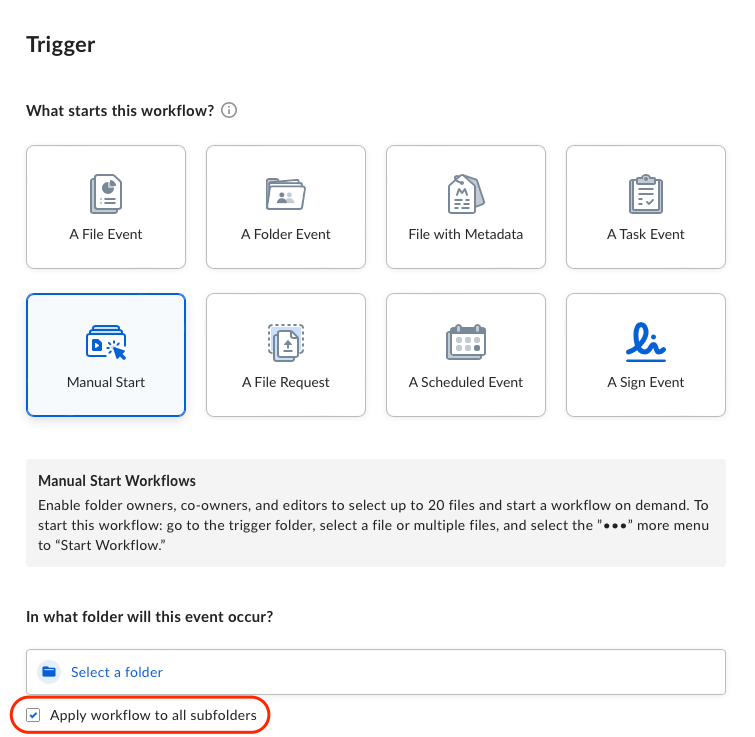
- Under Trigger, click Manual Start.
- Specify the folder from which the workflow can be triggered.
- Whoever starts the workflow can finish configuring and then initiate the workflow only from a file contained in this folder.
- (OPTIONAL) To cascade this workflow down to child folders, select Apply workflow to all subfolders.
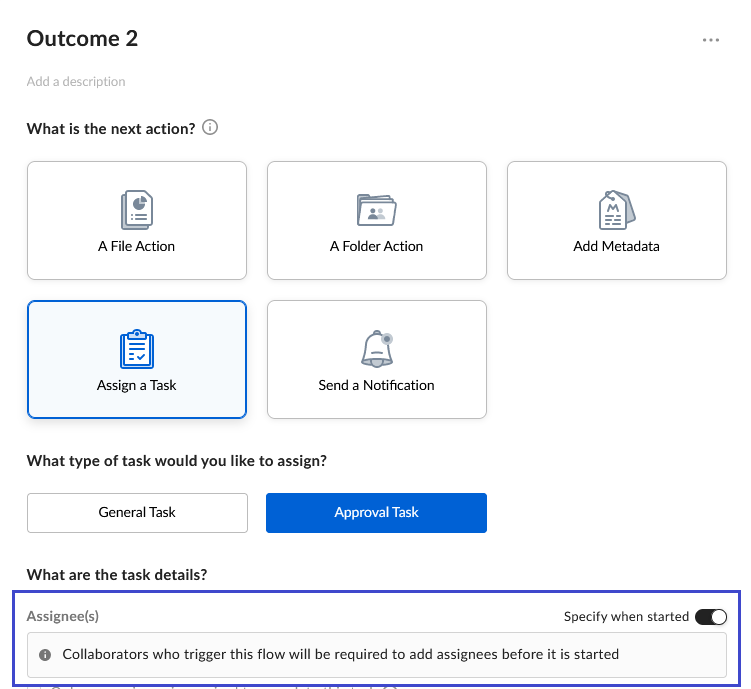
- If there are tasks associated with this workflow, under Outcome, click Assign a Task.
- To configure this workflow with pre-assigned task assignees, enter the names of the people you want.
- To enable whoever starts the workflow to designate task assignees, click to move the Specify when started slider to the right. In the Assignee(s) box, Relay displays an advisory that the workflow cannot start until at least one person is assigned the task.
- Complete the rest of the task outcome. (See below for a link to more details on creating outcomes and assigning tasks and task assignees in Relay.)
-
Now add collaborators. To do this:
- Specify the file or folders to whom you want to add collaborators.
-
Specify collaborators. For this, do one of the following:
- To add collaborators to a file, under Outcome, click A File Action.
- To add collaborators to a folder, under Outcome, click A Folder Action.
- If you want the workflow starter to specify collaborators, click to move the Specify when started slider to the right. In the Who would you like to share the file/folder with? box, Relay displays an advisory that the workflow cannot start until at least one collaborator is identified. When using the Specify when started feature to specify external users, you can specify only external users who have been previously collaborated.
-
Click Save Draft. This workflow displays in three places:
- In the Workflows page of Relay
- In the More Actions drop-down menu for the file or folder assigned in the workflow
- In the righthand pane, under the Details tab.
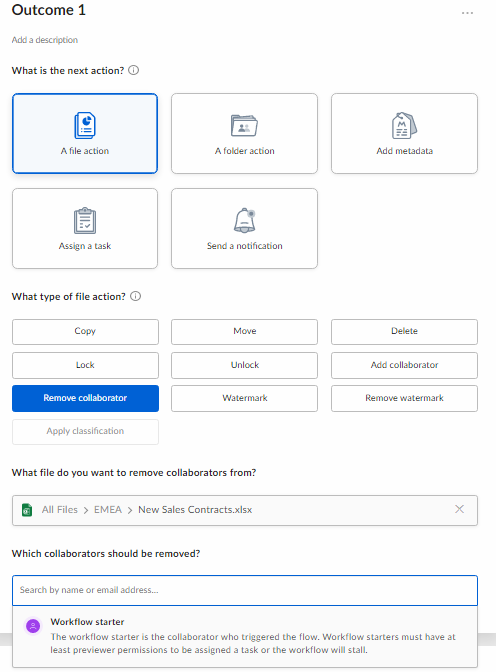
- Click either A File Action or A Folder Action.
- Select Remove Collaborator.
- Choose which file to remove collaborator from.
- Enter the name of the collaborator.
- Open the folder that contains the file or files you want to use to start the workflow.
- For a single file, hover over the file you want, then click the ellipsis (…) to display the More Options menu.
- For all files, select them all and then click the ellipsis (…) to display the More Options menu.
- Click Start a Workflow. The Select a Workflow window opens.
- Click the workflow you want. The Review Workflow window opens. From here you can review the steps of the workflow. If any step requires your input, it displays with a small Incomplete banner, and also prompts you to Add Assignees or Add Collaborators.
- When you’re done, click Start. The workflow begins, and Relay sends a notice to the workflow creator that the workflow has begun.
- You cannot create a manual start on more than 20 files at a time.
- In a multi-file manual start, when you initiate the workflow you cannot change any of the documents. If you included a file in error or forgot a file, you must make your change and then re-initiate the workflow.
- Acting on one file means acting on each and every one of them; you can’t create different actions for each individual file in the set, or approve some documents and not others. In other words, creating a file copy event causes each file to be copied, adding a collaborator to one file adds that collaborator to them all, applying a metadata value to one file applies that value to all, approving one document approves them all, and so on.