Uninstalling Box Sync
When you deploy Box Drive, when the user launches Box Drive after installation, Box Drive provides a built-in mechanism to automatically uninstall Box Sync and optionally clean up local Sync data. Upon first launch and login to Drive, users are prompted to remove Sync, and Drive then cleans up files that already exist in the cloud.NoteUninstalling Box Sync via Box Drive does not disable the application. It only removes the local client. That means you can still see the “sync to desktop” options in the Box Web app even after the uninstall process. The only way to get rid of those is to disable the Box Sync application in admin console. Ask your Box administrator to do this.
Admin mass uninstall
As an administrator, you have two main controls:-
Uninstall behavior — How and when Sync is removed:
You can customize this by setting the SyncUninstallMode (via registry on Windows or a plist on macOS) before users run Drive. This gives you options such as:
- Silent uninstall (without asking the user)
- Prompted uninstall (asking the user)
- Whether or not to perform a cleanup after uninstall
- Preserving unsynced content — What happens to files not synced to Box: During the cleanup stage, Box Drive will only remove files that were fully synced to the cloud. Any content not yet uploaded to Box is preserved and moved into a folder named “Archived - Box Sync” on the user’s device, so it’s not lost.
- Plan the Migration
- Pick the latest version for Box Drive https://www.box.com/resources/downloads
- Decide which uninstall behavior you want for your users (whether to force removal, whether to clean up old Sync data) before deploying.
- Communicate with your users ahead of time to prepare them that Box Drive installation will remove Box Sync, and tell them what will happen to their local files (both synced and unsynced).
- Configure the Uninstall Mode
- Use Box’s SyncUninstallMode setting to control how sync is uninstalled and cleaned up.
- On Windows: Set a REG_DWORD at HKLM\Software\Box\Box\SyncUninstallMode with one of the following values: 0, 1, 2, 3, or 4.
- On macOS: Set the plist value by running:
-
- (replace <MODE> with 0–4).
- The meaning of each mode:
| Mode | Behavior |
|---|---|
| 0 | Skip uninstall and skip cleanup (not recommended). |
| 1 | Silent uninstall; no cleanup of local Sync files. |
| 2 | Prompted uninstall; no cleanup. |
| 3 | Silent uninstall; force cleanup of synced content. |
| 4 | (Default) Prompted uninstall; force cleanup. |
-
Deploy Box Drive
- Initiate a deployment of Box Drive in your environment using your normal software distribution method.
- As users launch Box Drive for the first time and sign in, the uninstallation of Box Sync will begin automatically (depending on your configured mode).
- If you chose a prompt mode, users will see an uninstall prompt; if you chose silent mode, uninstallation happens in the background.
-
Handle the Cleanup Process
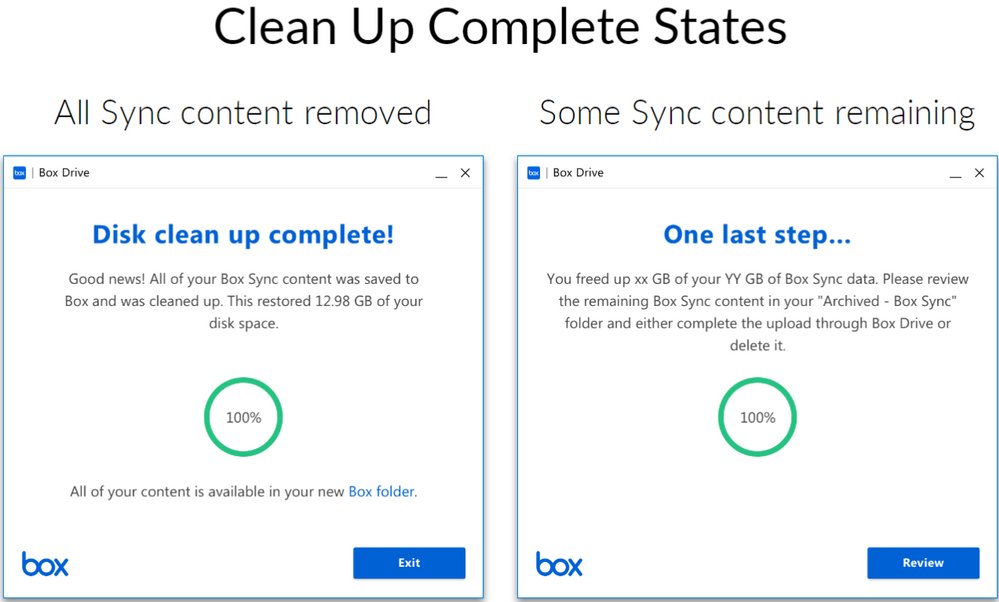
- After uninstall, Box Drive will clean up “up-to-date” Box Sync files (i.e., files that were synced to Box).
- Non-synchronized items (those not uploaded to Box) are not deleted. They are placed into a folder called “Archived – Box Sync” so you (or your users) can review them.
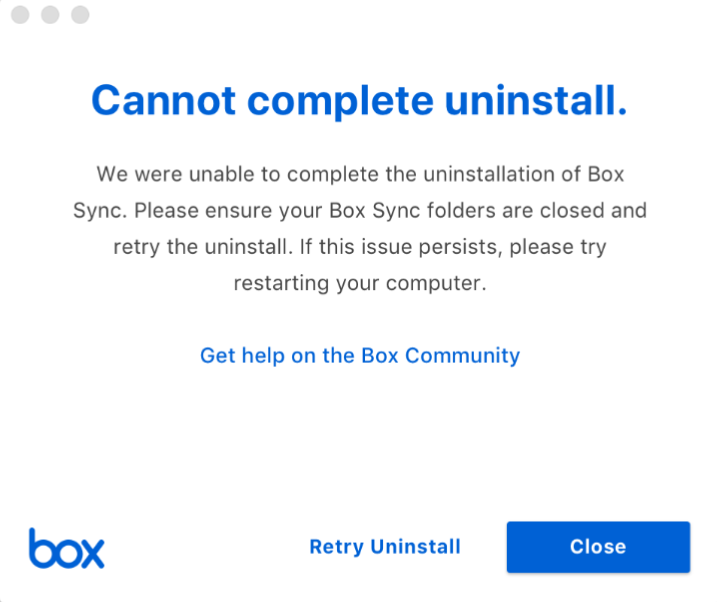
- If the uninstall/cleanup fails (e.g., because Box Sync files are open), instruct users to close all Sync-managed files or reboot; Box Drive will retry the cleanup on next launch.
-
Verify Migration Success
- After deployment and uninstalls, sample a few machines to ensure that Box Sync is removed and the “Archived – Box Sync” folder is present (if cleanup was enabled).
-
- Once you are confident that most or all users have migrated, restrict or disable access to Box Sync via your Box Admin Console to prevent reinstallation.
- For marking items to sync in the webapp, go to Admin Console > Enterprise Settings > User Settings > Enable Box Sync
- To allow users to login with the box app, go to Admin Console > Enterprise Settings > Box Clients > Desktop
- Monitor devices to ensure no new Sync clients are being installed and that Drive’s client footprint is stable.
End user uninstall walkthrough
Here are the system prompts. If you choose to change the default uninstallation process (details later in this article) you may not see every prompt: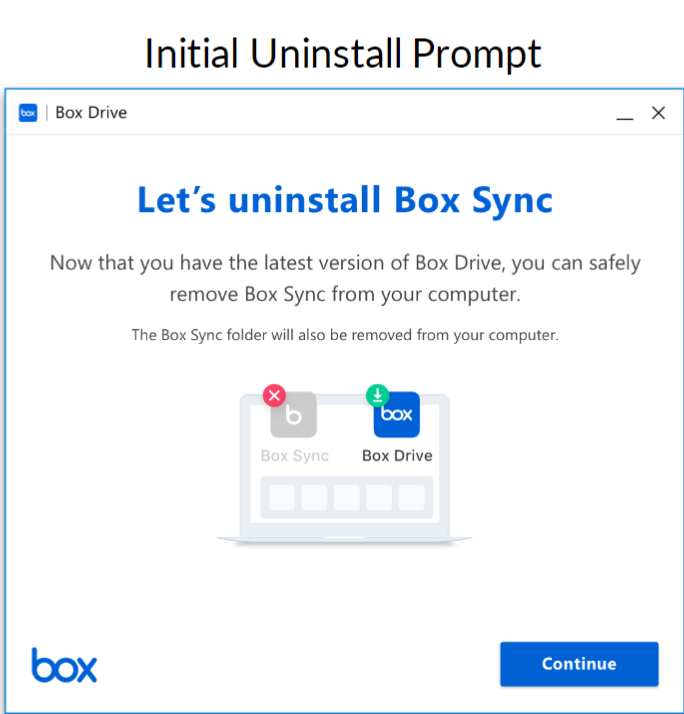
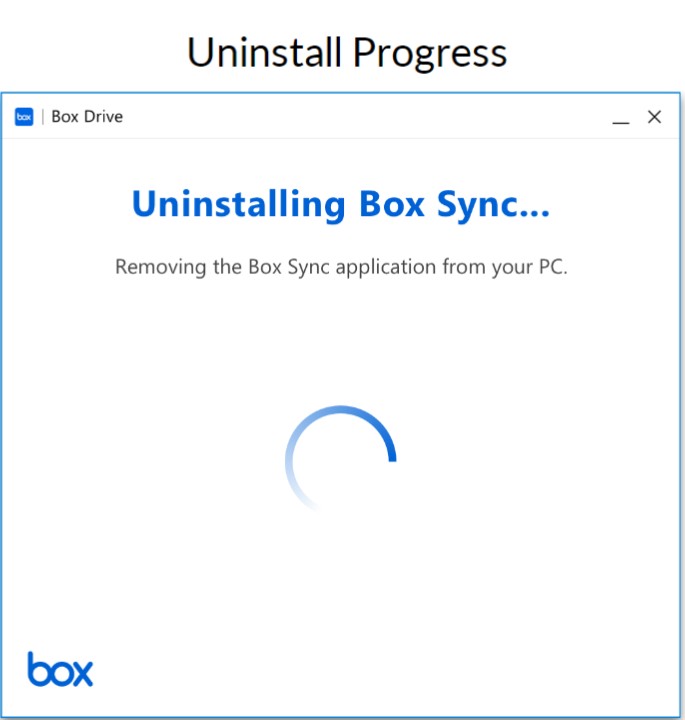
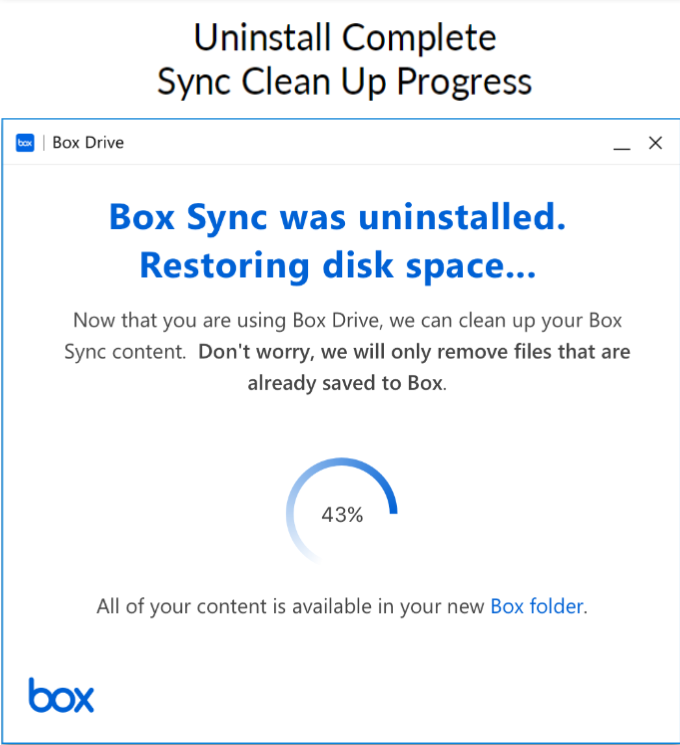
Overriding the default behavior
As an admin, you have several options if you wish to change the default uninstallation process (in which individuals are prompted to start the uninstallation process that automatically includes a content cleanup post-uninstallation). You can:- Force the uninstallation and subsequent data cleanup
- Prevent the uninstallation
- Leave it up to each individual whether to uninstall
Failure to uninstall
On rare occasions Box Drive is unable to prepare the Box Sync folder for cleanup. Usually this is because a Box Sync file or folder is still open when the cleanup initiates.