

- Edit the file using an online editor, such as Box Edit, Microsoft Office Online, or the Google editing suite)
- Edit the file within your Box Sync or Box Drive folder
- Use the Upload New Version button on the Web app
- Upload a file into a folder that has an existing file with the exact same name in it on the Box Web app
- Locate and navigate to a specific spot in a lengthy document or slide presentation
- Compare the current version of a file with an older version
- Identify the specific version in which a particular change was made
NoteThe number of file versions that Box saves and that you can access corresponds to your Box account type:
- Personal Free - 1 Version
- Personal Pro - 10 Versions
- Starter - 25 Versions
- Business/Business Plus - 50 Versions
- Enterprise - 100 Versions
- Enterprise Plus/Enterprise Advanced: Unlimited
- Click the version number badge displayed to the right of the file’s name. This badge is available only when multiple versions of the file exist.
or - Click the name of the file. Box opens the file in Preview mode. Click the more actions ellipsis (…) and then select Version History.
or - Click the file. In the top of the file’s preview window, click the blue version number displayed to the left of the file’s title.
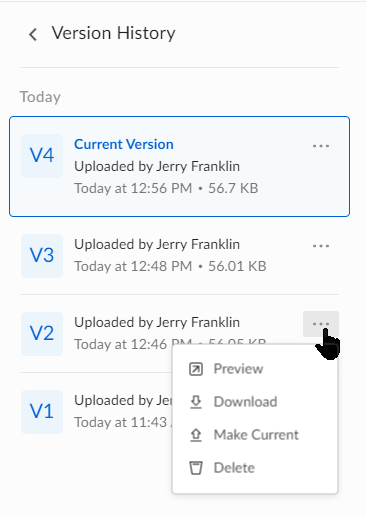
- Preview a prior version by clicking Preview.
- Download a specific file version by clicking Download.
- Promote an earlier version of the file to be the most current by clicking Make Current.
- Delete a file version by clicking Delete.
Notes
- When you delete a version, it continues to display in the version history list, but is otherwise unavailable. If you need to view or download it again, you can restore it. To restore a deleted version, click on the version’s ellipsis (…) and then click Restore.
- Businesses and enterprises with a Governance license can save unlimited number of versions and preview the recent 1000 versions. To preview more than the recent 1000 versions, these businesses and enterprises can use the Box API.
- the current version
- the most recent prior version
NoteUploaders can only view version history and restore an older version. Uploaders see “restore” when they clicks on ellipsis. Also, they do not see the file thumbnail for any file type.
- Previews of non-current versions for most Excel file types are not supported.
- Previews of watermarked files are not supported.
- If your enterprise automatically deletes trash and has Version Limits set, then the version number on the latest file remains at the maximum version number allowed. You’ll see the latest content in the file, but the version number remains unchanged. In this scenario, in order to identify the version you need, use both the file’s version number along with the Updated Date.