With the wide range of applications people can use to work with a file — sharing the file via apps such as Slack, processing it via apps such as DocuSign, storing it in apps such Salesforce, and so on — it is difficult for them to track each and every action they have taken. Box addresses this via the Integration Activity stream.
Integration Activity lists at a glance all of someone’s actions involving a Box file across third-party apps designated for that person — for example, when they shared a file via a Slack message or attached a file to a Salesforce or NetSuite record. This eliminates the need to search through multiple applications to account for every time they may have acted on a file.
The Integration Activity stream makes it easy for people to quickly discover when and to whom they sent a file via Slack, or pushed a document through a DocuSign workflow, or attached a contract to a Salesforce or NetSuite record, and so on. It also includes when others in your organization have taken these types of actions. For example, it can display all the times a co-worker shared a file via a public Slack channel, or even a private Slack channel if you’re a member. (This does not apply to anyone who has opted out of displaying their integration activity.)
By default, no apps are included in the Box Integration Activity stream. You must select and enable them individually. In some cases you must also configure them.
If you do not know which apps are eligible for the Integration Activity stream
- From your Admin Console, navigate to Integrations > Box Integrations & Clients tab.
- Scroll down to the Individual Integration Controls section and click Filter.
- In the Add-ons section, check Supports Box Integration Activity. This displays all apps eligible for inclusion in the Integration Activity stream.
Your choice takes effect immediately.
ImportantYou cannot actually change any settings directly from here. You can only view them. To change a setting — for example, to enable an app for integration activity — search for or scroll down to the listing for the app you want to enable. Click to highlight that row, and then click Configure.Also, if you disable integration activity, the system hides all previous activities as well.
- From your Admin Console, navigate to Integrations > Box Integrations & Clients tab
- Scroll down to the Individual Integration Controls section.
- In the Individual Integration Controls list, click to highlight the app you want. Then, in the lower-right, click Configure.
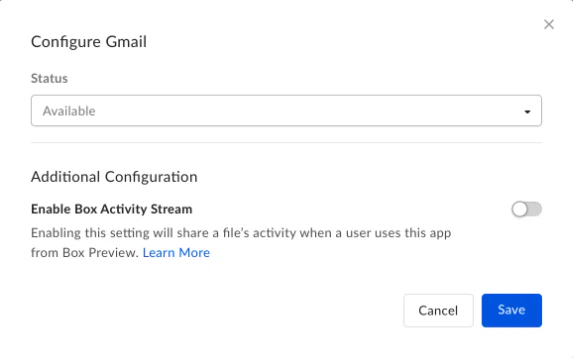
- When the Configure window for that app opens, move the Enable Box Activity Stream slider to the right. Then click Save.
The system now enables everyone in your organization to track their file activity involving this app.
NoteAPIs enable any third-party developer to feature their Box integration in the Integration Activity stream. Use this Google form for developers to find out about featuring your app in the Box Integration Activity stream.