

Metadata Templates
The primary way to use metadata is through metadata templates. Templates are a logical grouping of metadata attributes that help classify content. For example, a marketing team at a retail organization may have a Brand Asset template that defines a piece of content in more detail. This Brand Asset template may have attributes like “Line”, “Category”, “Height (px)”, “Width (px)”, or “Marketing Approved”. Metadata templates are important for several reasons:- To enforce uniformity across your enterprise’s metadata
- To reduce errors and accelerate data entry by your employees or team members
- To enable advanced searches
- Legal - Classifying legal contracts. From custom terms of service to acquisition contracts, metadata attributes like signature date or contract term can prove useful for discovery.
- Vendor Management - Onboard and manage vendor contracts and details for much easier reporting and cost management.
- Sales - Organize content by product line, use case, or sales geography. Make it easier for sales representatives to find important collateral.
- Marketing - Manage digital assets and sales enablement material. Centralize multiple digital asset repositories to help streamline brand efforts.
- Project Management - Add structure and status to documents. Add detail to project work plans to help accelerate and communicate project progress.
- HR - Standardize the employee lifecycle, from hiring to retiring. Leverage metadata to find common forms and analyze employee data.
Using Metadata Templates
Here are the basics for using metadata templates.Applying Metadata Templates
To apply a metadata template:- Click the file to which you want to add Metadata.
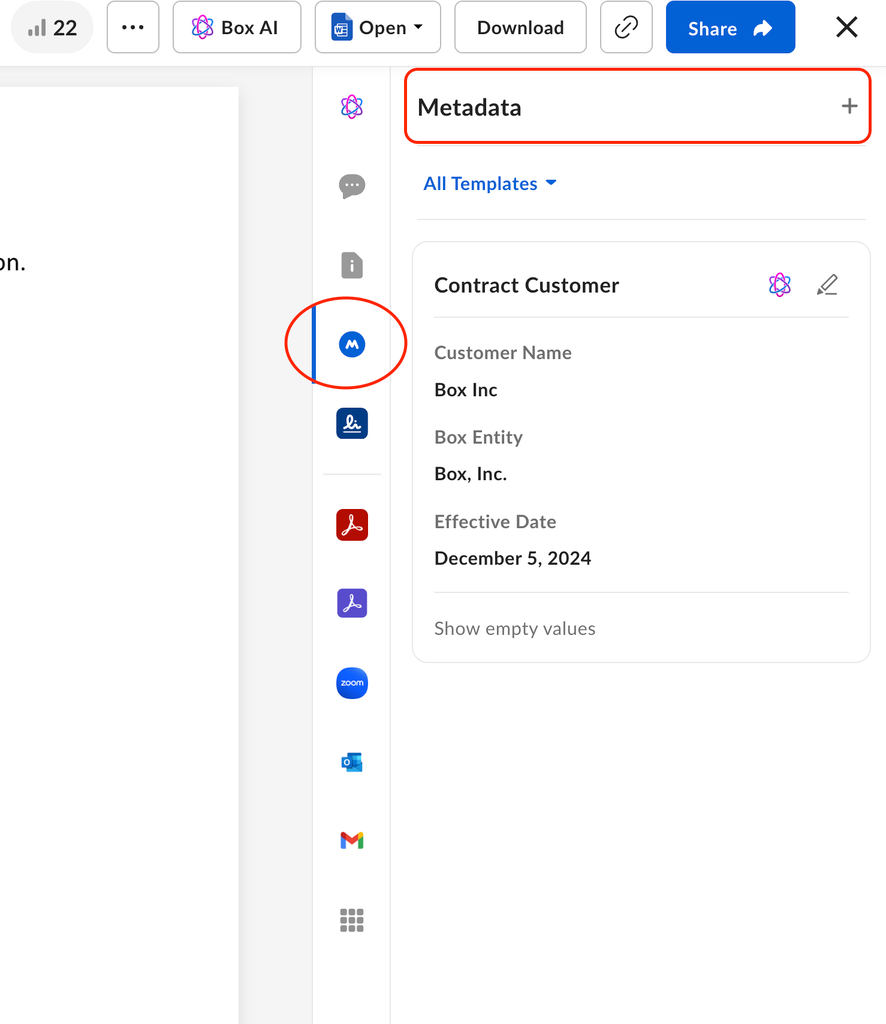
- In the file’s preview screen, click the Metadata icon in the right-hand side-bar.
-
Next to Metadata, click Add, then choose the Metadata template you would like to use.
Note: You can assign up to 100 metadata templates to a specific item.
Editing Metadata Values
To edit metadata values:- Click the metadata instance you want to edit. Box displays a pencil icon to the right of the template’s name.
- Click the pencil icon. Box displays the attribute values in text entry boxes.
- Click the attribute value you want to edit.
- Edit the attribute’s value.
- Click Save.
Note: While editing a saved custom instance, you can still add attributes by clicking +.
Autofilling Metadata in Templates
With this feature enabled, Box account holders in E-Advanced accounts can use Box AI to extract Metadata from supported file types, such as .pdf, .tiff, .png, .jpeg, that have one or more attached Metadata templates, and automatically add that Metadata, as suggested values, into the Metadata template. Box provides two metadata extraction agents for autofilling metadata templates: Standard and Enhanced. Both extraction agents use Large Language Model (LLM) processing to extract contextual data.| Standard Extraction Agent | Enhanced Extraction Agent | |
| Underlying LLM characteristics | Default: Gemini 2.0 Flash (standard model) non-reasoning models with single LLM calls | Default: Gemini 2.5 Pro (premium model) reasoning models with chain-of-thought prompting |
| Model flexibility | CYOM via API (standard or premium model) | Default model only: no choice to change model |
| Best suited for |
|
|
| Data extracted |
|
|
| Accuracy on generic documents and contracts | 78% | 85% |
For Box Admins
If you are a Box admin, you can enable and disable this feature. To enable or disable autofilling metadata for your enterprise:- In your Admin Console, click Box AI.
- Click Enable Box AI for documents and toggle to the desired state. Disabling Box AI for documents also disables the question-and-answer feature for documents in Box Preview. To learn more about Box AI for documents, see this article.
For Box Account Holders
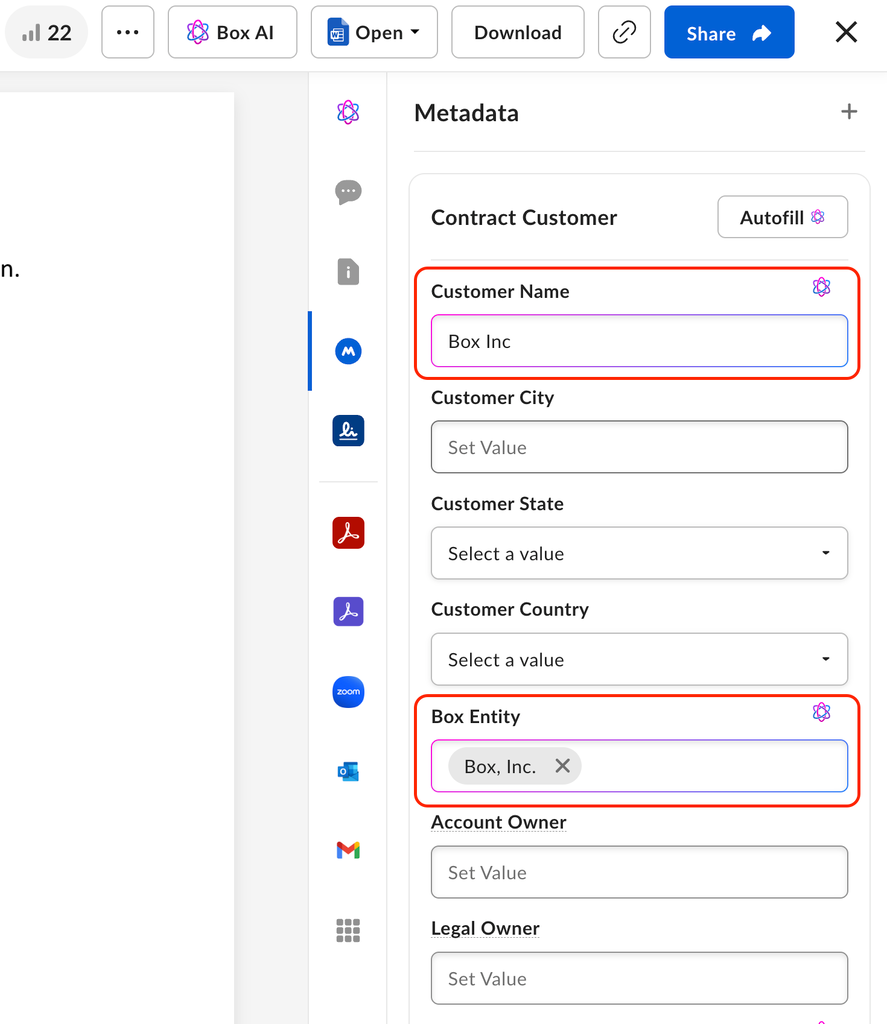
If you are a Box account holder and your enterprise’s Box admin has enabled the Autofill Metadata feature, Box enables you to use Box AI to automatically add the file’s Metadata, as suggested values, into the file’s metadata templates. To autofill metadata from a file:- In yourFiles window, double-click on a file that has at least one Metadata template. Box opens the file in the Preview window.
- In the Preview window’s sidebar, click the Metadata icon.
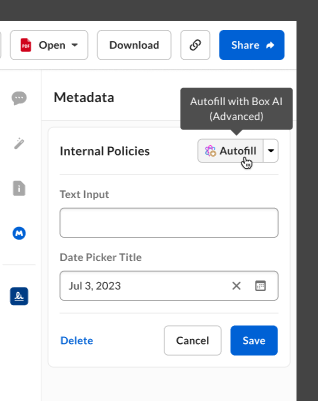
- In the Metadata panel, click Autofill. Box displays the metadata extraction agents available to your organization’s account.
- Click a metadata extraction agent.
Deleting Metadata
To delete a metadata instance from a file:- Click the metadata instance you want to delete. Box displays a pencil icon to the right of the instance’s name.
- Click the pencil icon.
-
In the bottom of the pane, click Delete.
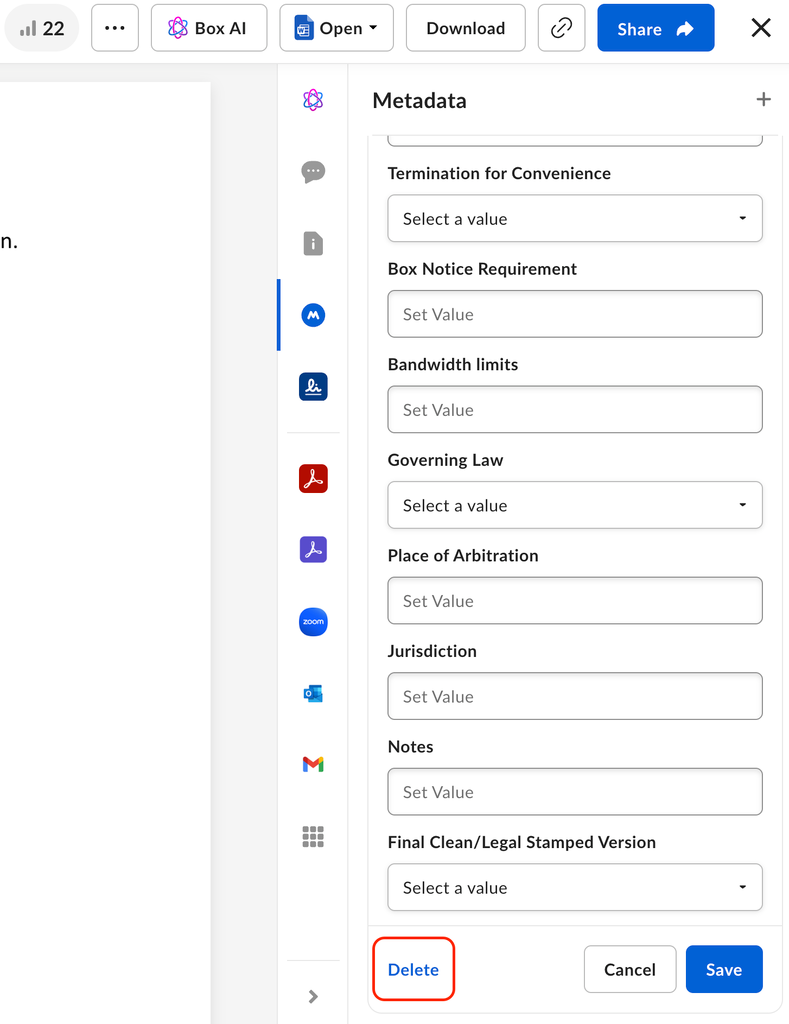
- In the deletion confirmation window, type the metadata template’s name then click Confirm.
Using Advanced Search With Metadata Templates
Metadata values are indexed by the Box search engine. If you perform a search, the search engine treats metadata values similarly to how file titles or file text are currently treated. If a match on metadata is made, it will influence the search results returned to you using Box’s custom search relevance algorithm. You can also use advanced search to filter results within specific metadata templates. To search using specific metadata templates:- Click the Advanced Search icon
 in the Search box at the top of the screen.
 - Click Metadata and select the template you want to use for your search.
- Enter the values you want to search for, then hit enter to search.