This article is about Box Shuttle in the Admin Console. If you’re using legacy Box Shuttle, a standalone tool, see legacy migration guides.
Overview
Box Shuttle acts as an intermediary between various content management systems, allowing you to transfer folders, files, permissions, and metadata from these platforms to Box. You have two options to migrate your data:- Migrate data only: migrates a selected source path to an account or folder to the selected target location without applying permissions.
- Migrate data with permissions: transfers not only files and folders, but also permissions from one location to another. This type of migration job is suitable for comprehensive management of files, accounts, and privileges throughout the entire data migration process.
Box Shuttle does not migrate permissions or collaboration data for external users.
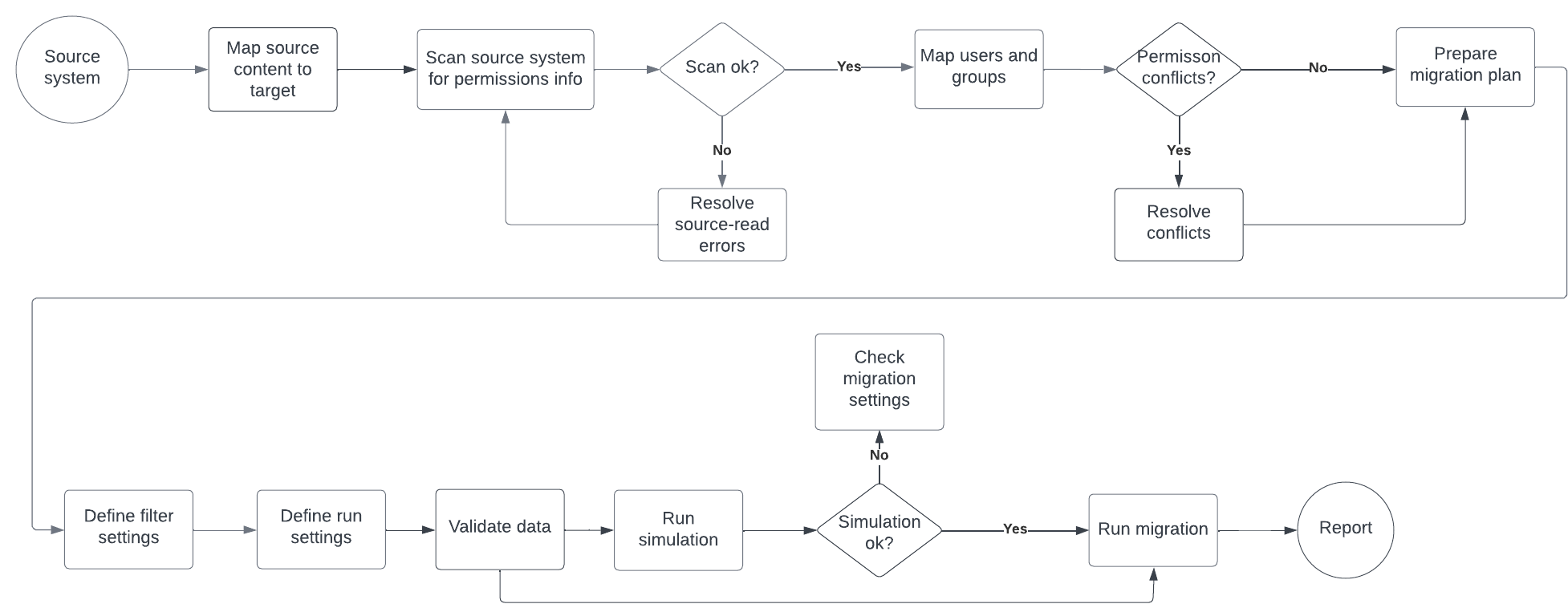
| Step | Description |
| 1 | Select the source system. |
| 2. | Map the source content to the target location. |
| 3. | Scan the source system for any information related to permissions set on files and folders. |
| 4. | If the scan returns a list of errors, resolve them in the source system, and re-scan the source system. |
| 5. | Map source users and groups to their Box counterparts. If there are any permission conflicts detected, decide how they will be resolved. |
| 6. | Specify additional content filters and other settings for the migration job. Available settings can differ depending on the source system. |
| 7. | Define run settings to set up upload bandwidth value and mirror deletions. Mirror deletions can lead to accidental data loss. It is highly recommended to always run simulations and review reports prior to executing any transfers where data may be deleted. |
| 8. | Check the content and settings to make sure everything is correct. |
| 9. | Run a simulation of the migration. Although this step is optional and you can proceed directly to migration, it is highly recommended to perform it especially if you are running migration for the first time. Running a simulation ensures that all the necessary information is in place and ready for migration. |
| 10. | Once you have examined the simulation report, run the migration. When the migration is done, you can examine the resulting report. |
Create a new job
To create a new job select Migrate Data from the New Job drop-down menu..Select source system
Select the source system from which the data will be migrated. If you don’t have an existing source system available, set it up using Source system configuration instructions.Box Shuttle cannot alter or modify your source data.
Map files and folders
Map the source system data to the Box file and folder structure. For each source account and/or folder you wish to migrate, select the target account and folder to which the data will be migrated. When you select a folder, it will migrate the folder or account and all of the files and folders inside that folder. You can, however, deselect specific subfolders or files in these folders if you don’t want them migrated.Make sure that all Box users have confirmed their invitations. You cannot transfer data to a Box account of a user that did not accept the invitation.
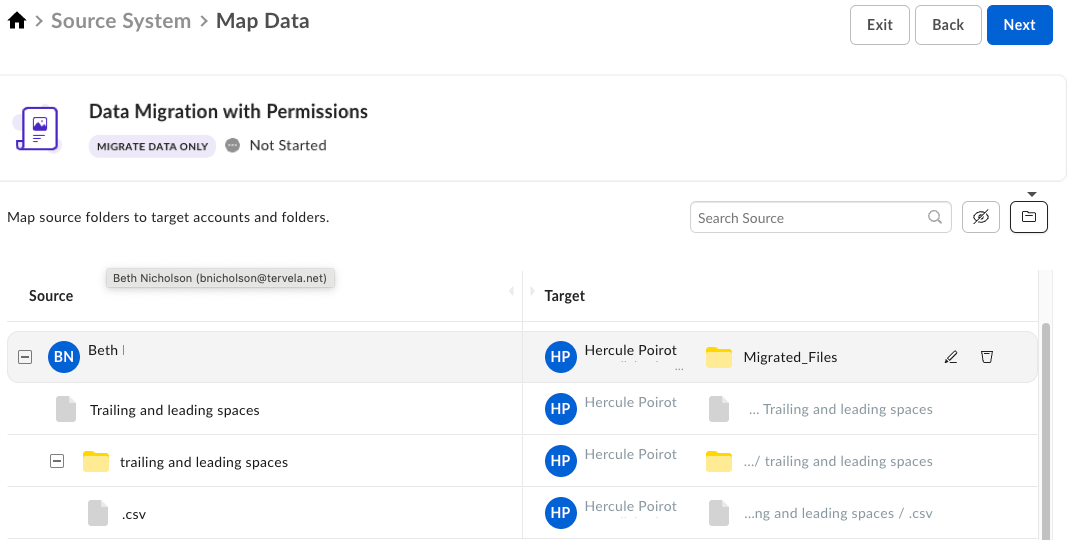
 icon hides the rows without any mapping defined.
Setting parent directory
You can set a parent directory that Shuttle will create in each target location for the migrated content. To do so:- Click the folder icon
 next to the search bar.
 - Enter the name for the parent directory and confirm.
- A source folder is explicitly mapped to a folder in a target account. Additionally, one of the child folders or files is redirected, and will be migrated to a target folder in a different account. This results in a redirect icon appearing on the parent folder level.
- This source folder was redirected to a different target account, and a child folder (or file) was skipped.
- This folder was skipped and won’t be migrated.
| Item | Level of display | Description |
 | Folder | An item in a specific folder is explicitly included in the migration. This file will be migrated, even though the folder will not. |
 | Folder | Files in the folder were skipped. These files will not be migrated. |
 | Folder, Account | An item in the folder was redirected to a different folder or account. |
 | Folder, Account | A filer or files in one of the child folders are explicitly included in the migration. Icon displayed when you select files in several folders. |
 | File, Folder, Account | Clears the mapping. |
 | File, Folder, Account | Opens the list with target account folders. Use it to:
|
 | File, Folder, Account | Skips the file in the folder. This file will not be migrated. |
 | File, Folder, Account | Includes the skipped file in the migration. |
Choose migration type
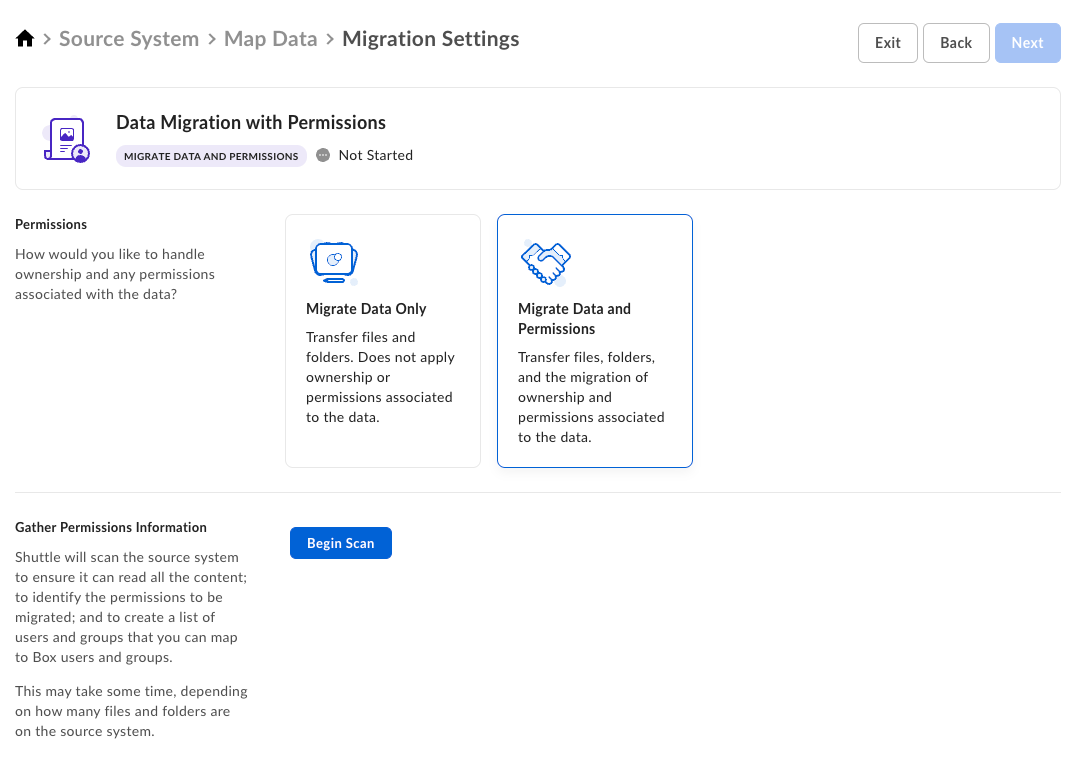
Migrating data with permissions means transferring not only files and folders, but also ownership rights and permissions from one location to another. This type migration job is suitable for comprehensive management of files, accounts, and privileges throughout the entire data migration process.- After you are done with the mapping, proceed to selecting the Migrate Data with Permissions from the available options.
- A new section appears, allowing you to collect information about permissions applied to source files and folders. Click Begin Scan to scan the source items.
Run permissions scan
During the permissions scan, Shuttle scans the source files and folders to identify permissions applied to folders and files.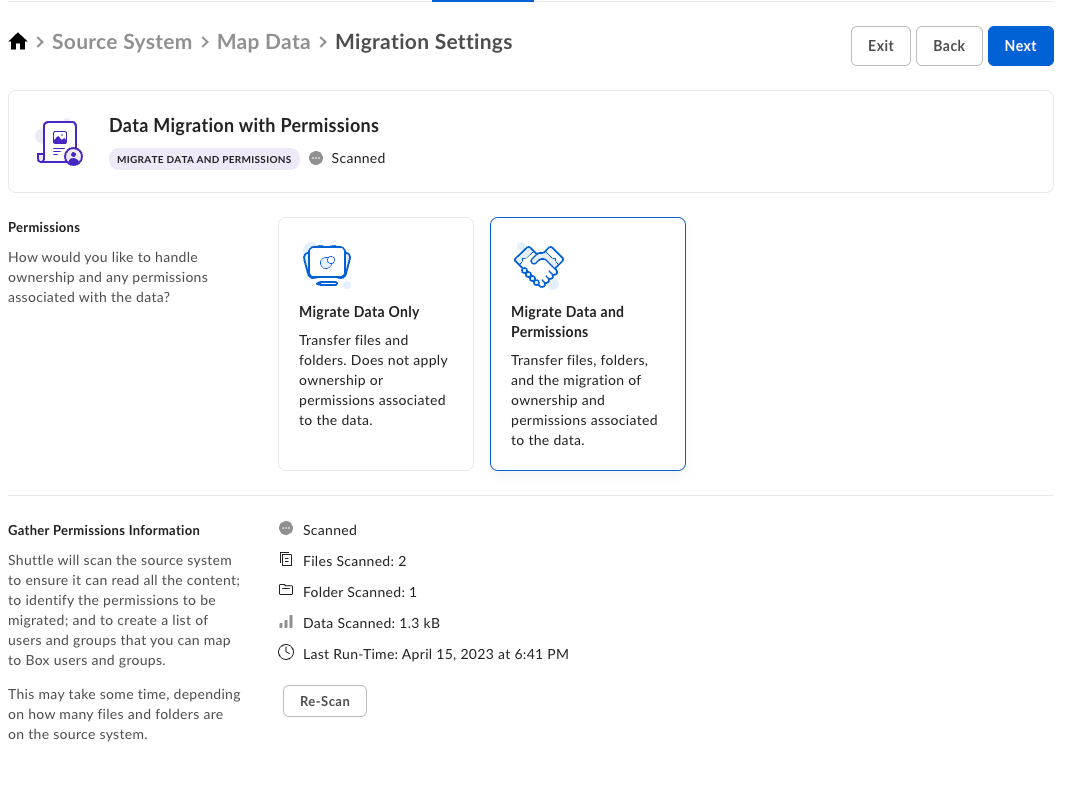
Source errors
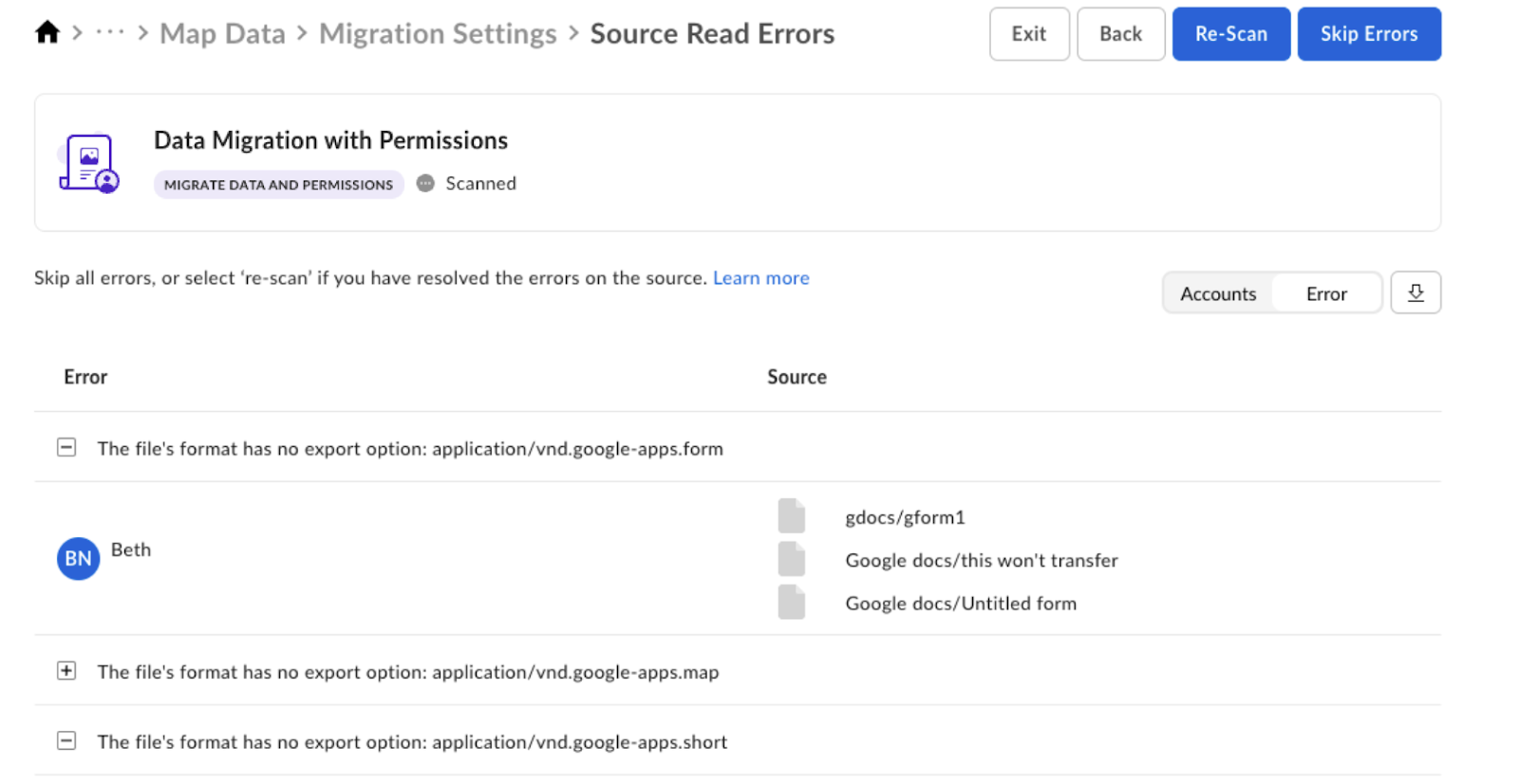
The scan may result in errors. For example, it may turn out that a particular file format has no export options. If any errors occur, you have two options:- Resolve these errors in the source system and re-scan the directories.
- Skip content that has errors and proceed with migration.
Map users and groups
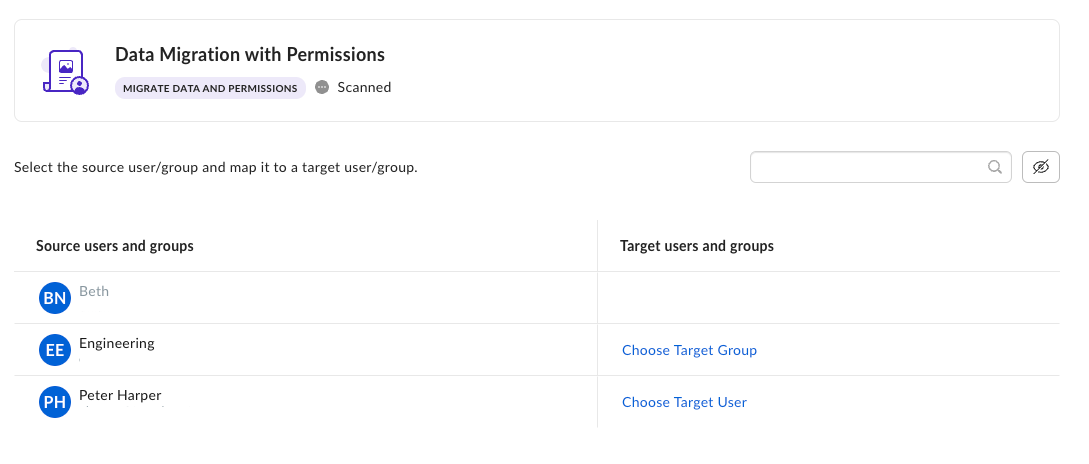
Select each source user or group and map it to a specific target account or group. You can also skip specific users and user groups.You must assign each user or group to a target counterpart, apart from the ones that you skip. Make sure that all mapped Box accounts have confirmed their invitations.
Resolve permission conflicts
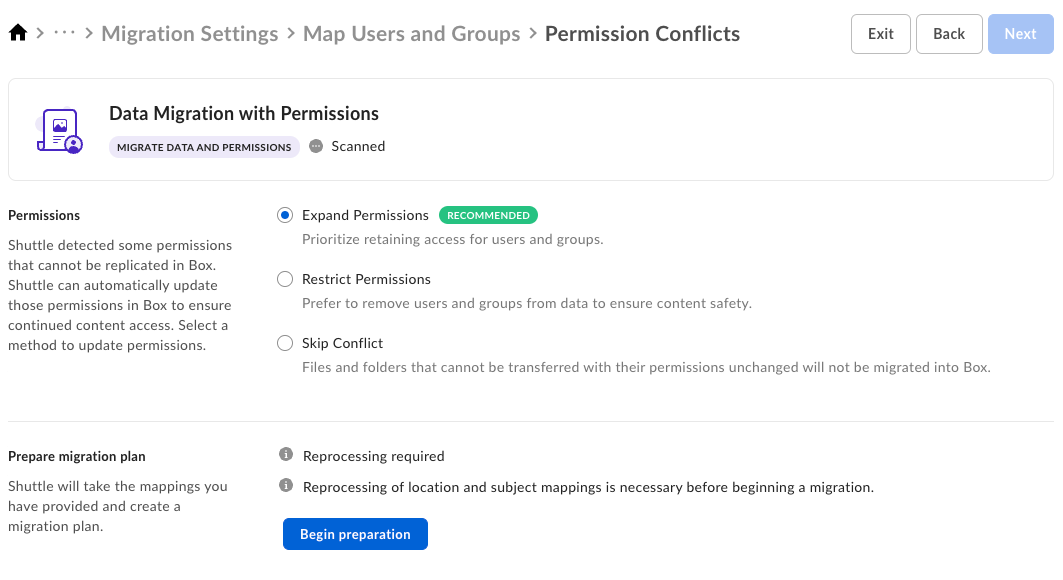
At this point, you can choose how to resolve permission conflicts during the data migration.- Expand permissions is an option recommended for most migrations to preserve the access to data on Box that customers had access to on the source.
- Restrict permissions and skip conflict strategies are useful for migrations where it is essential to preserve limited access and data confidentiality that was present on the source.
- Skip conflict strategy will result in content NOT being migrated to Box. Please ensure you have a plan to migrate that content as part of your overall migration.
| Action | Description | Diagram |
| Expand permissions | Adds permissions to child folders or files if they have fewer permissions than a parent. | 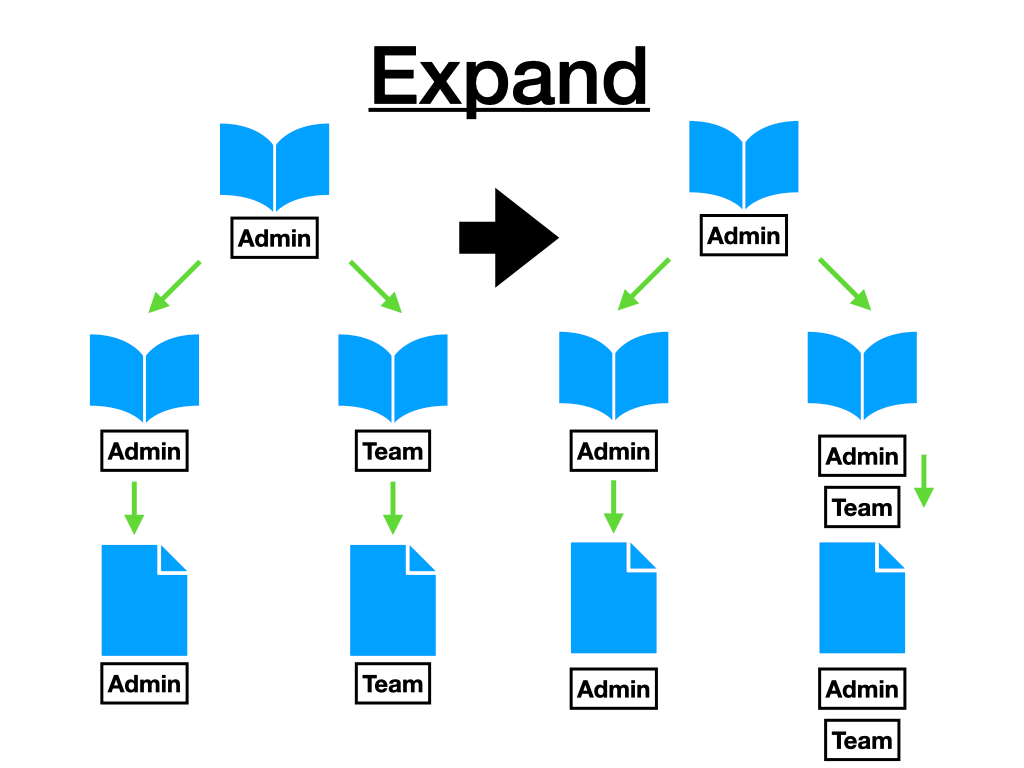 |
| Restrict permissions | Removes permissions from the parent folder if a child has fewer permissions than the parent. | 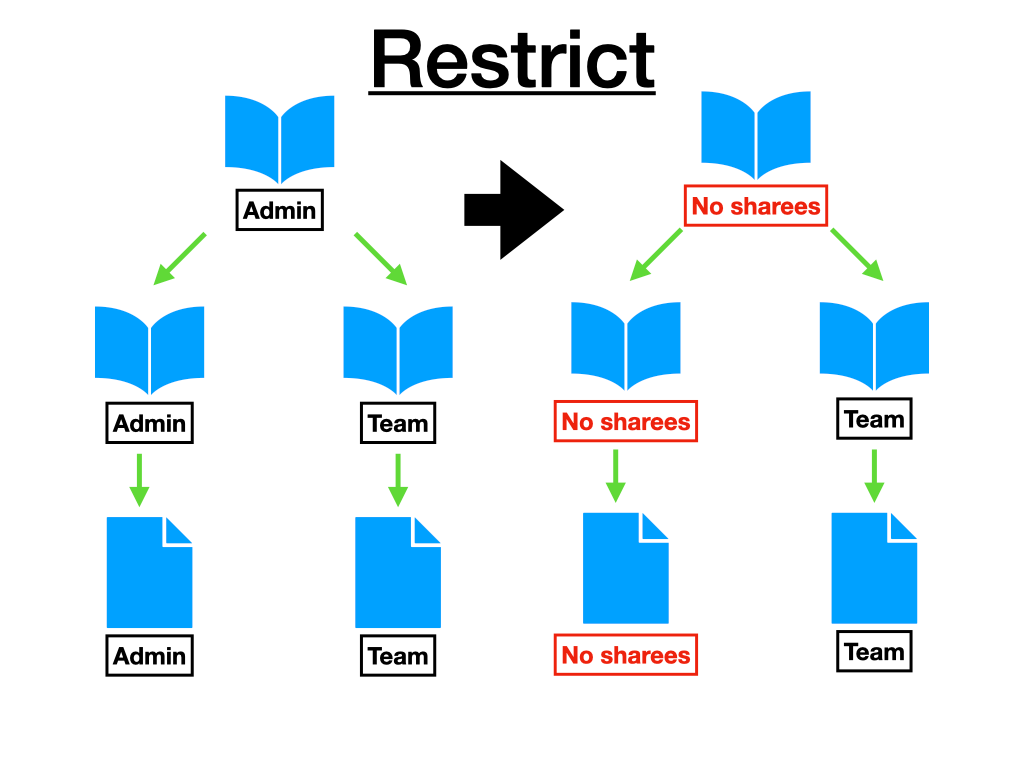 |
| Skip conflict | These folders or files are not transferred in the data migration because they have reduced permissions relative to a parent. They display as filtered in results. | 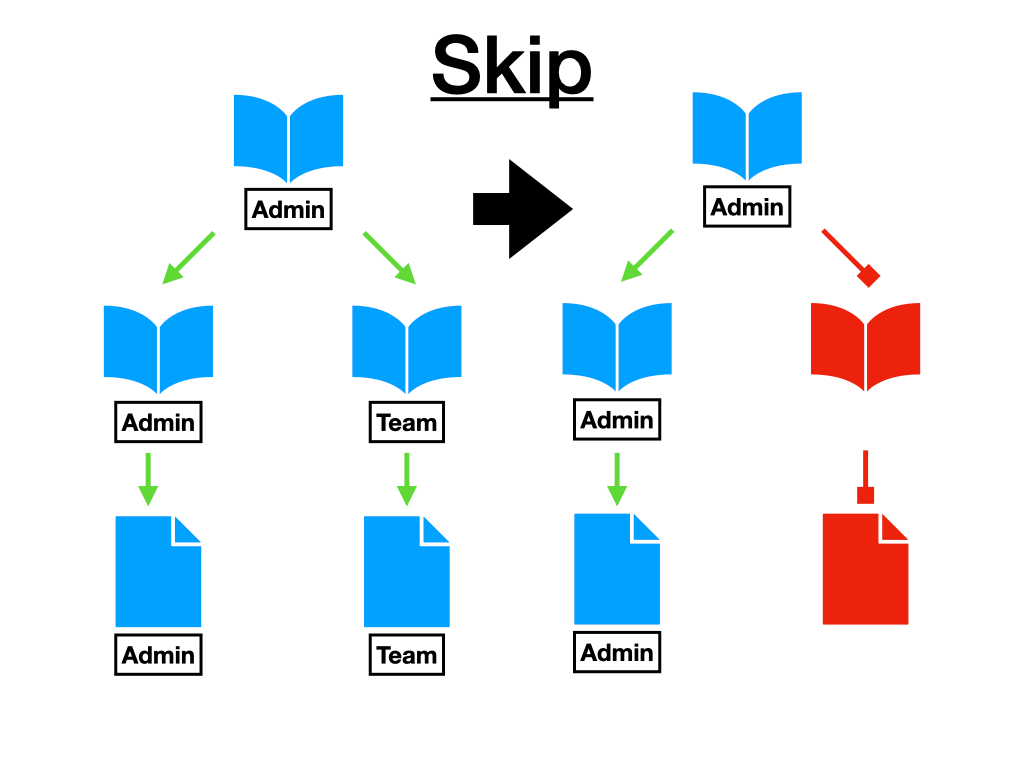 |
Define filters and additional settings
-
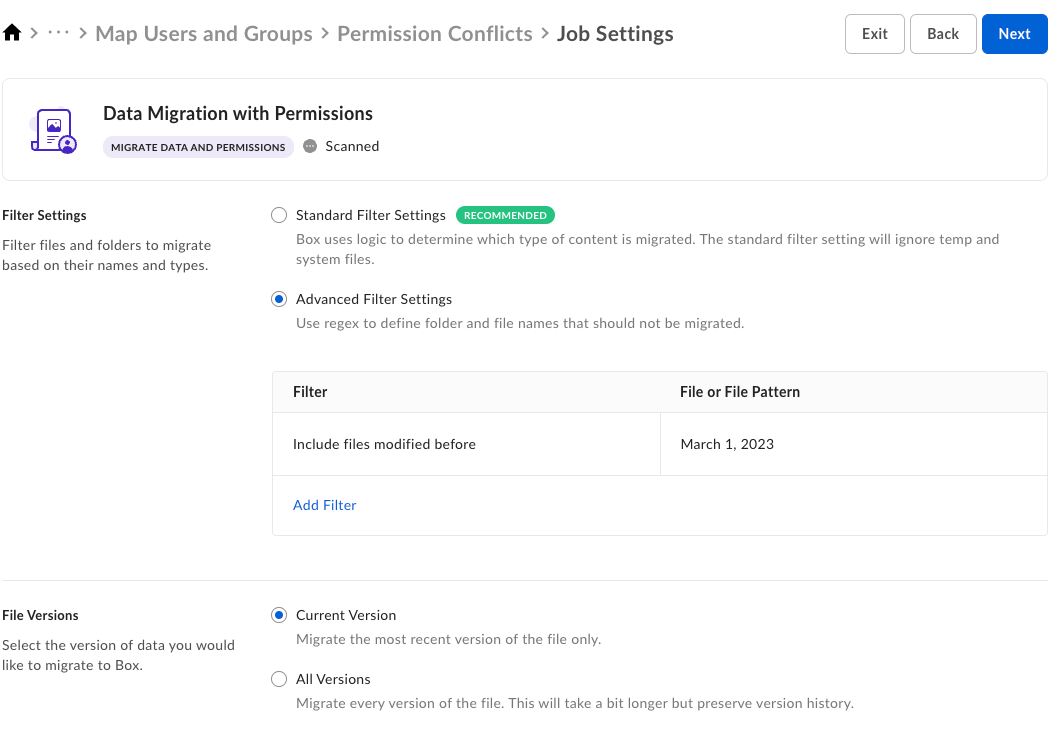
Filter settings allow you to further specify which folders and files to include in the migration or exclude from the process.
- Standard Filter settings ignore temp and system files, and migrate everything else. This is the recommended setting.
- Advanced Filter settings filter the content on the basis of a regular expression, date, or size.
- File versions settings allows you to choose whether to migrate the most recent version only, or all versions of the file.
The presence of file version settings depends on the source system chosen. For example, migration from Windows files will only have filter settings available for you to use.
Define run settings
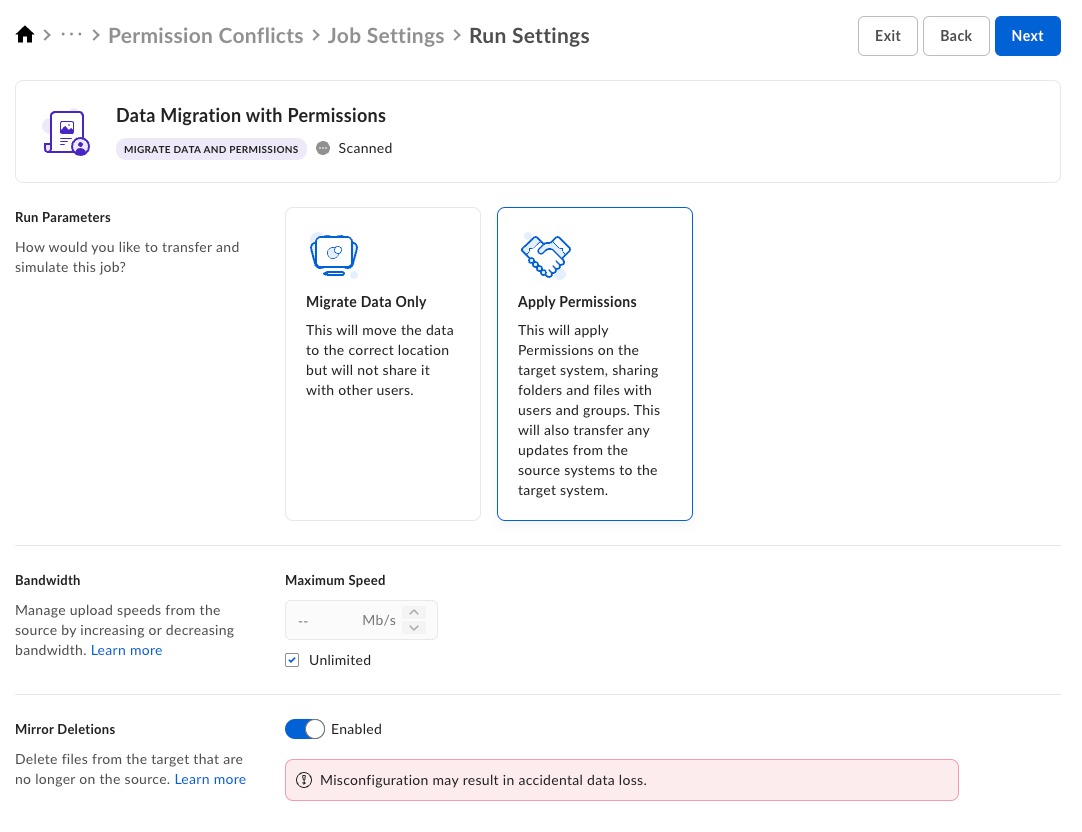
Define the following run settings:- Run Parameters: At this point you can still choose if you want to migrate your data only or apply permissions to the chosen files and folders. For migrations where you want to migrate all data to Box before Box collaborators have access to it, you can run a job as Migrate Data Only and then switch the mode to Apply Permissions for the final run.
- Bandwidth: Specify the maximum upload speed, or check Unlimited.
- Mirror Deletions: Specify if you want to delete the files from the target location if they are no longer available in the source.
This option will remove any files from the target that do not exist on the source, even if those files never existed on the source. This option should be used only if no one is actively using the accounts and folders into which content is being migrated as it can lead to accidental data loss. It is highly recommended to always run simulations and review reports prior to executing any transfer run where data may be deleted.
Verify data
During the pre-run validation you can see the summary including the data you want to migrate and the job settings to verify if they are correct before proceeding with the migration. If you would like to make changes, click the breadcrumbs menu at the top to go back to the part you want to change.Run simulation
Simulations allow you to get an estimate on runtime and check for potential issues or errors prior to migrating your data. This is an important step to validate your migration configuration, and Box recommends running a simulation before performing a transfer to encourage positive migration outcomes. Some simulation incompatibilities for Box include files larger than the maximum size supported and filtered system files, such as thumbs.db or other similar extensions. Note that simulations will detect many, but not all, potential errors that will occur in a transfer job. When to run a simulation?- After setting up your first job
- When you make with job configuration changes
- If data on your source or Box target changes significantly (including data being moved or renamed)
- Before migrating permissions
- Identifies the size of content on the source, the number of files, and total bytes.
- Assesses how many files and bytes will transfer during synchronization runs. Also identifies files that transfer during the sync. This is helpful for evaluating whether or not to run the sync.
- Identifies and troubleshoots transfer errors quickly, such as Access denied, when comparing results to a direct transfer. Simulation jobs also help evaluate drive and network connectivity problems.
- Provides an estimated time to complete a data migration, and potential congestion issues impacting transfer speed. Note: This estimate is a guideline only; the actual transfer may take more or less time depending on a number of factors.
Run transfer
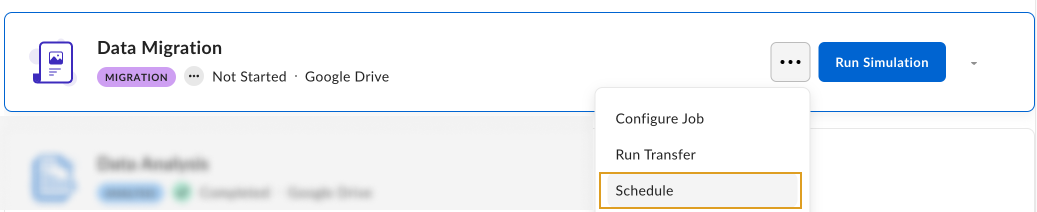
Selecting Run Transfer starts the migration process. After it is finished, you can examine the results. After the transfer is done, you can view the results by clicking View Job Report. See Reporting for details.Schedule migration
You can schedule the job to run the job at a given time and re-run them at configurable intervals.For a Windows source system, the scheduler only runs one job at a time. This ensures that each job has sufficient memory, CPU and other resources to transfer data to Box at optimal speeds.