This article is about Box Shuttle in the Admin Console. If you’re using legacy Box Shuttle, a standalone tool, see legacy migration guides.
Additionally, 90 days after a job run, an automatic report is generated and exported to the job report archive.
A recommended size of a report should not exceed 5 million items (paths) in your job. Excel files that exceed this number are several hundred MB in size and are difficult to open and manipulate for most computers. To limit the size of your export, use the filters available in Job History.
Export a report
- In the Job Report section, click Export. If you want to export a report for a past job, go to the report list and click View Job Report.
-
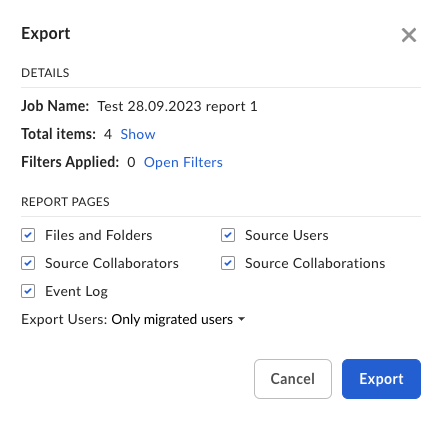
Select the data you want to include in the report and confirm with Export. Bear in mind the following rules:
- If the file name exceeds 207 characters, the report name will be truncated to comply with this setting. The file name is truncated to 207 characters so it can be opened in Microsoft Excel.
-
All forward and backslashes in the file title will be replaced with underscores.
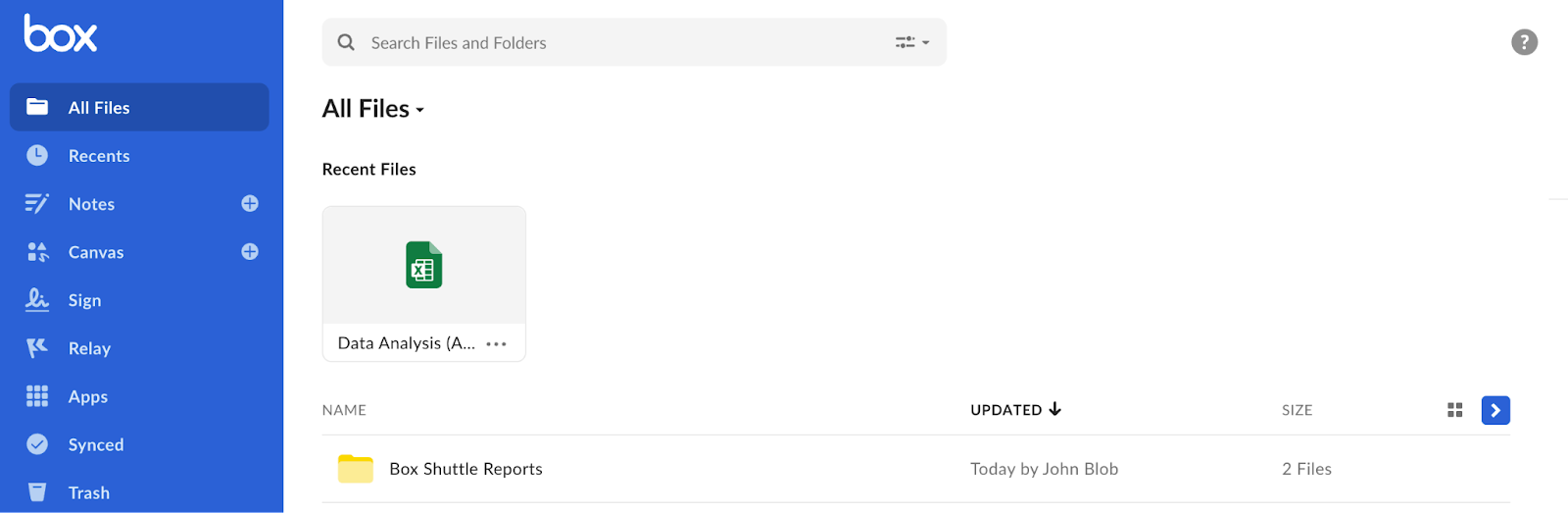
- The report is generated and saved as an .xlsx file to the Box Shuttle Reports folder inFiles. If it is your first Shuttle report, the folder will be created automatically upon export.
-
A confirmation dialog appears, allowing you to open the report to see its contents. You can also close the dialog and return to the report later on.
Note: If you delete the folder, exported reports will be lost. If you delete a given report in the folder, that report will be lost. The folder will be automatically recreated when you export the next report you create.