

This article is about Box Shuttle in the Admin Console. If you’re using legacy Box Shuttle, a standalone tool, see legacy migration guides.
Set up Dropbox for Business as the source system
- Provide a unique name for the job.
- Select Dropbox.
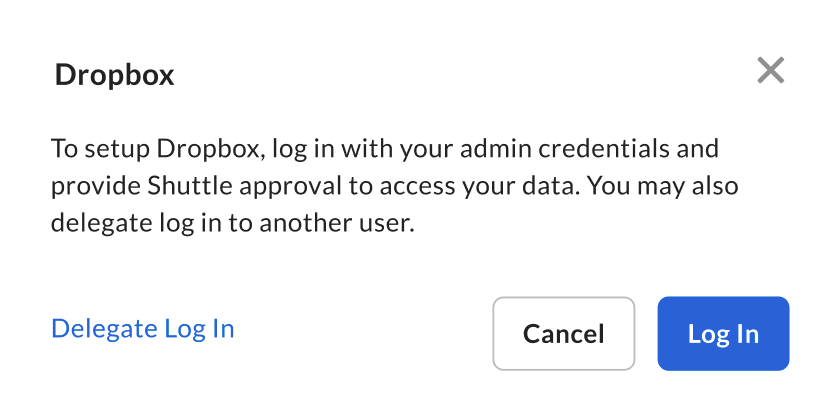
- Follow the on-screen instructions to connect Dropbox for Business
- Log in with your admin credentials.
- Authorize Box Shuttle to access your data.
Dropbox for Business migration specifics
Common errors and troubleshooting
The following table describes common migration errors and their solutions.| Error | Cause | Solution |
| You aren’t a member of this shared folder. | The OAuth user has access to the top level of the team folder, but their permissions were removed from a subfolder. | Add the OAuth user as an edit-level collaborator to the subfolder in the Dropbox admin console under Content. The affected subfolder transfers when you re-run the job. |