

Hyperlinks
To create a hyperlink, select a portion of text to link and then click the link icon from the toolbar under the selected line of text.
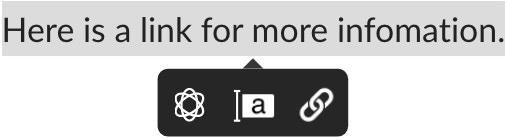
 or the disabled link icon
  from the link toolbar.
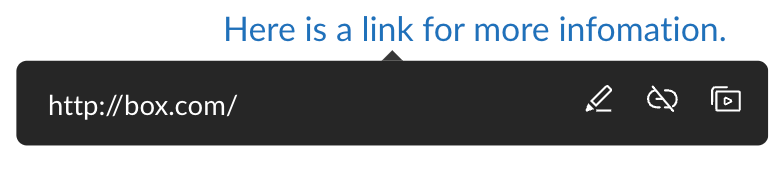
Link previews
Box Notes supports rich embeds for link previews. When you add a link from a video platform, design program, music streaming service, or other source, Box Notes can display a video playback, audio stream, or file viewer if supported. A few sources we support include:- Figma
- Google Docs, Slides, Sheets
- Youtube
- Spotify
- Open a Box Note:
- Copy and paste a link into a Note
- Click on the “+” to the left of the text body and select Link Preview to add a link
- Click the upload button in the header of the Note and select Insert link preview to add a link
- Select how to view the link:
- As a Preview
- As a URL
- For link preview options, click the ellipsis button :
- Minimize Display
- Reduces preview size and limits content functions
- Display as URL
- Removes the preview and leaves link as URL
- Copy Link
- Delete
- Minimize Display
Box Files Previews
When you add a shared link to a Box Note, Box enables you to create a preview of the link’s contents, so you can quickly access the information you need without leaving your Note. To create a file preview:- Paste a shared link into your Note, click the Insert button that appears.
- In the top of the Box Note window, click the up-arrow icon and select Insert preview from Box shared link.
- Click on the “+” to the left of the text body and select Link Preview to add a link
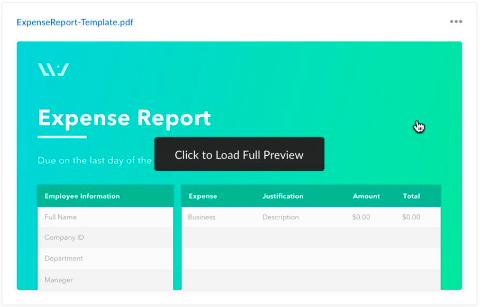
- Hover on the link.
- Click the ellipsis (…) beside the link and select Revert to a link. This affects everyone who has access to the link.
- Hover on the link.
- Click the ellipsis (…) beside the link and select Who can see this?