

-
Click the contextual menu on the left and select Table of Contents.
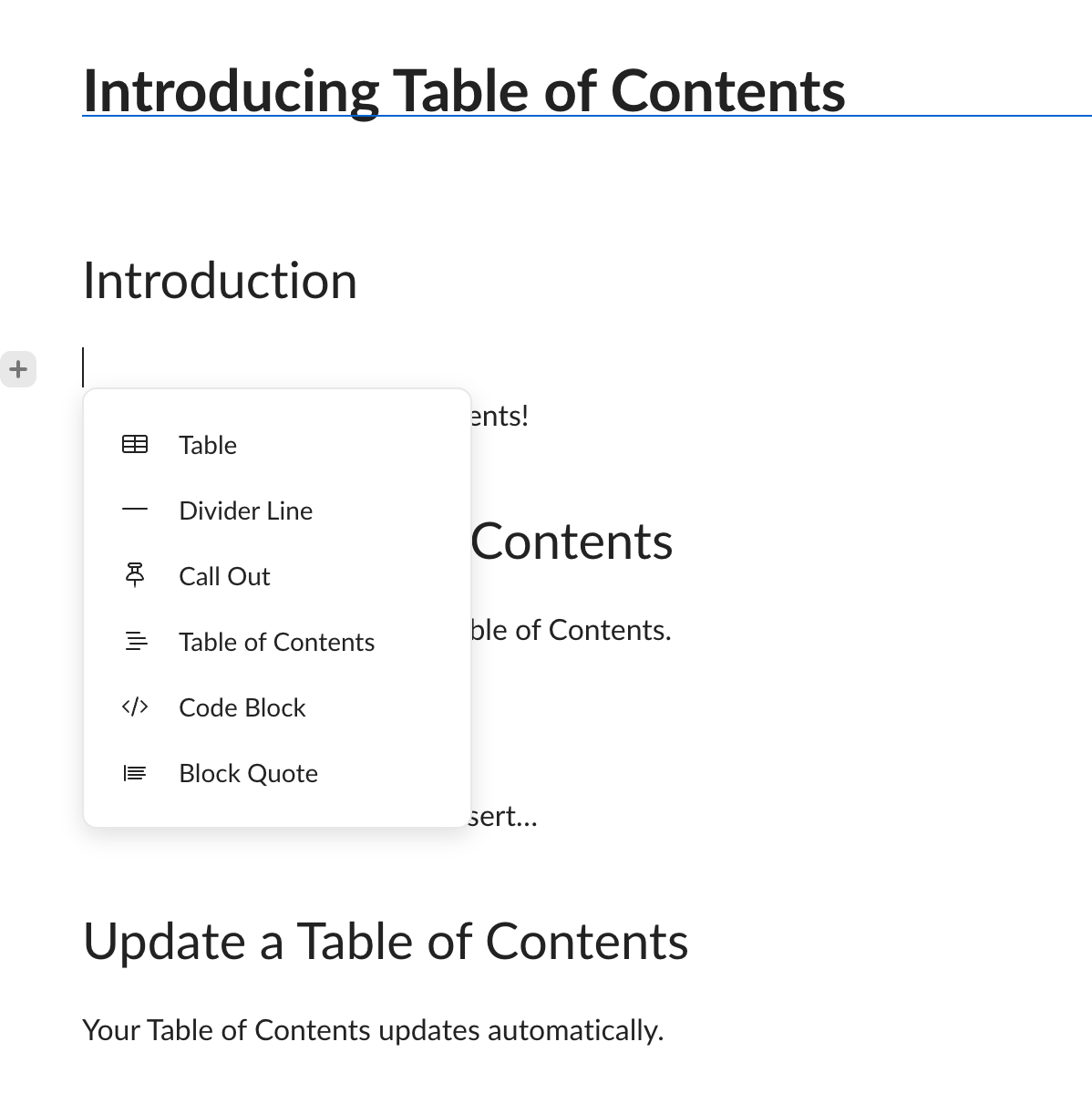
- The structure of your Table of Contents is based on the headings. When you add or remove a heading, or change a heading type, the Table of Contents updates automatically.
Note:
The Table of Contents uses Heading 1, 2, and 3 to build the structure. Other types are not supported.
The Table of Contents uses Heading 1, 2, and 3 to build the structure. Other types are not supported.
-
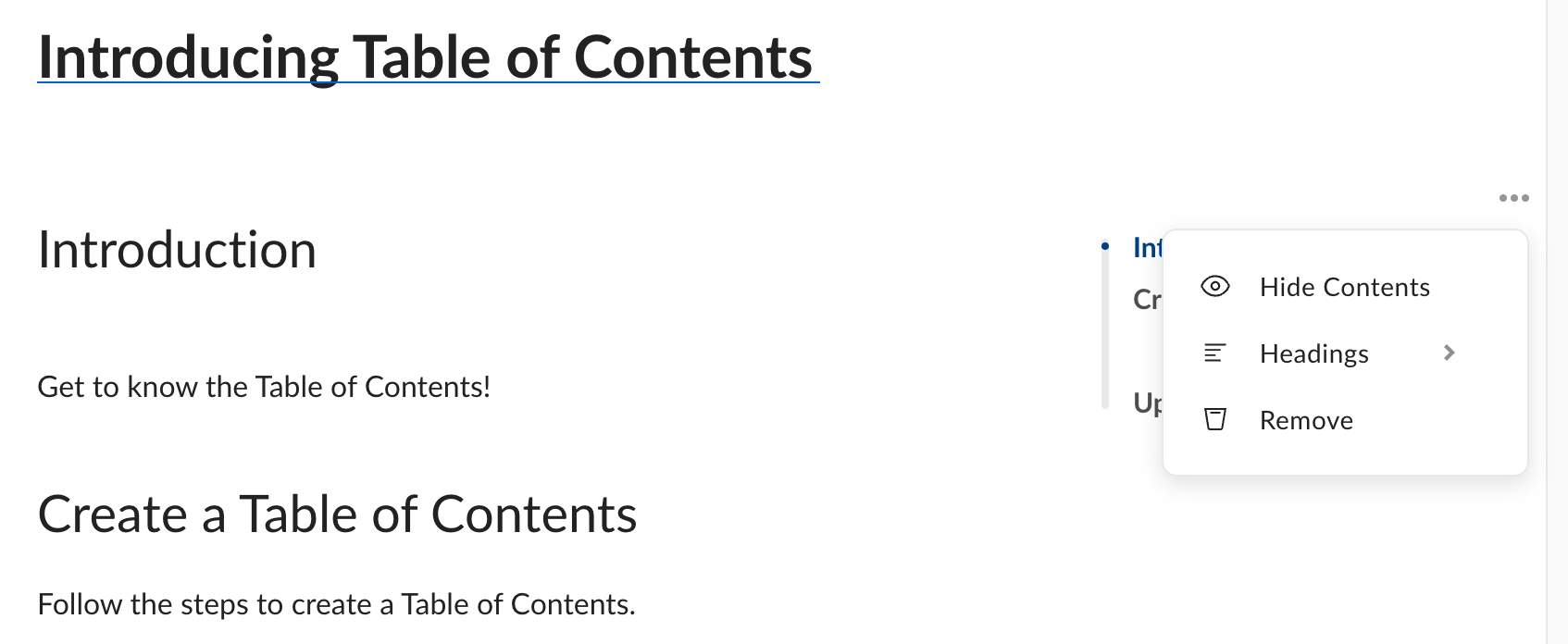
Click the three dots icon above the Table of Contents to display a pop-up menu.
-
Use the following options to customize the Table of Contents:
- Hide Contents: Collapses the Table of Contents.
- Headings: Allows you control the structure by selecting the headings you want to display.
- Remove: Removes the Table of Contents.