It’s simple and fast to create a new Box Note.  The process differs slightly, depending on where you are within Box when you create the Note. Note This article explains how to create a new, blank Box Note.  You can also create a new Note from a template. To create a new Box Note in the default Notes folder
  1. In the lefthand navigation, next to the Notes listing, click the plus icon.
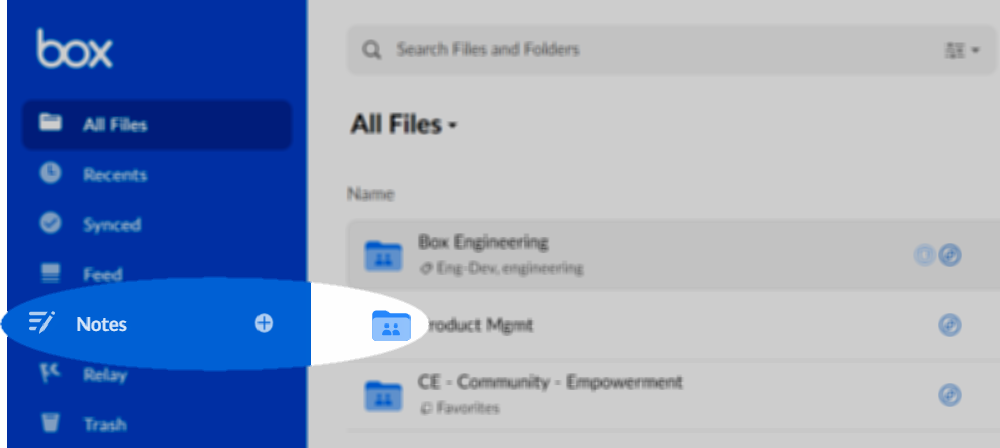
notesenhancements-plusiconinleftnav-png
Box automatically stores this note in your default My Box Notes folder. To create a Note directly into the folder of your choice:
  1. Navigate to the folder you want.
  2. From the top navigation, click New, and from the list that displays, click Box Note.
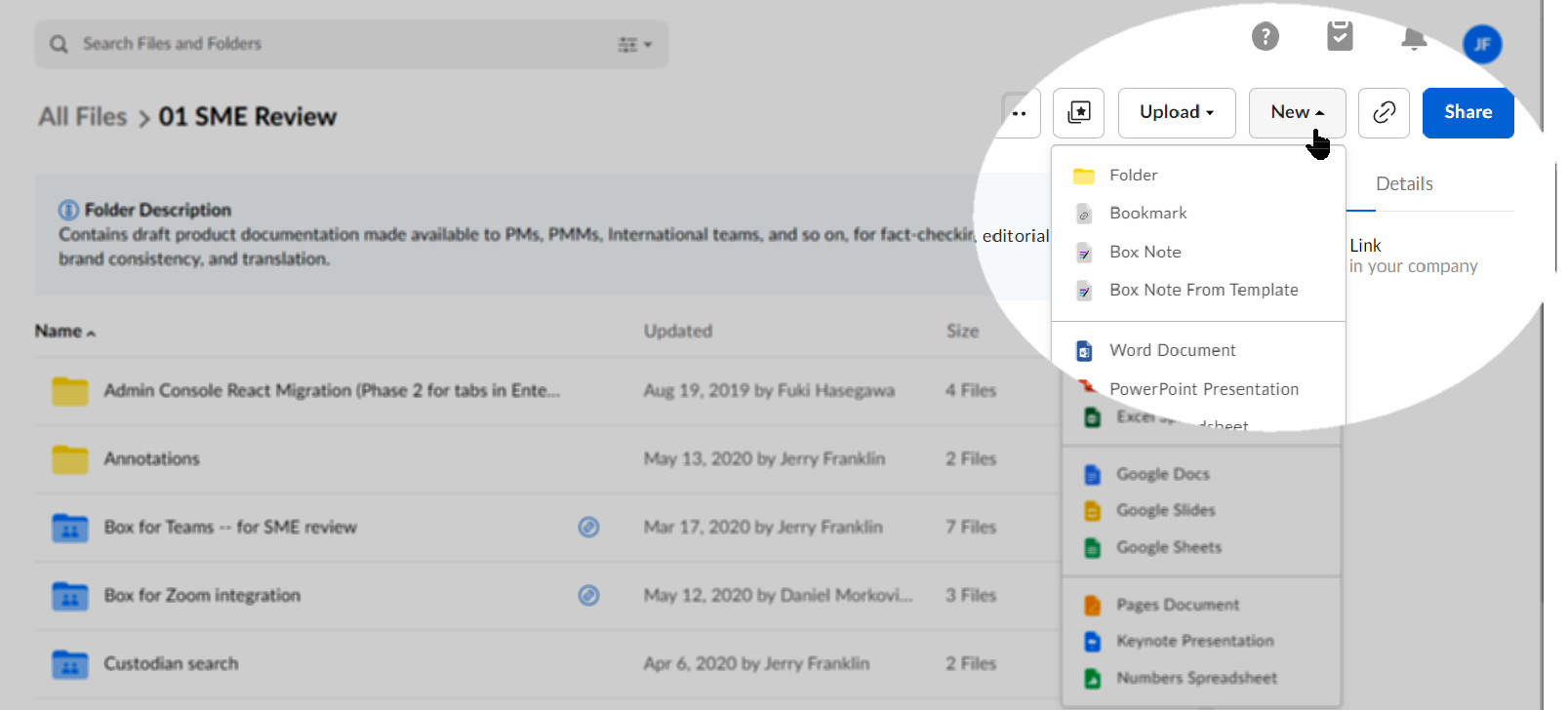
notesenhancements-newmenuinfolder-png
Box automatically stores your Note in your current folder. There are two other easy ways to create a new blank Box Note:
  • Directly from an existing Box Note.  To do this, open any Box Note, navigate to the top navigation and click New.
  • Via https://app.box.com/notes/create_note.  Save this URl as a shortcut or bookmark in your browser.  Then click on it to open a new, blank Box Note.
In all of the above cases, you can title the note by clicking the header bar (Default title: Add a Title)  and type in your own title. When you begin typing, Box also automatically saves your changes. Note: You can’t use forward slashes and backslashes in the title of your Box Note. Box will not save titles containing these characters. More on creating Box Notes from templates.