

Sharing
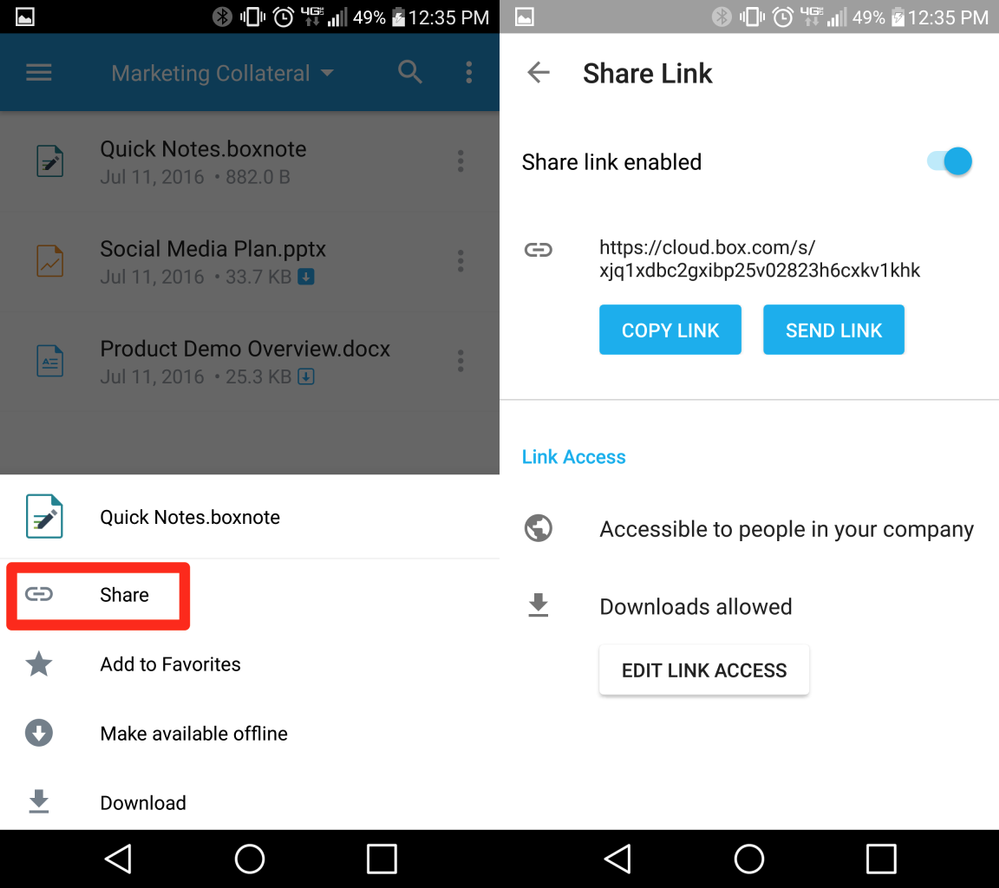
To send a shared link to an item in Box:- Locate the file or folder you’d like to share
- Tap the ellipsis (…) to the right of the item name to open the More Options menu.
- Tap Share, then tap the Share link enabled slider to generate a shared link.
Access Limits and Restrictions
You can set access limits, restrict actions, and set an expiration date for your shared link before sending it out. Tap Edit Link Access to modify shared link settings.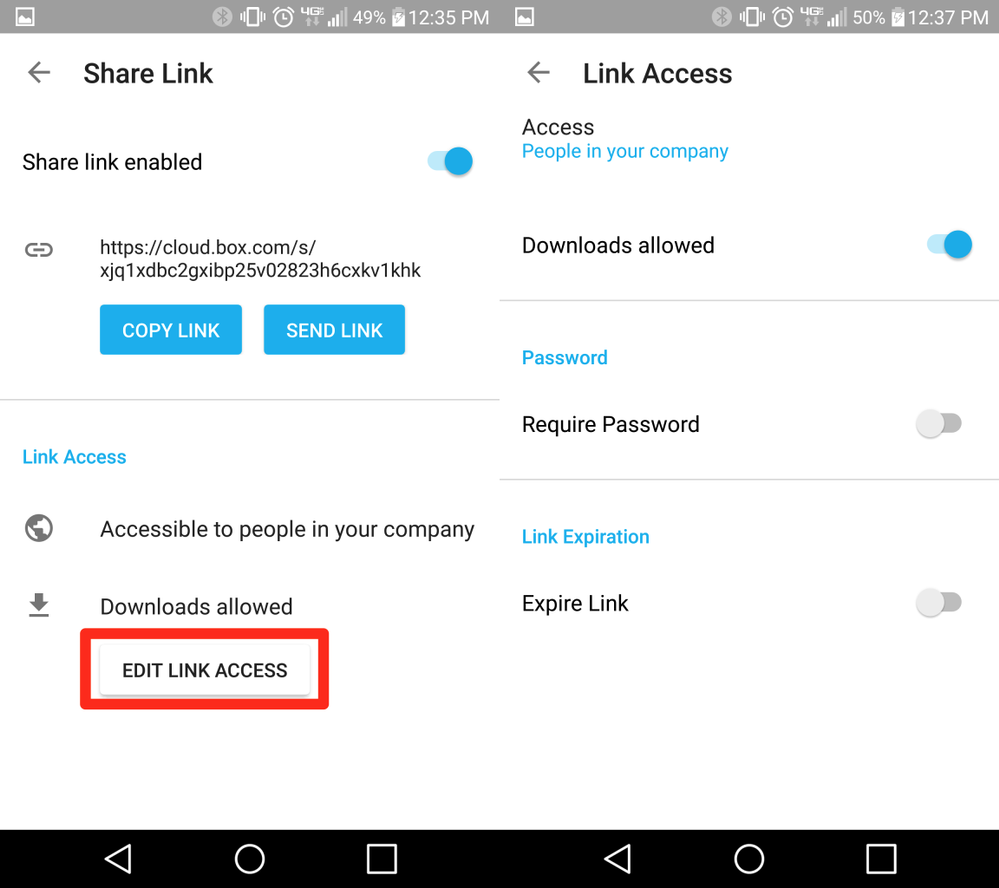
- People with the link: Anyone who has the link can view your content, whether they’re logged in or not. We recommend one of the other access levels for files or folders you’d like to keep secure.
- People in your Company: Allows anyone with a Box account at your company to see your content. Users will need to be logged in to see the file or folder linked and you will usually be able to see which specific users in your company have viewed your files.
- People in this folder: Access is limited only to users you’ve invited to your file or folder as Collaborators. You can invite or remove Collaborators to expand or limit the list of users who can view your files.
Add and Manage Folder Collaborators
Box collaborators have different access levels. Each access level has different permissions for different features when using Box.Add Collaborators
- Locate the file or folder into which you’d like to add collaborators.
-
Tap the ellipsis (…) to the right of the file or folder name to open the More Options menu.
- Alternatively, you can open a folder, tap the ellipsis in the top-right corner, and select Folder Actions.
- Tap Share, then tap Add Collaborators
- Start typing the name or email of a person in your contacts and the closest matches will appear below. Select the required name/email.
- Assign the required access level.
- Tap the Send icon in the top-left corner to send collaboration invites.
View and Manage Collaborators
- Locate the file or folder in which you’d like to manage collaborators.
-
Tap the ellipsis (…) to the right of the file or folder name to open the More Options menu.
- Alternatively, you can open a folder, tap the ellipsis in the top-right corner, and select Folder Actions.
- Tap Share, then tap Manage Collaborators.
- You will see a list of all collaborators who have access to the file or folder. Collaborators are displayed prioritized by access level.
- Tap a collaborator to modify their access level, or remove them from the file or folder.