

- Choose from a range of colors.
- Erase your annotation.
- Add comments to your annotation to provide clarity and context.
- Automatically notify one or more collaborators via Box’s “@ mention” feature.
- As with all Box annotations, you can only share your annotations with people who are collaborated on the file.
- Box annotations essentially are an overlay in Box Preview – that is, they are not added to the actual file contents. If you open the file in its native application, your annotations do not display.
- Open the file you want in Box Preview.
-
- The annotation toolbar displays at the bottom of the screen.
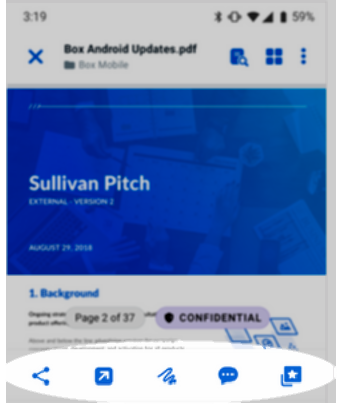
- Tap the drawing icon; it looks like a scribble (
 ). The full annotations toolbar displays.

- Do one of the following:
- For a marker effect, tap the marker (
 ).
). - For more precision, tap the fine point pen (
 ).
).
- (Optional) The default drawing color is red. To change it, tap the color circle (
 ). When the color palette displays, tap the color you want.
 - When you select your tool, you can draw your annotation in different ways, depending on your device:
- Mouse or trackpad
- Your finger
- When you stop drawing (for example, by lifting your finger), the Comment toolbar displays. Here you can explain and add context to your annotation.
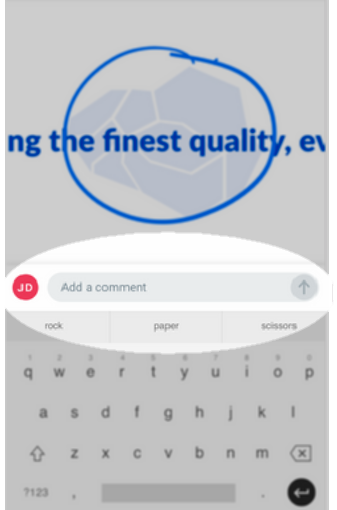
- To save your annotation, tap the Up arrow (
 ).
).
Note: If the comment field is empty, Box does not save the annotation. To save the annotation, type at least one character and tap the Up arrow.
- Tap into the blank line. As before, the tool you use to enter your comment may change, depending on your device and your preference:
- Write, using your finger
- Type, using a real or virtual keyboard
- When you’re done, tap the Up arrow. From here you can:
- View your comment as it will display in the File Activity pane. To do this, tap View Comment.
- Delete your comment. To do this, tap Delete.
- Begin another annotation.
 ). Then erase any portion of your annotation. This is ideal for cleaning up small mistakes and erasing only certain sections of your annotation.
Undoing an annotation
During an annotation session, you can undo any prior actions with the Undo tool. To do this, tap Undo (
). Then erase any portion of your annotation. This is ideal for cleaning up small mistakes and erasing only certain sections of your annotation.
Undoing an annotation
During an annotation session, you can undo any prior actions with the Undo tool. To do this, tap Undo ( ). Each time you tap Undo you remove a segment of your annotation.
- A segment extends continuously from the time you begin drawing to the time you raise your finger. For example, you draw a single unbroken line in one segment. A dotted requires multiple segments.
 ).
).