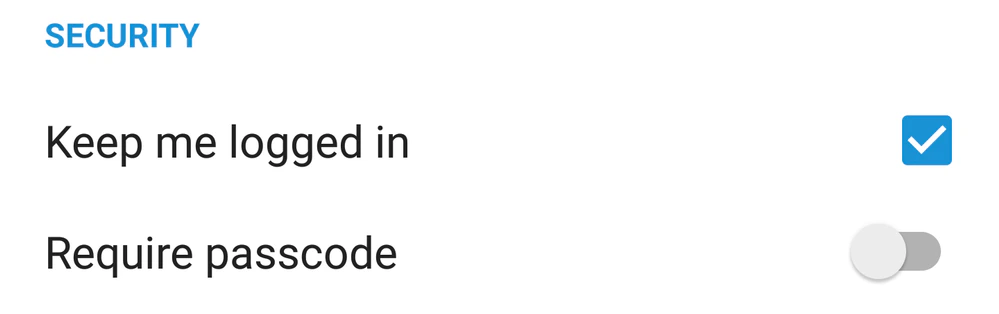
Access your app settings (Settings in the main menu) to set your notification and security preferences for the Box app. You will also find the amount of storage you have used listed at the top of the settings screen.
Notification Settings
Here you can choose when you will receive notifications from the Box app. Uncheck the boxes to stop receiving notifications.
Security Settings
Clear Keep me logged in if you would like to be logged out of your Box account every time you close the Box app.
Note
If you use the back key to exit the app, Box logs you out. Exiting the app by any other way, or by stopping the app, does not log you out.
Folder Activity
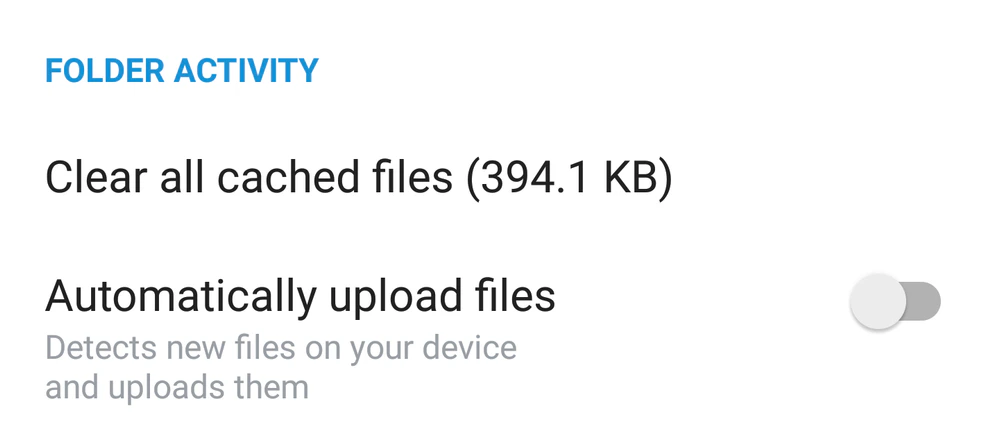
Under Folder Activity, you can remove any Cached Files from your device. Cached files are temporary files that are created when you preview a file, and save you time when you preview the file again. Removing cached files will clear some storage space, but will also mean that you will need to re-load any previewed items.
If you enable Automatically upload files, Box will detect files stored on your device and upload them to Box automatically.