Linking iAnnotate to your Box account
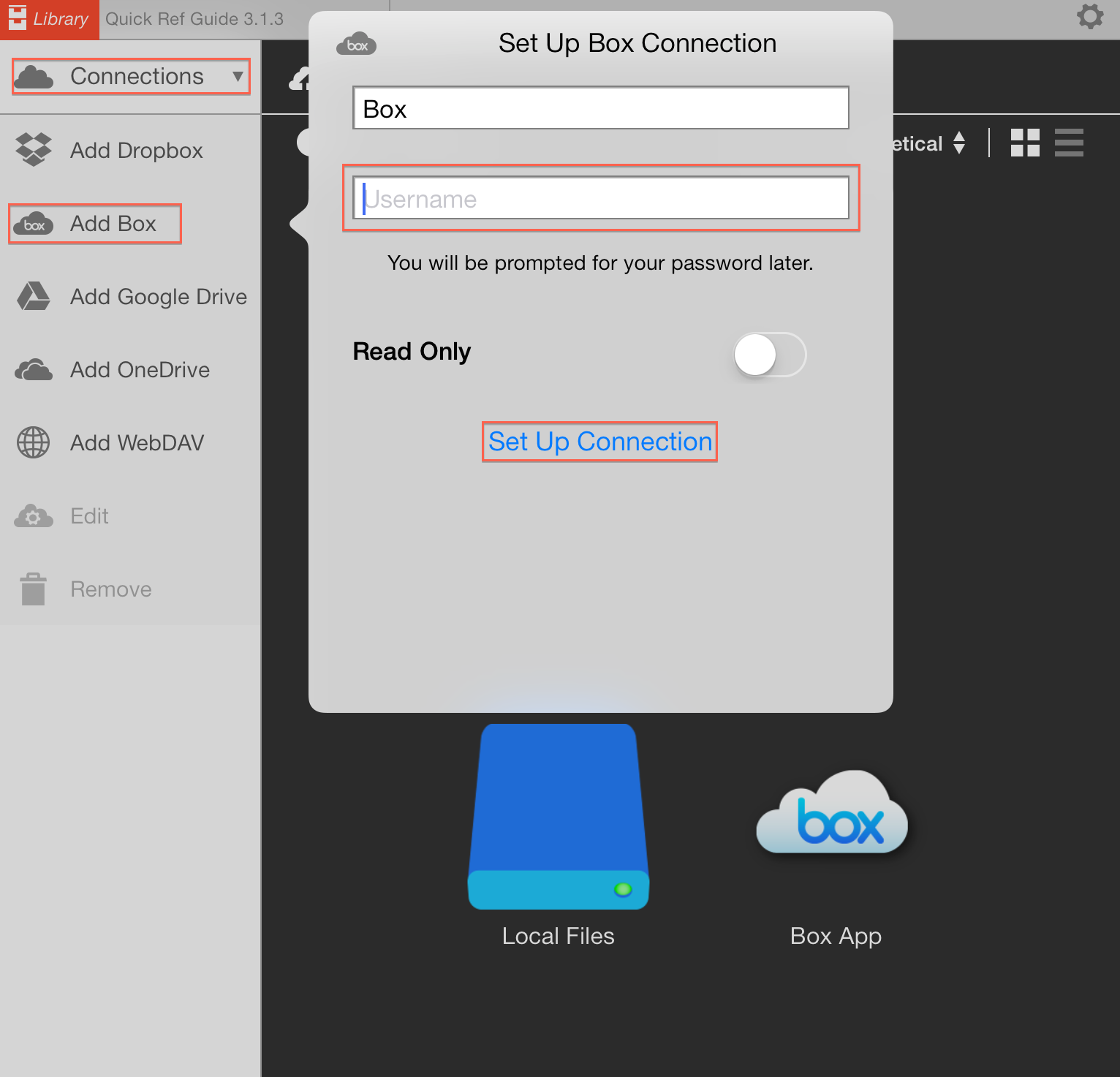
It’s easy to link iAnnotate PDF to one or more of your Box accounts.- Within iAnnotate tap on Library (located in the upper left hand corner) and then tap on Connections.
- Tap Add Box and enter a description (it defaults to Box). Enter your Box username, typically your email address and choose Read Only if you want to use the connection to import files, but wish to disable syncing annotated files back to your Box account. With this option turned on, your annotations will only be saved to your iPad and not backed up to Box. When you are finished tap on Set Up Connection.
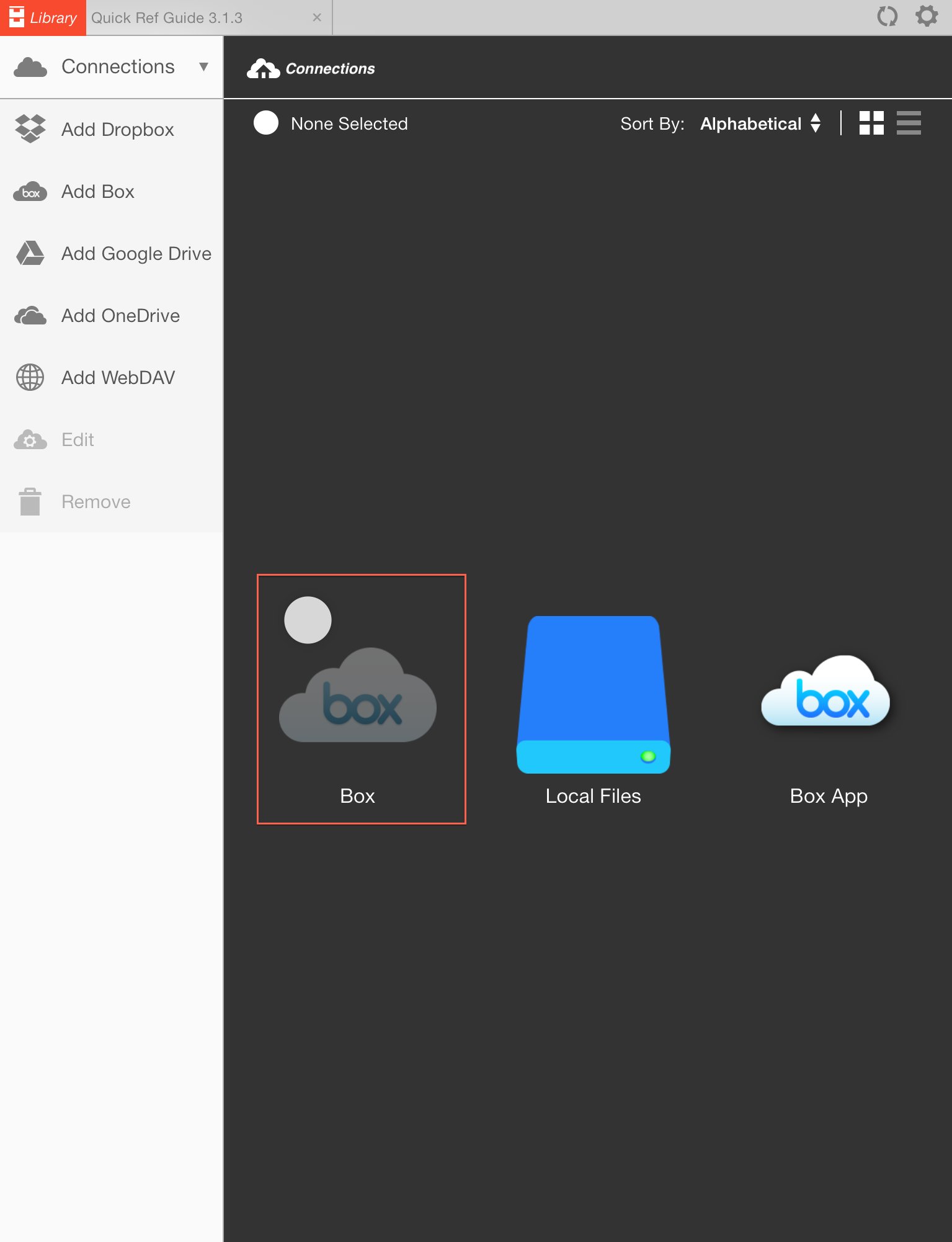
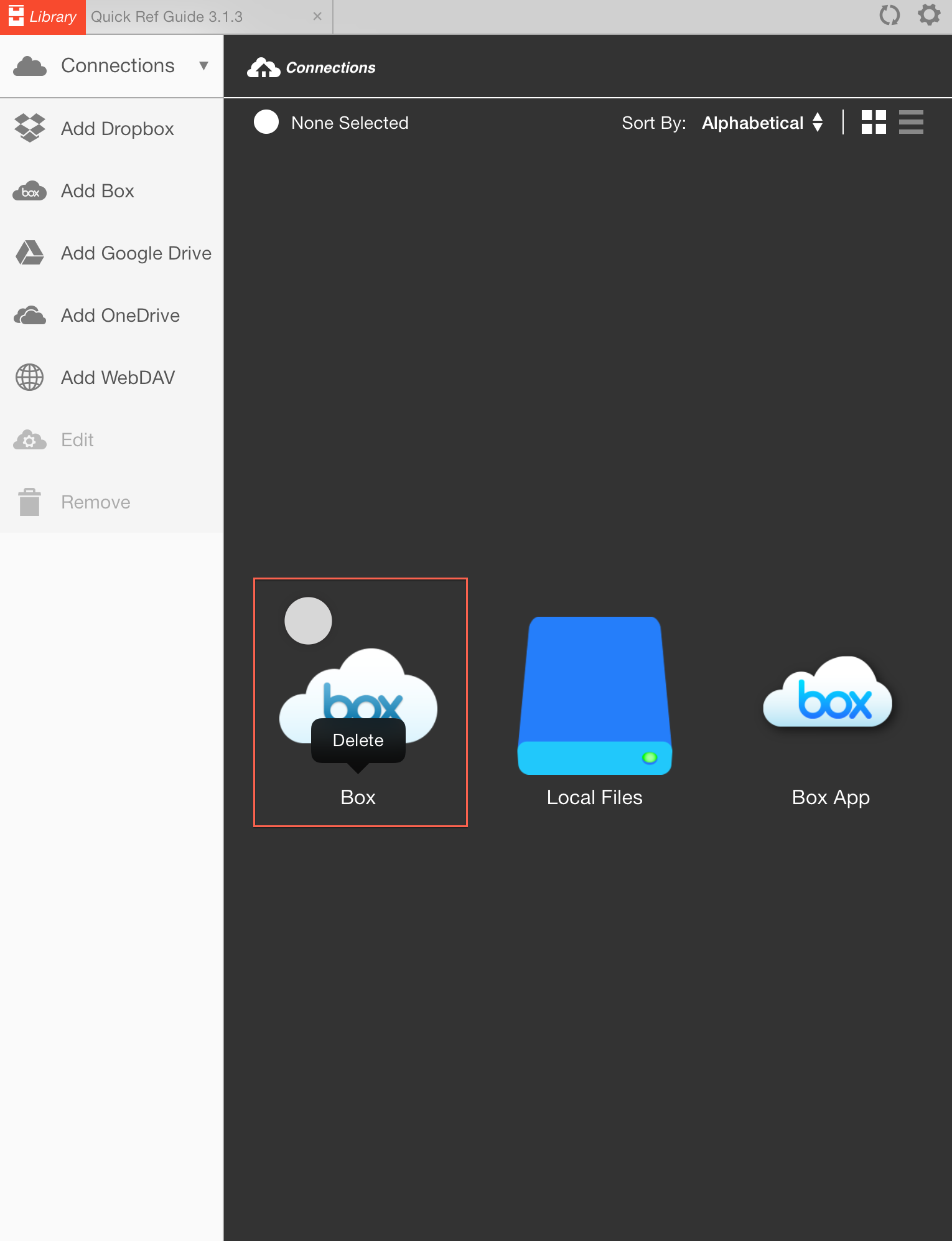
- You will find the new Box connection icon in your Library; it will appear light gray meaning you have not downloaded anything from it yet. Tap the icon to continue the setup process.
- Your username will already be entered (if you’ve made a mistake and mistyped this you will need to delete this connection and make a new one since you cannot edit the username in the authorization window). If your username is not already entered, just input this, along with your password and tap on ‘Authorize’.
- You will then be asked to let iAnnotate grant access to Box. Tap Grant access to Box.
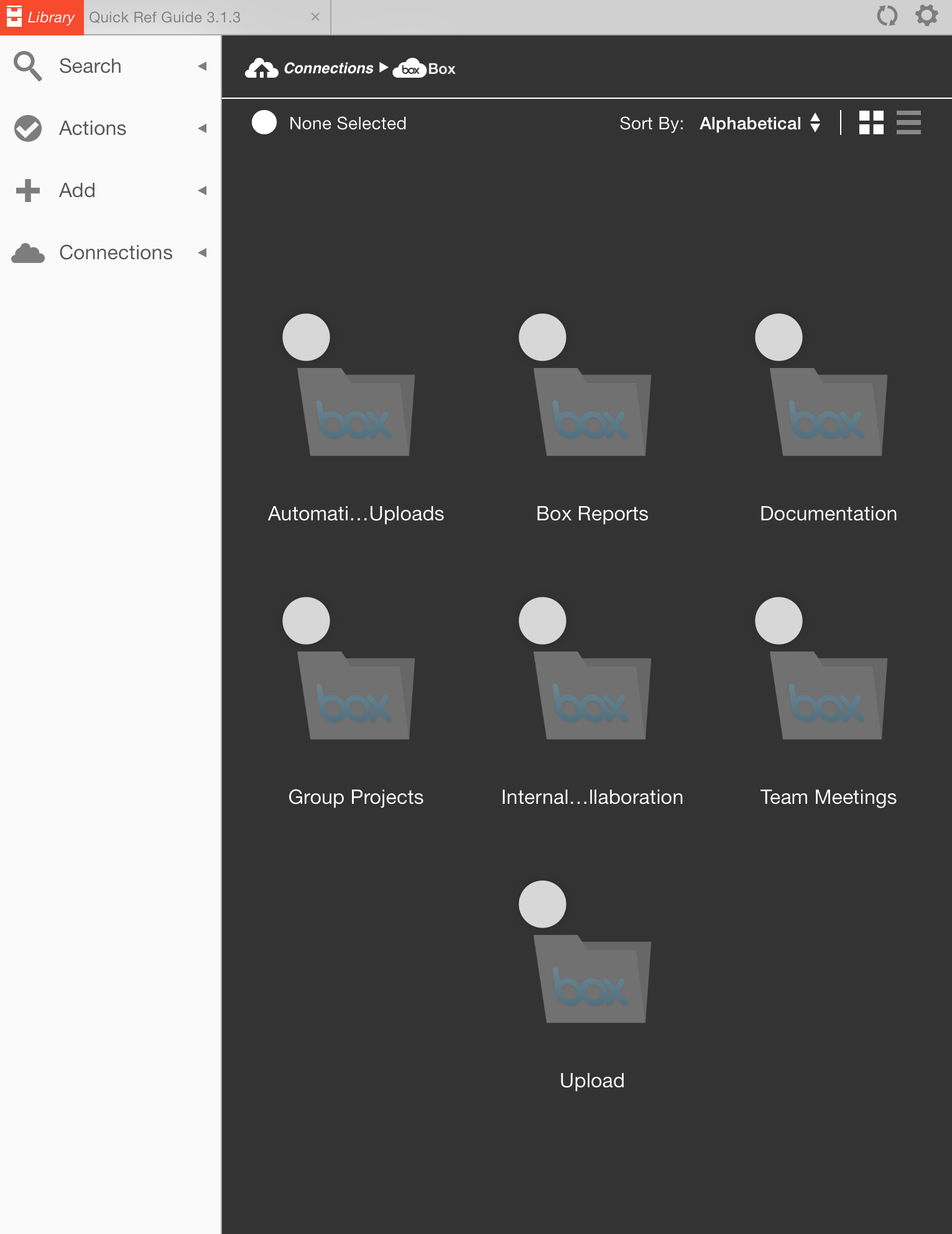
- Once setup is complete, you will see all of your folders within your Box account displayed in iAnnotate.
- After you download your first file from Box into iAnnotate, your Box connection icon will no longer be displayed in light gray.
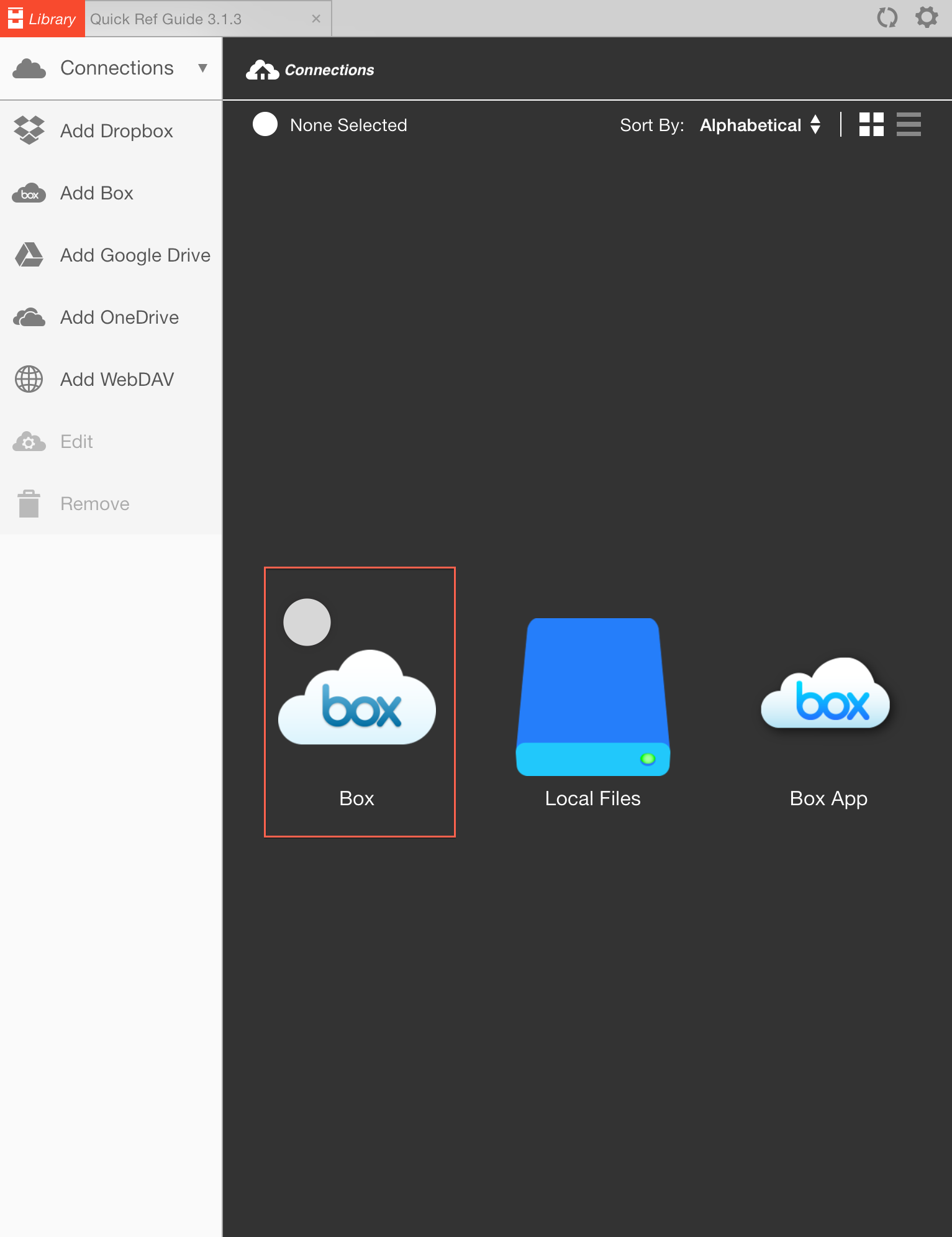
- To remove your Box connection, simply tap and hold down the Box connection icon and click on Delete.
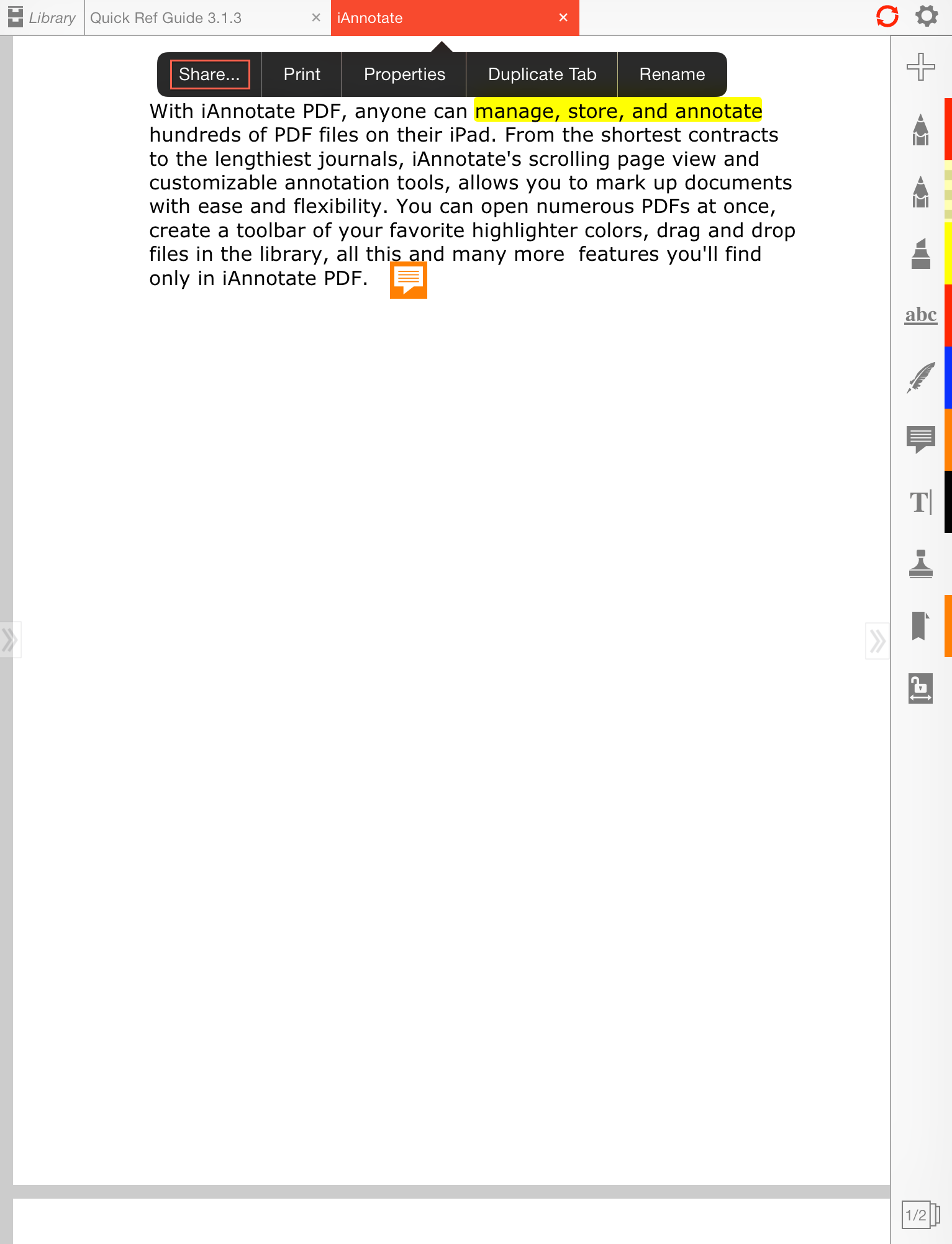
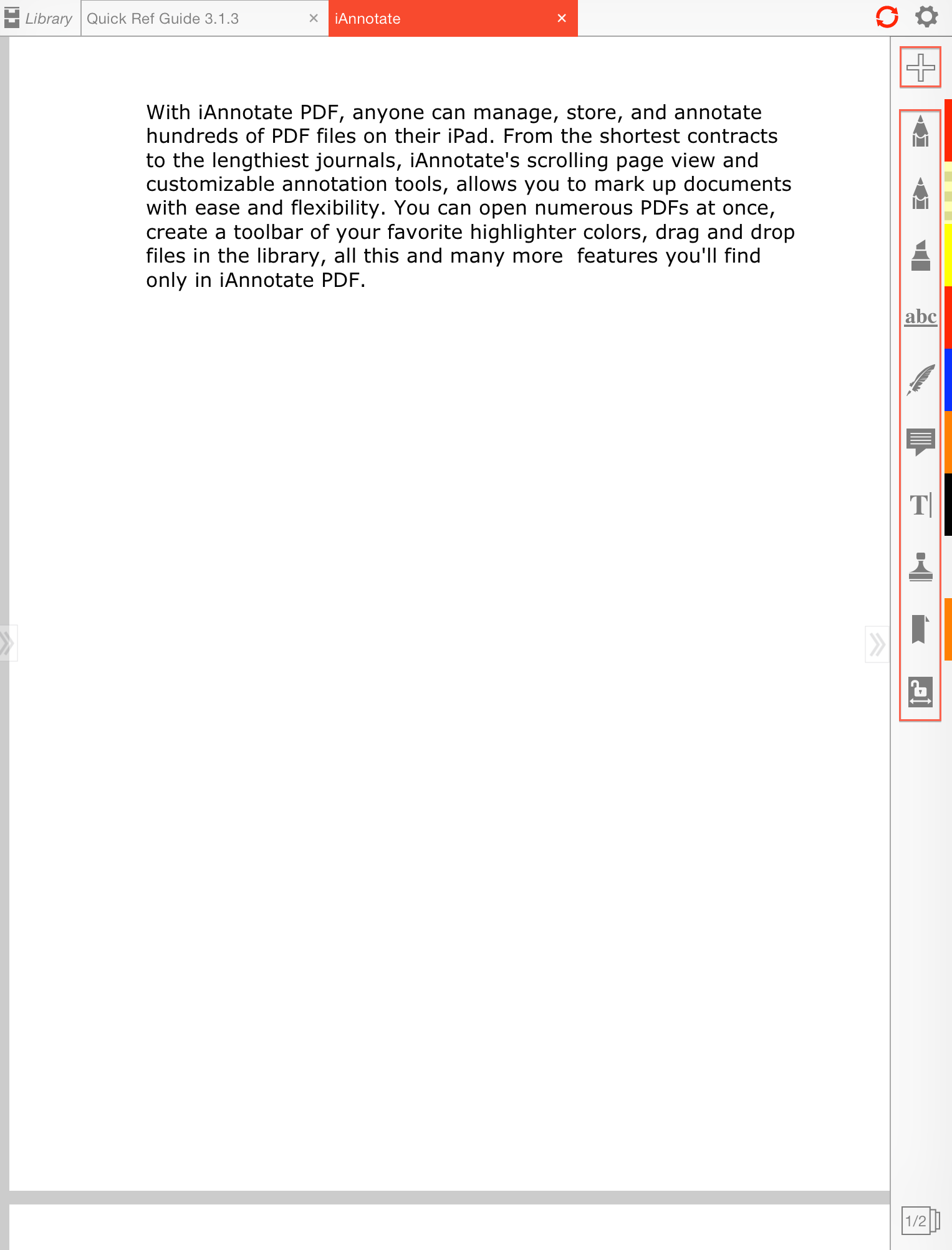
- In iAnnotate navigate and open your PDF document that you would like to edit.
- You will see a toolbar on the right hand side your your screen. This toolbar is limited to 12 tools and can be customized by tapping on the ’+’ icon at the top of the toolbar, which will automatically open the toolbox.
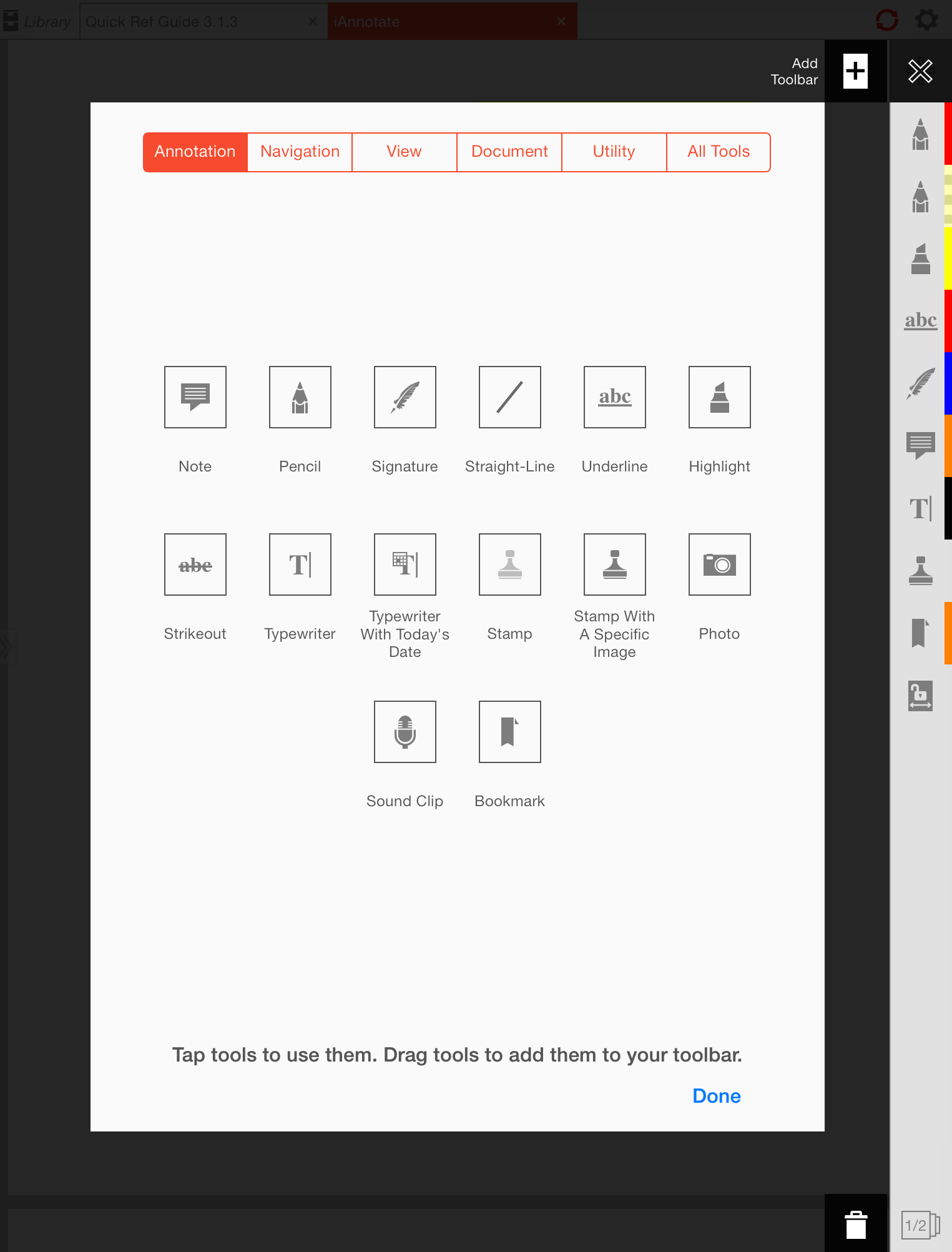
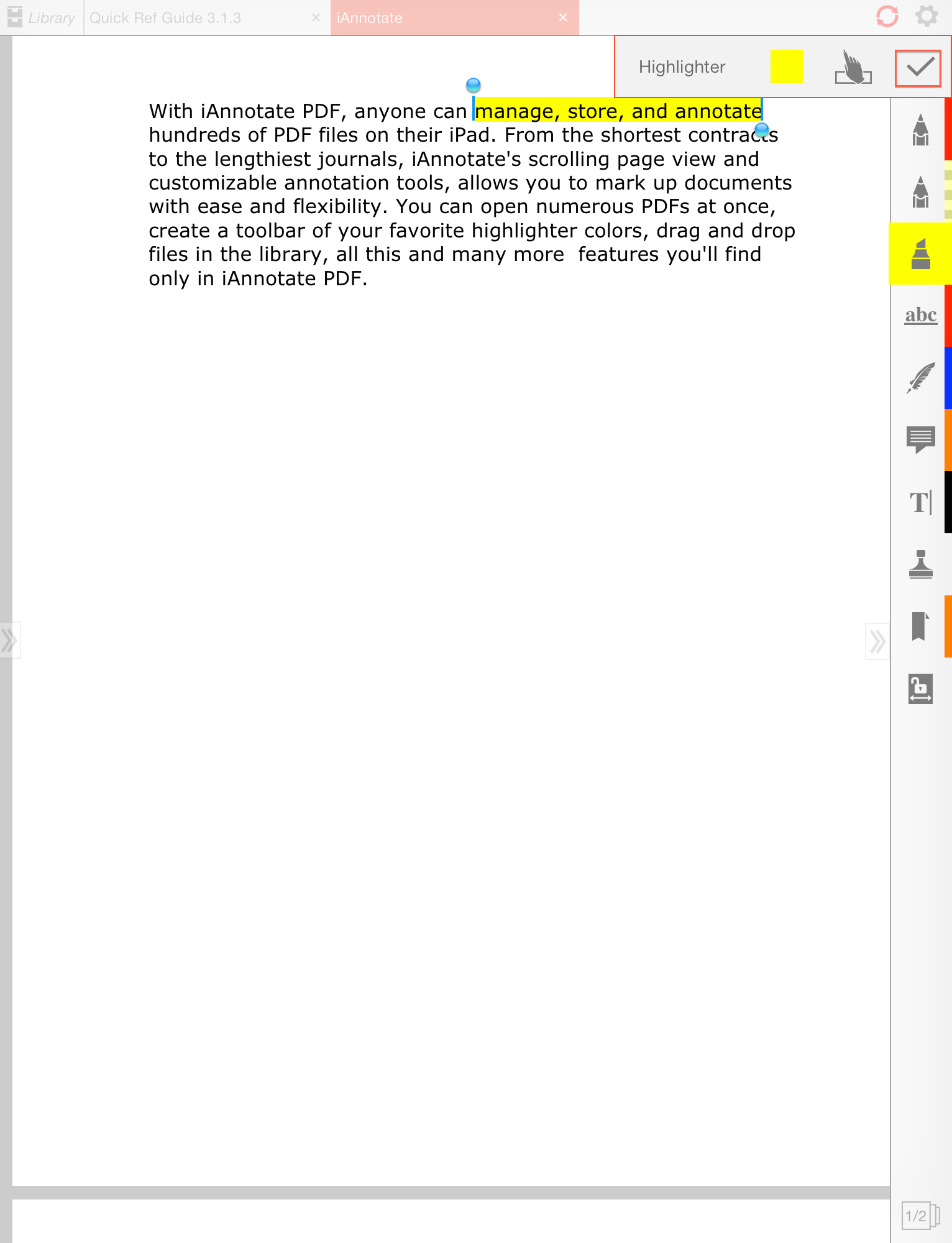
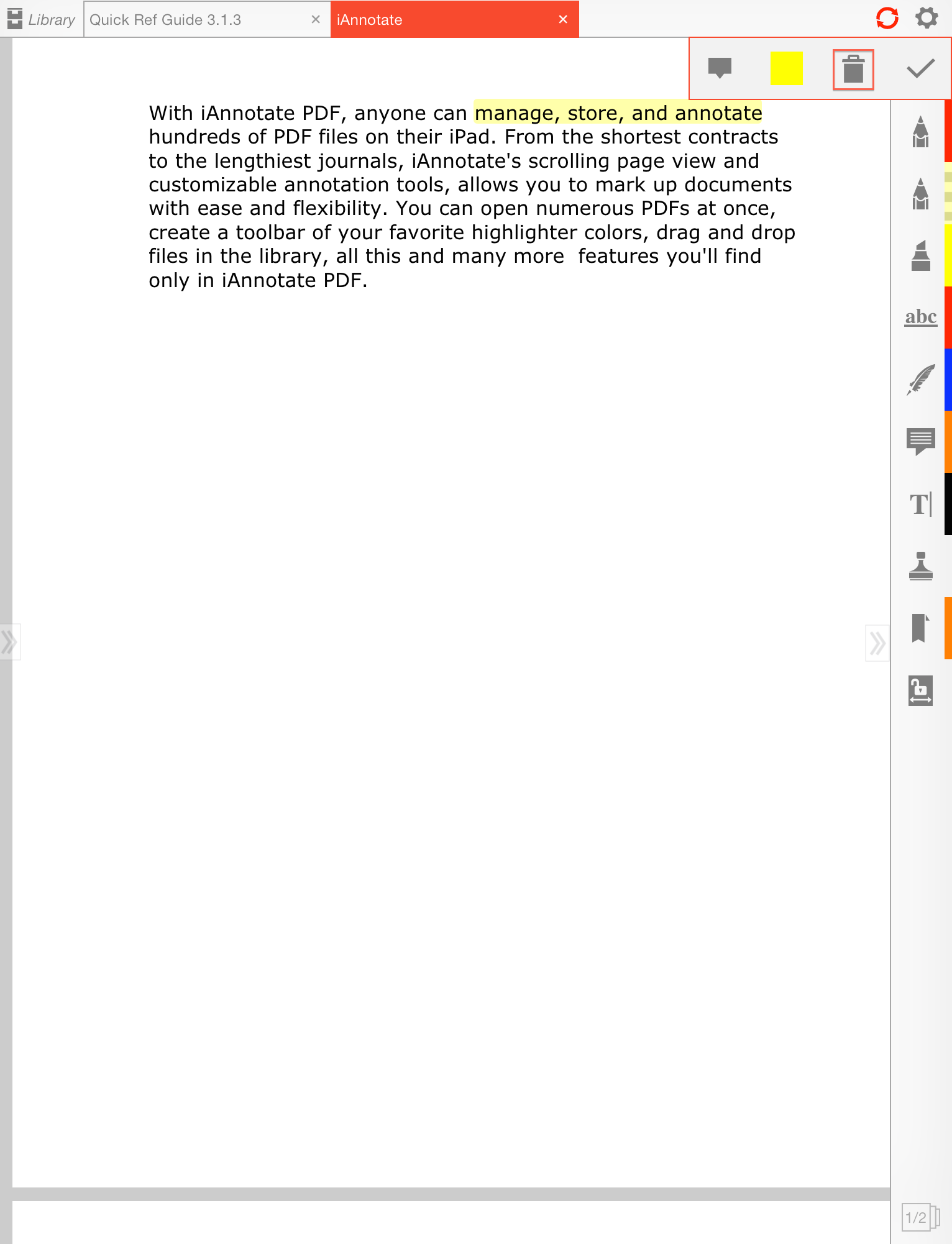
- To Highlight text, tap on the highlight icon and highlight the text.
- Then tap on the ‘tick’ icon to save this. If you wish to remove the highlight, just tap on the highlighted text and then tap on the Trash icon.
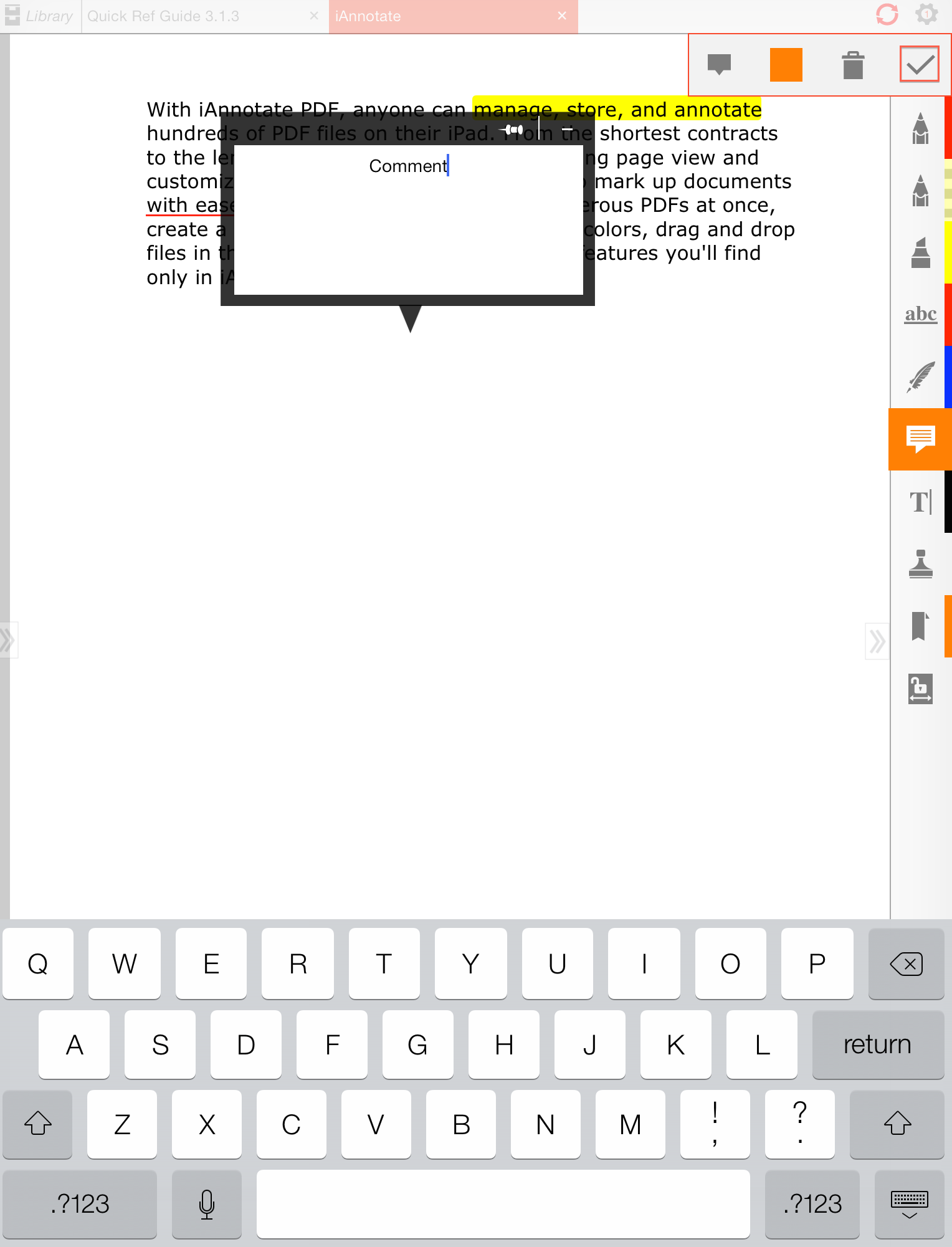
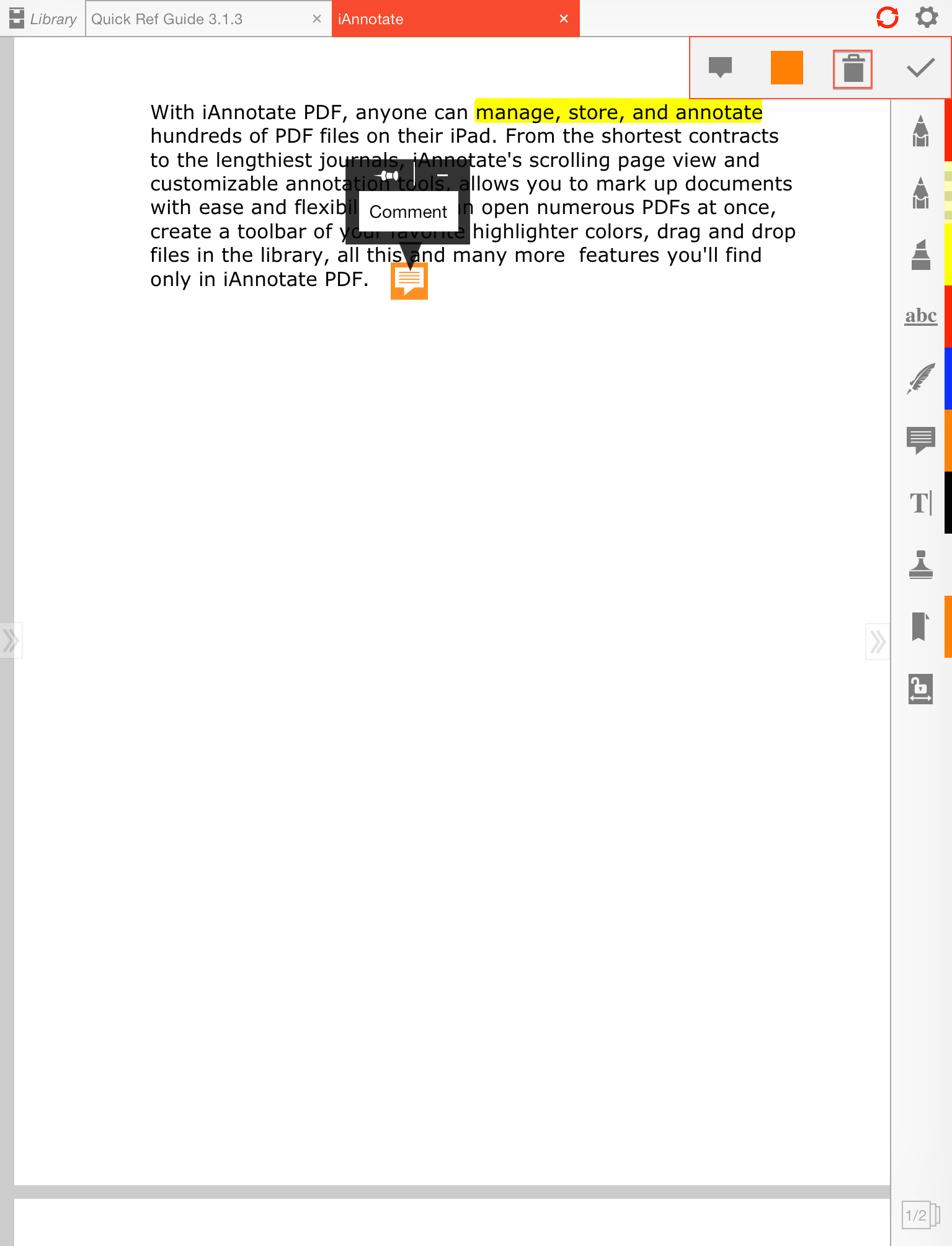
- To leave a Note within the PDF document, just tap on the note icon, enter your note and then tap on the ‘tick’ icon to save. If you wish to remove this note, tap on the note and then tap on the Trash icon.
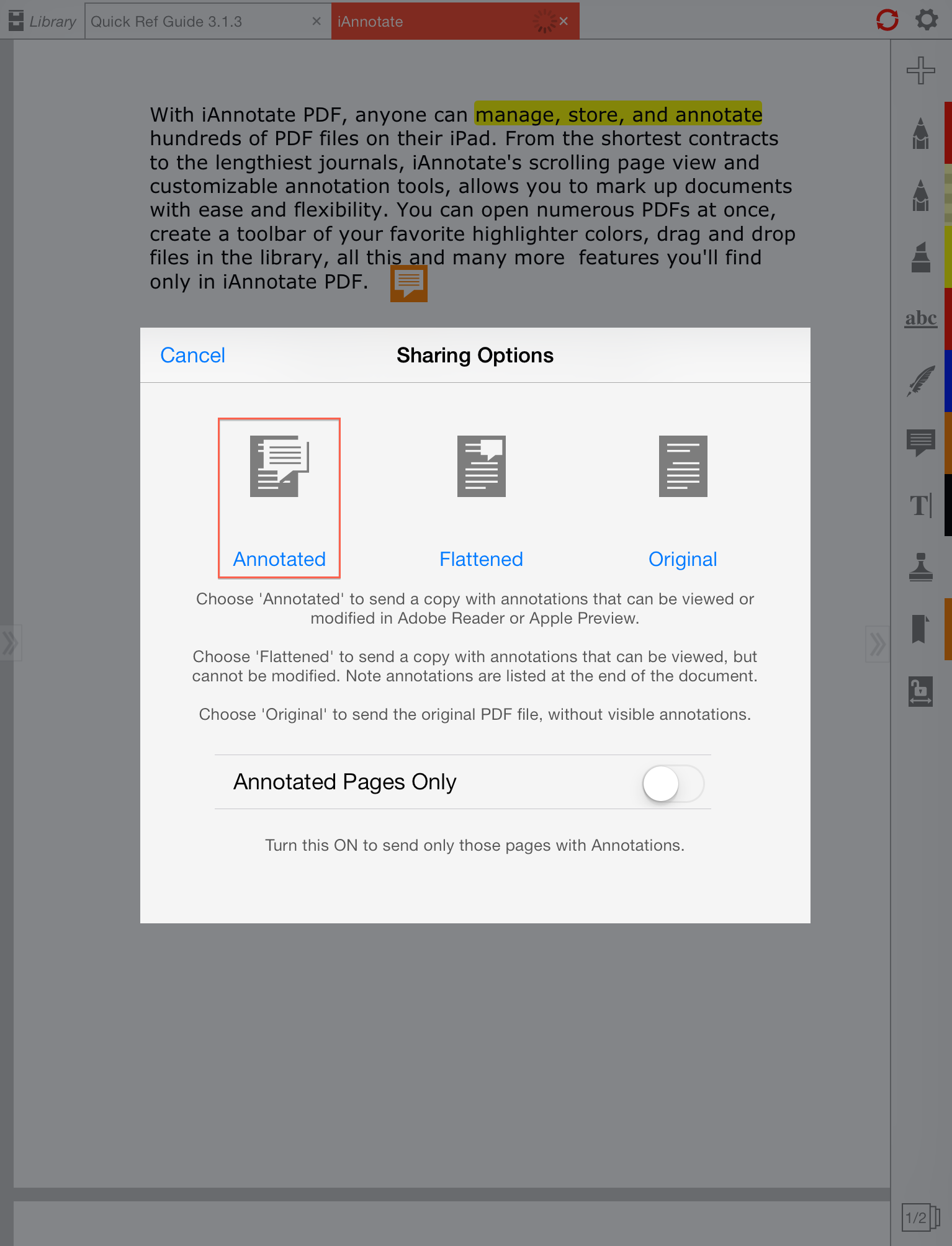
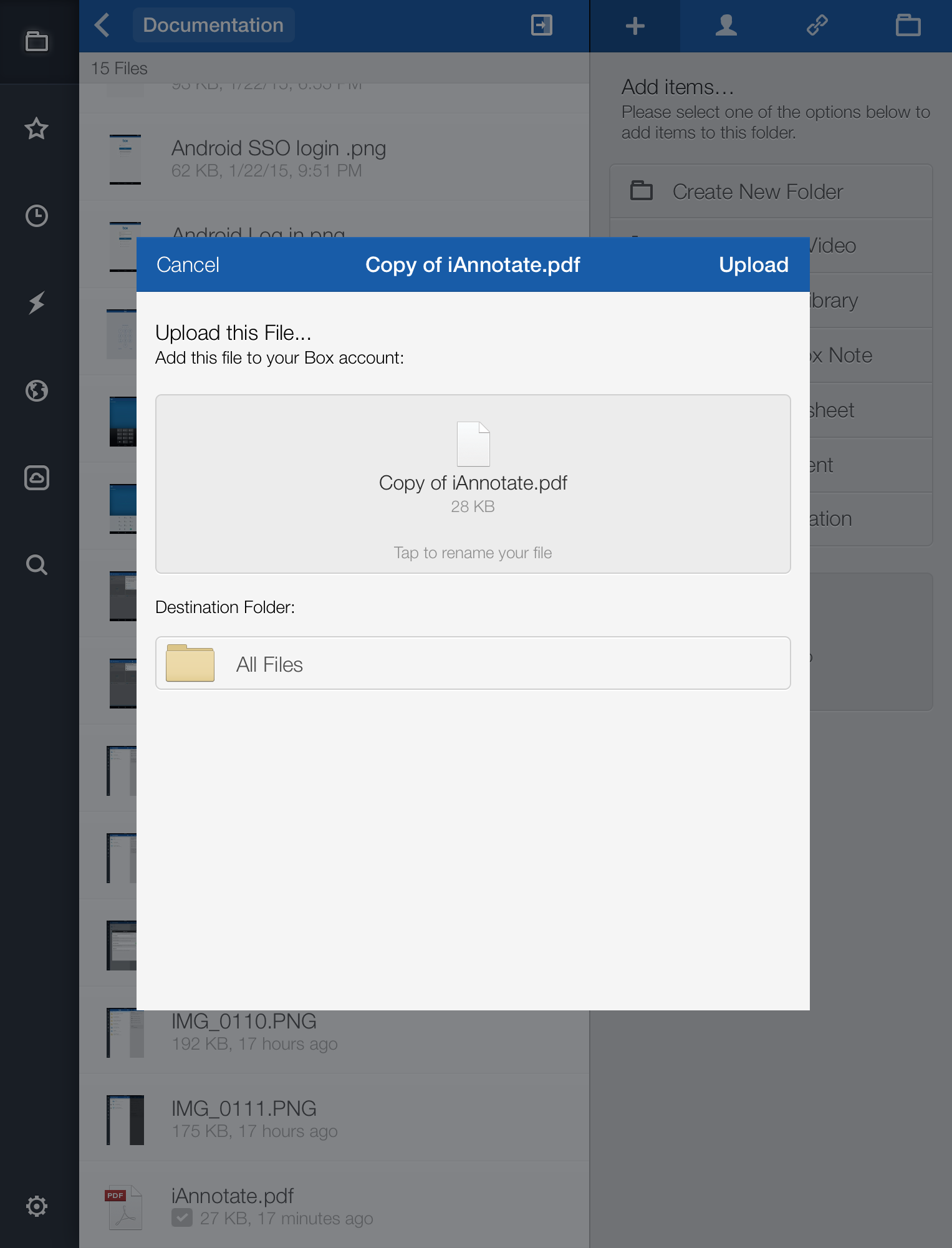
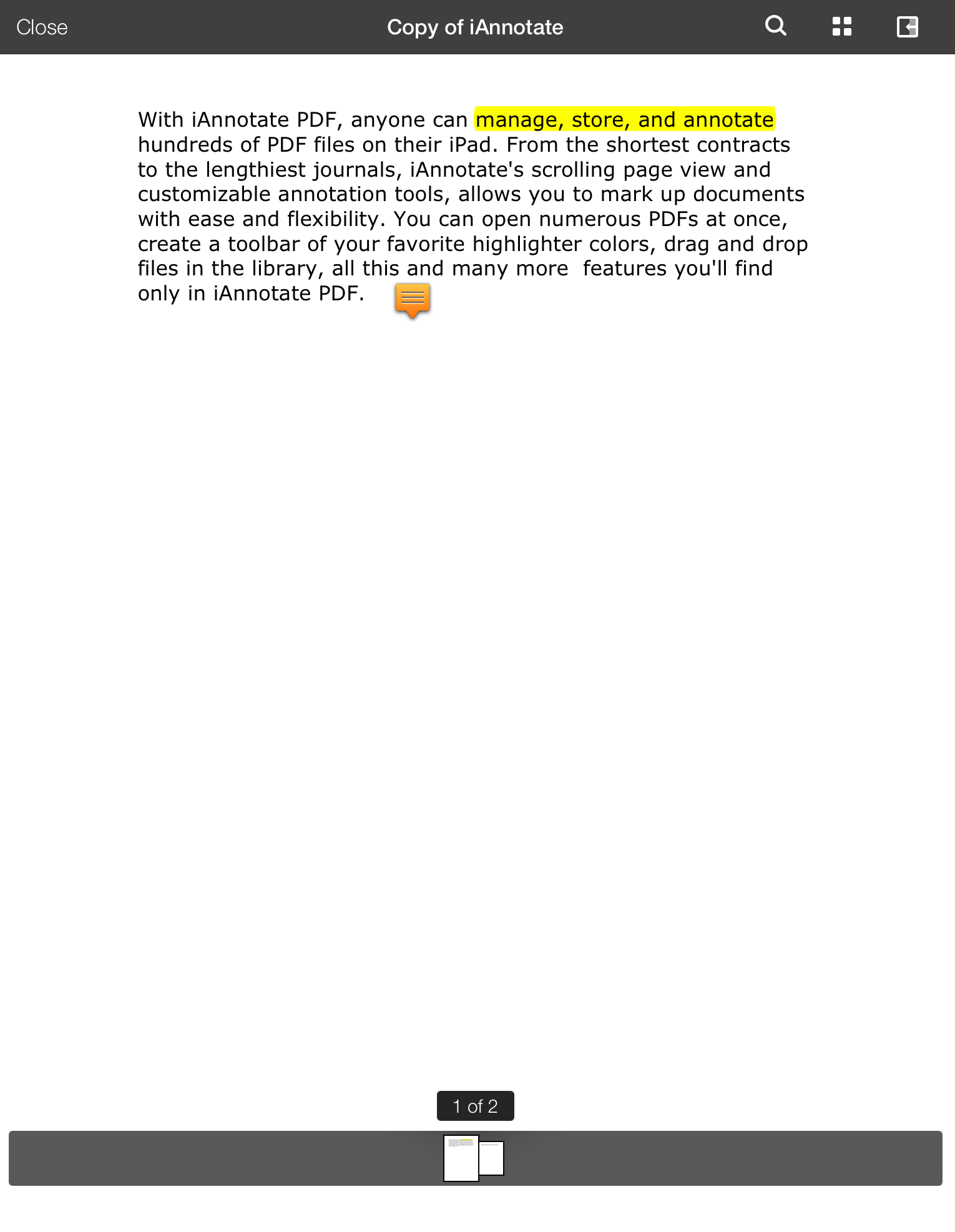
- Tap on the file at the top of your screen, click on Share and then Upload to Box as an annotated PDF. This PDF file will then get stored into the folder that we select, as a copy of the original PDF document.