

- Navigate to the file or folder you want to share.
- Tap Open with and select the application you want to use for viewing the file.
- In the file’s Preview pane, tap the ellipsis (…).
- Tap Share. Box displays the sharing window.
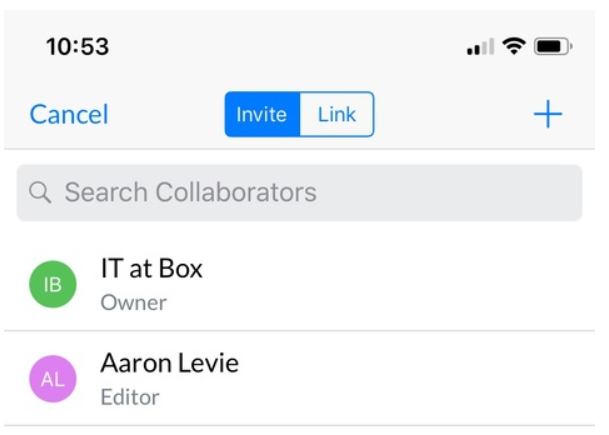
- In the top of the sharing window, tap Invite.
- In the top-right corner of the window, tap +.
- In the Search Collaborators field, type the name of a collaborator. Box adds the name to the list of collaborators.
NoteFolders: If you have allowed the Box app access to your device’s contacts, the app will suggest names from your contacts list as you enter characters when you invite users as Folder collaborators. If you did not allow the Box app access to your contacts, you must enter full names.
Files: If you want to add collaborators to a single File, you must enter full names. Suggestions are not supported.
Files: If you want to add collaborators to a single File, you must enter full names. Suggestions are not supported.
- To add another collaborator, tap Return.
- When you’ve selected all your collaborators, tap Invite.
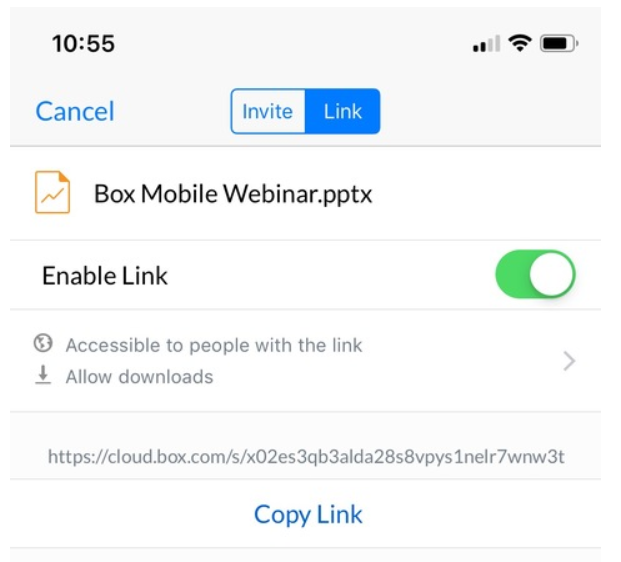
- In the top of the sharing window, tap Link.
- Tap the Enable Link slider button. Box displays the link address.
- Select access limits or restrictions you want to apply to the collaborators.
- Tap Copy Link.
- Paste the link into a separate email to the collaborators.
NoteYou can also share and collaborate on files when you preview them on your iPad. And you can view annotated files, plus comments and notifications about annotations, on your iOS device. See links below for more information.
Access Limits and Restrictions
You can set access limits, restrict actions, and set an expiration date for your shared link from the Box for iPhone and iPad app directly. To select access limits and restrictions:- In the sharing window, tap Editor, or
- In the file’s Preview pane
- Tap the ellipsis (…) and select Manage collaborators
- Tap the collaborator’s name
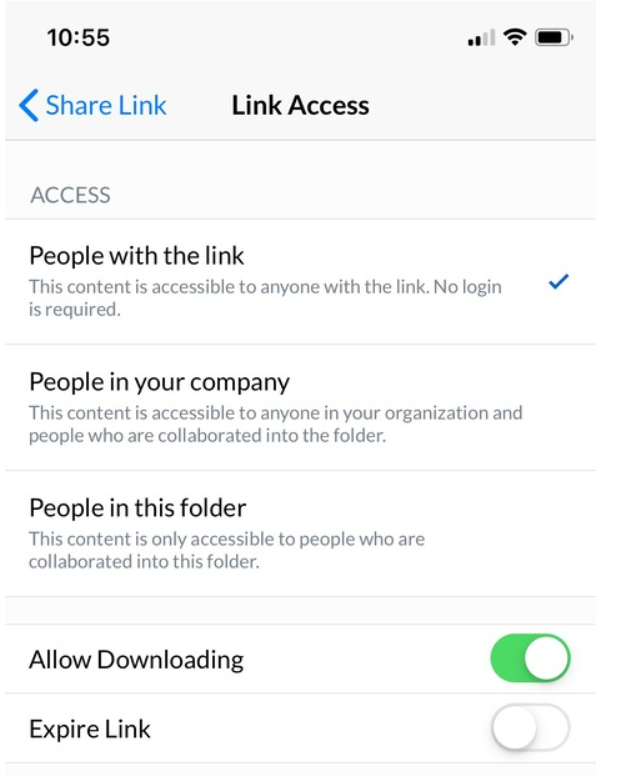
- People with the link: Enables anyone with the link to view your content, whether they’re logged in or not. We recommend one of the other access levels for files or folders you’d like to keep secure.
- People in your Company: Enables anyone with a Box account at your company to see your content. People must be logged in to see the linked file or folder, and you can usually see which specific people in your company have viewed your files.
- People in this folder: Limits access to only the people you’ve invited to your file or folder as collaborators. You can invite or remove collaborators to expand or limit the list of people who can view your files.