

- Go to Enterprise Settings > Content & Sharing
- In the Collaborating on Content section, go to the External Collaboration setting and select Limit collaboration to allowlisted domains
- Click Manage Allowlist
- In the Collaboration Allowlist dialog box, enter one or more email domains and press Enter after entering each one. See Domain Allowlist Configuration for additional details on how to configure allowlisted email domains
- Click Add
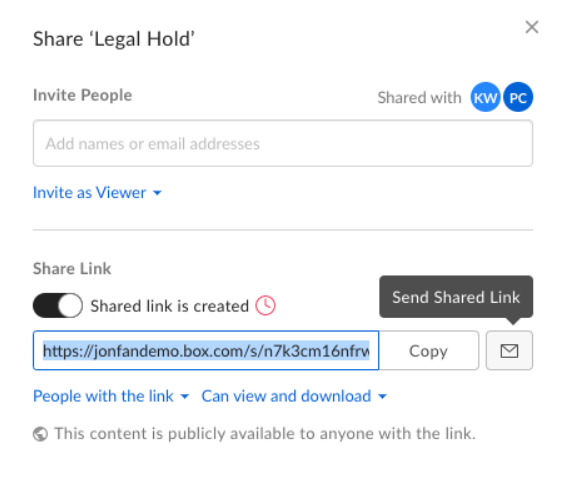

Domain allowlist configuration
When you create your allowlist, you can exert finer control and limit collaboration to one direction, inbound or outbound, as defined from the perspective of someone inside your enterprise.- Inbound collaboration – Your people are INVITING SOMEONE FROM OUTSIDE IN TO your enterprise to collaborate on content that resides inside your organization
- To allow only inbound collaboration, prepend each email domain with a plus sign (+)
- Outbound collaboration – People from outside your enterprise are INVITING SOMEONE FROM INSIDE your enterprise OUT to collaborate on content that resides outside your organization
- To allow only outbound collaboration, prepend each email domain with a minus sign (-)
- To enable collaboration with any email domain, use an asterisk (*)
- Typically you’ll use an asterisk to enable unidirectional collaboration — for example to allow only your users to be invited to other content and not allow any external users to be invited to your content
Domains Allowlisted | Expected Behavior |
abc.com | Box users within your company can invite people only from Company ABC and can only be invited to folders from Company ABC. Note The allowlist is literal, and only works on single email domains. In this example, “x.abc.com” is not allowlisted. You would need to add it separately. Do not use spaces. |
+abc.com | Your company’s users can invite only people from Company ABC to their folders. Do not use spaces. |
-abc.com | Only people in Company ABC can invite Box users from your company to join their folders as well. No one else can invite your company’s users to their folders. Do not use spaces. |
+* | Your company’s users can invite anyone from any email domain to collaborate on content within your enterprise, but no one outside of your company can invite your company’s users to collaborate externally. Do not use spaces. |
-* +abc.com | Anyone from any email domain can invite your people to collaborate on content externally, but your people can invite only users from company abc.com to collaborate on content that resides within your enterprise. Do not use spaces. |
- Users not subject to allowlist: You can allow certain users special privileges to collaborate with email domains outside of the allowlisted email domains. To grant this privilege, below Users not subject to allowlist, enter the names or email addresses of your tenant’s managed users in the box.
- External Collaborator Invitations: Enables you to restrict external collaborators from inviting other external collaborators into content owned by your enterprise and to prevent them from increasing other external collaborators’ permission levels.