

- Admins receiving requests from users to authorize or enable a custom-built application (using a “Client ID” or “API Key”) from a user or a developer.
- Admins beginning to lead their own projects, building on Box’s API, and seeking a better understanding of how to evaluate application scopes.
Enabling an application
If an administrator receives a request to enable an app, the following prerequisite is assumed:- The administrator has enabled Disable integrations by default per Restricting Applications from the Admin Console.
- Do one of the following:
- log into admin console, click Add Platform App, and enter the Client ID (API Key) to view app details such as scopes, or
- in the emailed request, click Review App Details and review information about the application.
- If comfortable making this app active, the admin can enable the app.
Authorizing an application
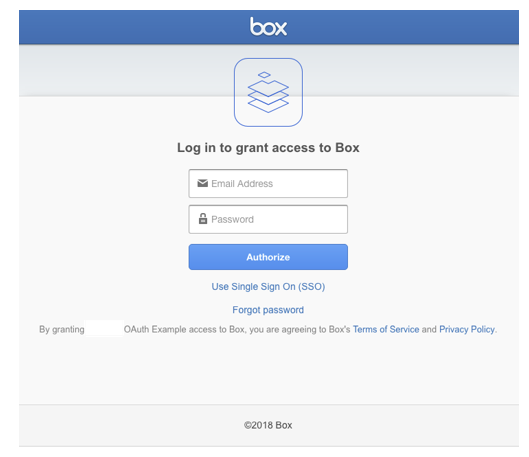
If an administrator receives a request to authorize an application, the administrator should:- Follow the steps in Managing platform apps.
- Before enabling or authorizing an application, review the scopes (see below) and decide whether to allow the application based on the scopes.
Example scenarios
| Given | Result |
|---|---|
| If the user tries to delete a file under the folder through the application, the call fails with a permissions error. |
| If the user tries to run reports through the application, the call fails with a permissions error. |
| If the user attempts to rename a user, the call succeeds. |
Reviewing Scopes
Most scopes are self-explanatory (for example, Manage Users, Read and Write files and folders). All API calls will respect the access control of both the user(for example collaborations and co-admin permissions) and the application scopes.IMPORTANT:Be sure to understand how the application’s scopes (essentially application permissions) interact with user permissions.
Examples of scopes
Example 1
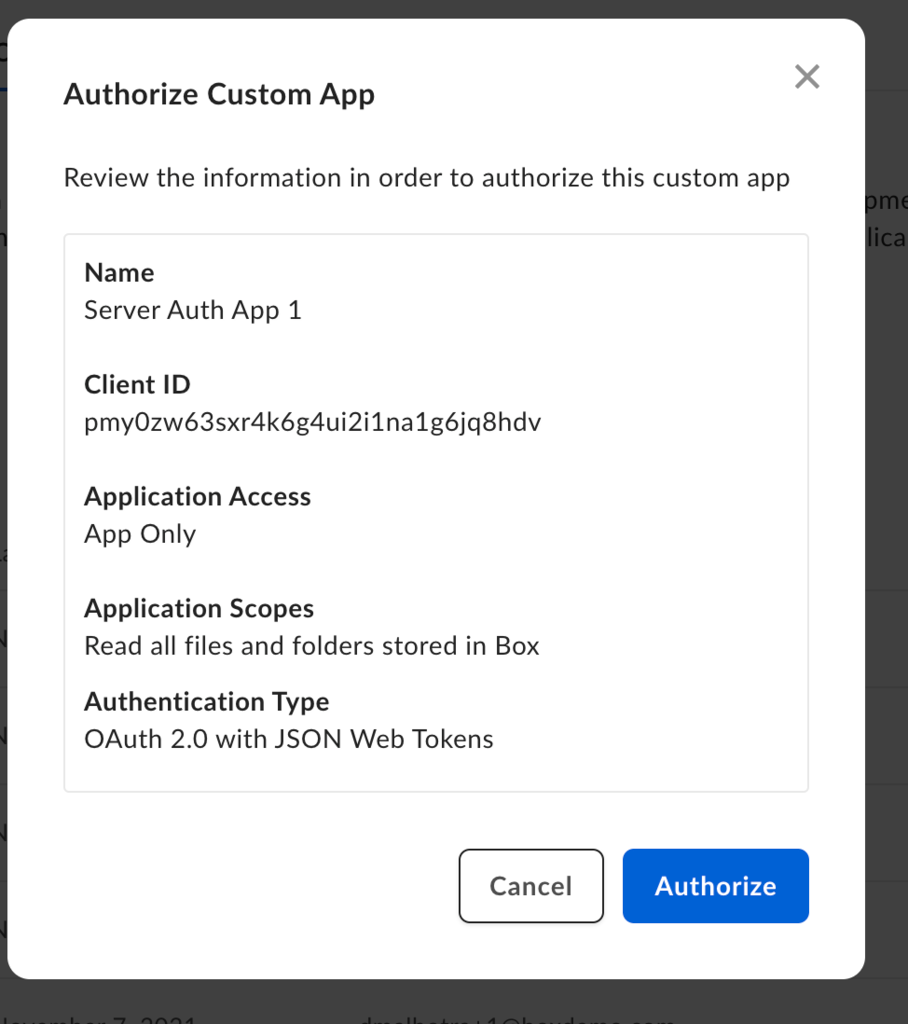
- The setting Read and write all files and folders stored in Box alone doesn’t automatically mean the application can read and write all files and folders.
- The setting For the following users does include “All users”, but if For the following users is set to “Application Only”, then this application can access content only under its app users (and not managed users in the rest of the enterprise).
- Additionally, this application can generate tokens for any user, including the admin.
Example 2
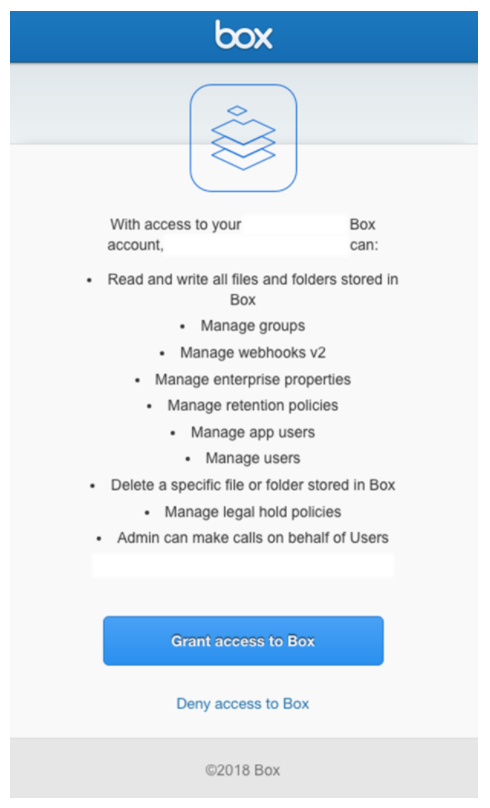
- This application not only reads and writes files and folders, but also manages nearly everything in the enterprise: deletion and creation of user accounts, deletion and creation of retention policies, legal hold policies, and impersonation of users.