

- Redwood City
- San Francisco
- New York
- London
- Frankfurt
- Tokyo
| Location Attribute | Zone |
|---|---|
Redwood City San Francisco New York | US |
London Frankfurt | UK |
Tokyo | Japan |
Setting up Multizones SSO
To set up Multizones SSO, provide your enterprise’s SSO attributes and Zone mapping to Box Consulting. Box will work with your enterprise to:- Configure your Identity Provider for Box Multizones SSO setup — you can use the standard integrations your IdP has with Box, or use custom integrations.
- Update your enterprise’s new connections within Box for Multizones SSO.
Assigning attribute values to a Zone
After Box configures Multizones SSO for your deployment, you’re enabled to assign location attribute values to Zones. After you assign location attributes to Zones, when an account holder signs in, Box assigns the account to a Zone based on the account’s location attribute.Note: The France Zone enables you to store your content completely in France. Most of the content’s processing happens in the EU region, similar to our other EU Zones offerings.
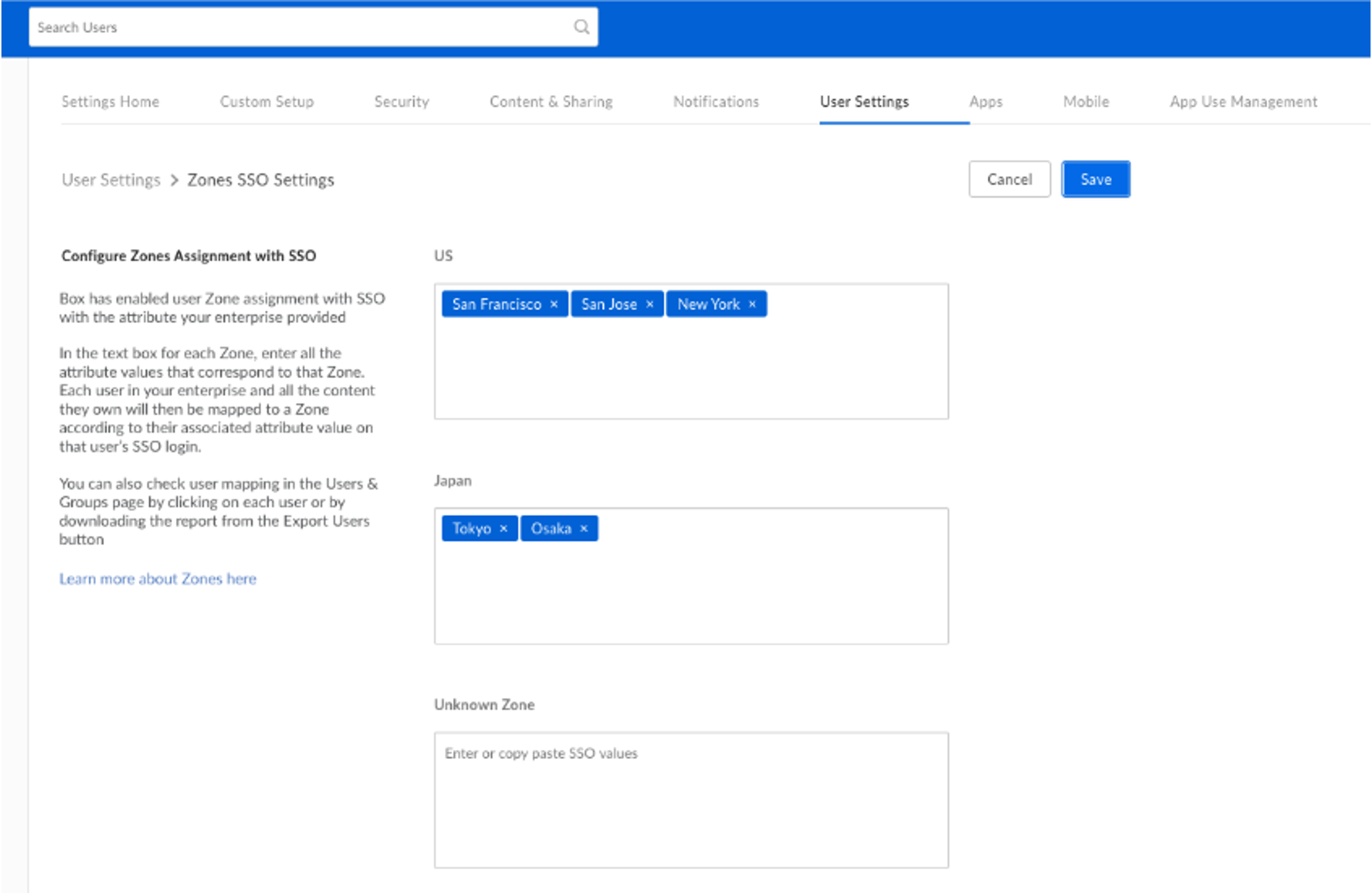
- In the admin console’s left sidebar, click Enterprise Settings.
- In the top of the window, click User Settings.
- In the Configure Zones Assignment with SSO section, click in a Zone’s text field and type the comma-separated list of locations you want to assign to that Zone.
- In the top-right corner of the User Settings window, click Save.
- If you’ve assigned the person to a different Zone, Box updates your enterprise’s SSO configuration and logs the update in the User Activity report.
- If an account assigned to a Zone has an invalid or missing location attribute, the person can still sign in, but Box does not update the account’s Zone assignment.