

Single Sign-On Overview
Single sign-on (SSO) is a method for authenticating users where a single set of credentials can be used to log into several different applications. With SSO, you use one password to access all of your applications, which reduces password fatigue and tickets to your help desk. This is especially useful in a corporate setting, when you want your employees to be able to access a variety of applications using their company credentials.Box Support of SSO
SSO authentication is available in Business and Enterprise accounts. Box supports SSO via SAML 2.0 and acts as a service provider (SP) for SSO. The client must implement a federation service to act as an identity provider (IdP). An IdP is a user management tool connected to your use store and allows an admin or co-admin to define access to enterprise applications. Federation can be accomplished through an in-house or third-party provider. Common third-party IdPs include:- ADFS 2.0/3.0
- Google Cloud
- Okta
- OneLogin
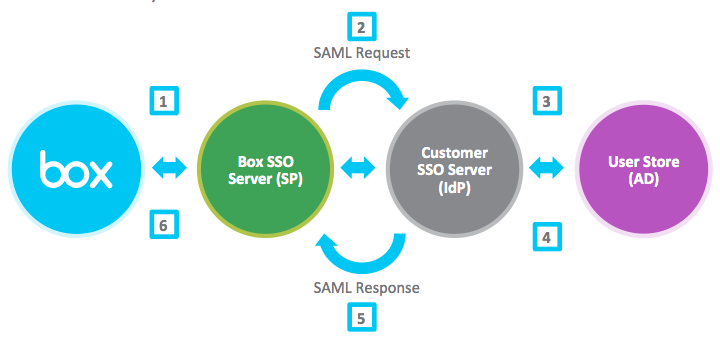
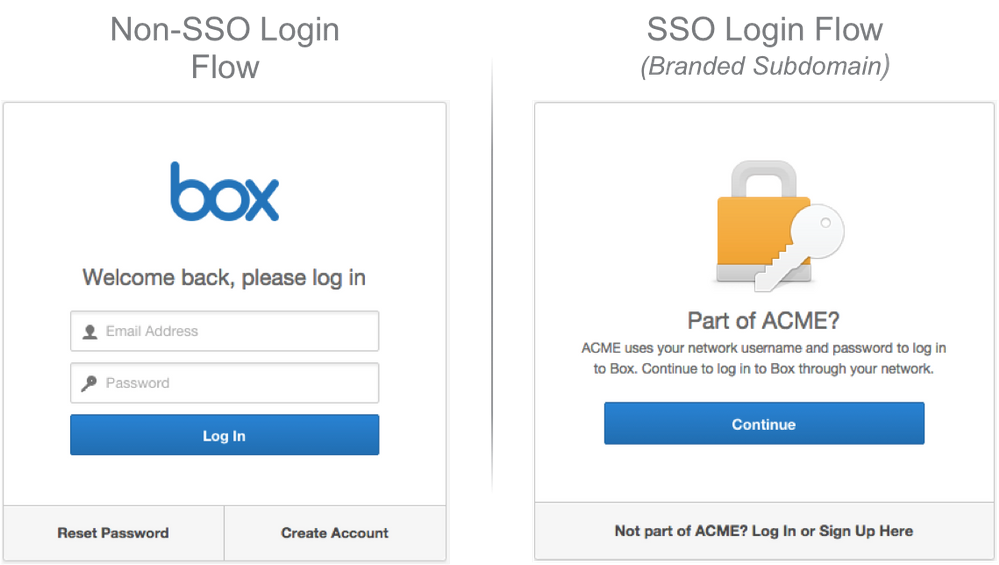
- The user clicks Continue on their company branded Box subdomain, such as mycompany.box.com.
- Box forwards the request to the IdP. The user will be redirected to the IdP login page.
- The user logs in using their company credentials.
- The user is validated against the user store.
- SAML assertion is sent back to Box. At a minimum, the SAML assertion response from the identity provider must contain the user’s email address. The email address must correspond to a user within that Box account. The user’s given name and surname attributes are typically sent as parameters as well, but they are not required to enable SSO.
- The user’s session is authenticated and they are logged into their Box account.
Setting Up Single Sign-On
- A Business or Enterprise Box account.
- Primary administrator or a managed user with co-admin permissions and at least the following privileges in the Reports and Settings section selected:
- View settings and apps for your company
- Edit settings and apps for your company
Setting Up SSO On Your Own
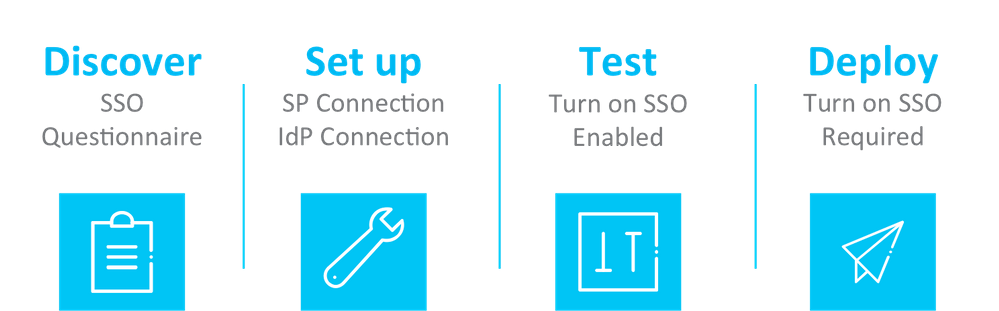
Administrators and co-admins also have the option of setting up single sign-on on their own. If you’re comfortable modifying your enterprise’s security settings without Box’s assistance, setting up and enabling single sign-on for your enterprise is easy. It requires 3 steps:- Configure SSO
- Test SSO
- Require SSO
- Go to Admin Console > Enterprise Settings.
- Click the User Settings tab.
- In the Configure Single Sign-On (SSO) for All Users section, click Configure.
- Select your Identity Provider (IdP). If you don’t see your provider listed, use the Box SSO Setup Support Form to have Box help you set up SSO.
- Upload your IdP’s SSO metadata file. If you do not have a metadata file or if you need your metadata file updated, use the Box SSO Setup Support Form to have Box help you set up SSO.
- Click Submit.
- Go to Admin Console > Enterprise Settings.
- Click the User Settings tab.
- In the Enable Single Sign-On (SSO) for All Users section, enable SSO Test Mode.
- Go to Admin Console > Enterprise Settings.
- Click the User Settings tab.
- In the Enable Single Sign-On (SSO) for All Users section, disable SSO Test Mode and enable SSO Required.
- In the Enable SSO Required dialog box, select both checkboxes, then click Enable for All Users.
- Use MFA to authenticate this change, using the method described in Multi-Factor Authentication Required for Admin Console Critical Actions.
Disabling Single Sign-On
Disable single sign-on by disabling the SSO Required toggle. For security reasons, disabling SSO is considered a “critical action” and requires multi-factor authentication (MFA) to complete.Technical Details
Listed below are expected configuration file values for each IdP:Okta
- Okta Metadata File (metadata.xml)
ADFS
- firstnameAttribute =
http://schemas.xmlsoap.org/ws/2005/05/identity/claims/givenname - lastnameAttribute =
http://schemas.xmlsoap.org/ws/2005/05/identity/claims/surname - emailAttribute =
http://schemas.xmlsoap.org/ws/2005/05/identity/claims/emailaddress
Entra ID
- firstnameAttribute =
http://schemas.xmlsoap.org/ws/2005/05/identity/claims/givenname - lastnameAttribute =
http://schemas.xmlsoap.org/ws/2005/05/identity/claims/surname - emailAttribute =
http://schemas.xmlsoap.org/ws/2005/05/identity/claims/name - oidAttribute =
http://schemas.microsoft.com/identity/claims/objectidentifier - tenantidAttribute =
http://schemas.microsoft.com/identity/claims/tenantid
Google Cloud
- firstnameAttribute =
firstName - lastnameAttribute =
lastName - emailAttribute =
SAML_SUBJECT
OneLogin
- firstnameAttribute =
firstName - lastnameAttribute =
lastName - emailAttribute =
SAML_SUBJECT
Setting Up SSO through Box
- FTP applications do NOT support SSO. Users will have the option to create external passwords if they need to use these applications.
- The Admin Console setting that enables admins and co-admins to force password resets after a certain number of days only applies to users’ External Passwords. This setting does not affect SSO credentials.
IdP Requirements
- Must support SP initiated SSO
- Must support SAML 2.0
What you need from Box to set up your connection
- Entity ID: box.net
- Security Token Consumer URL: https://sso.services.box.net/sp/ACS.saml2
- Public Certificate
What Box needs from your identity provider
- Entity ID, Connection ID, or External Key
- Redirect URL
- Public Certificate
- Metadata file containing all of the above information
ADFS 2.0/3.0 | You will need your metadata xml file for SSO setup. To collect your ADFS metadata file:
| Help Article |
Entra ID | You will need your metadata xml file for SSO setup. To collect your Entra ID metadata file:
| Help Link |
Bitium | You will need your metadata xml file for SSO setup. To collect your Bitium metadata file:
| |
Entrust Identity | You will need your metadata xml file for SSO setup. To collect your Entrust Identity metadata file:
| Help Link |
Google Cloud | You will need your metadata XML file for SSO setup. To collect your Google Cloud metadata file:
| Help Link |
Nopassword by WiActs | You will need your metadata XML file for SSO setup. To collect your NoPassword metadata file:
| |
MobileIron | You will need your Metadata XML file for SSO setup. To collect your MobileIron Access metadata file:
| |
Okta | You will need the External Key, Redirect URL & Public Certificate for SSO setup. To collect the information:
| Setup Guide |
OneLogin | You will need your metadata XML file for SSO setup. To collect your OneLogin metadata file:
| Setup Guide |
PingIdentity | You will need your metadata XML file for SSO setup. The XML file must contain the following metadata:
To collect your PingIdentity metadata file:
For additional details, see the Exporting SAML metadata from PingFederate topic in the PingIdentity documentation. | |
Other/Custom IdPs | Contact your IdP directly to assist in obtaining metadata file OR entity id, redirect URL, and signing certificate. Once obtained, use this information to fill out the Box SSO Setup Support Form. |
 next to the application you are integrating with Identity as a Service.
SSO Account Settings
Account Creation Emails
When SSO Required is turned on, you also have the ability to suppress account creation emails. To do this, navigate to Admin Console > Enterprise Settings > Notifications tab.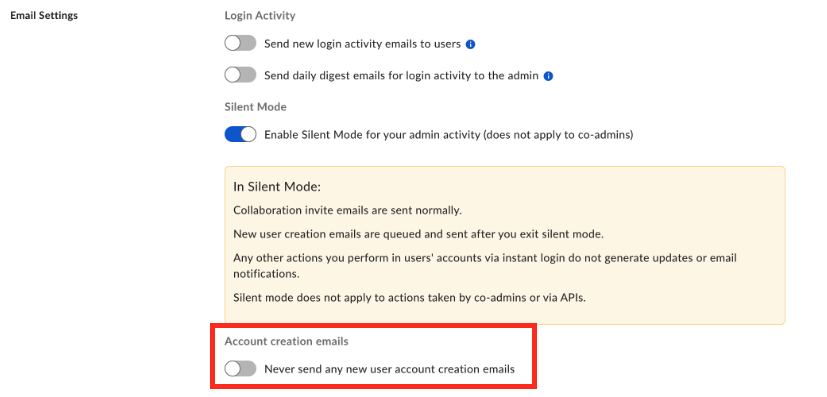
SSO Logout URL
By default, logging out from Box will bring users back to their company branded Box login page. However, because Box does not support Single Log-Out (SLO), the user will still be authenticated in the company IdP, and therefore, when they click the “Continue” button, they will be automatically directed back to their Box account without having to provide an email address and password. To remind users that logging out of Box does not log them out of their IdP session, the redirect URL for logging out from Box can be changed. Examples of possible URLs include the IdP homepage or the IdP logout page.Setting a custom logout URL
Contact your Box Customer Success Manager, or Box Product Support, with the logout URL you want.SSO on-the-Fly Registration (Auto-Provisioning)
Accounts can be provisioned automatically the first time a user logs in to Box. By validating a user, the IdP is communicating to Box that the user should be allowed to have an account. If a user should not have an account, the SAML assertion should not be sent to Box by imposing restrictions through the IdP such as security groups. These accounts will be created using the new user settings defined by the account admin or co-admin in the Admin Console (Admin Console > Enterprise Settings > User Settings tab > New User Defaults). To create these accounts, a first and last name must be sent over in the SAML assertion with the email. The account creation process is the only time the first and last name attributes in the SAML assertion are used.Setting up SSO Auto-Provisioning:
Contact your Box Customer Success Manager, or Box Product Support with first and last name attributes for the SAML assertion.Auto Enrollment
Auto enrollment prevents users from creating free Box accounts using their company’s email address: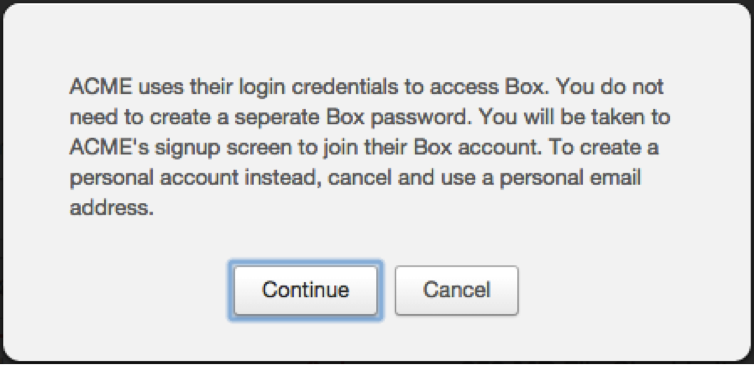
Implementing Groups in Box via SSO
For accounts with SSO Enabled/Required, admins or co-admins can choose to have groups in their user store populated within Box. This is a one-way communication from the user store to Box via the SAML assertion. When users log in to Box using SSO, they can be added and removed from groups based on their groups within the user store and the settings chosen by the Box admin or co-admin. The SAML assertion requires an attribute to relay the group information. For existing SSO connections, this may require changes. The group information is sent in a multi-value attribute: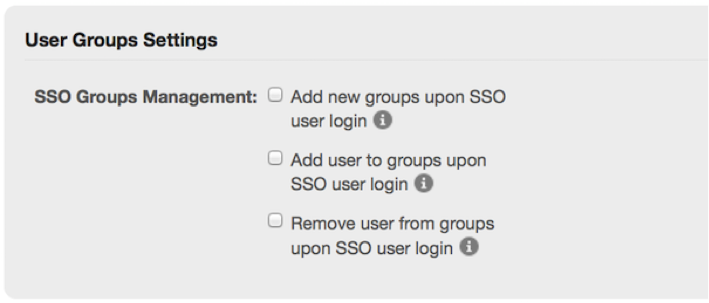
- If you are using Okta or Google Cloud for your SSO, the User Groups Settings section appears after you enable SSO for either of these iDPs and upload your metadata file.
- If you are using OneLogin, ADFS (Active Directory), or any other IdP compatible with SAML Groups for your SSO, contact your support representative to enable the User Groups Settings section.
- Add new groups upon SSO user login – If a group is sent over with a user and there isn’t an exact name match to a group within Box, this group will be added as a new Box group. Permissions must be manually assigned to this group in the Admin Console. This setting can be used to bring the exact names of multiple groups under an admin account.
- Add user to groups upon SSO user login – If a group is sent over in the login SAML assertion which matches the name of an existing Box group, the user will be added to that Box group. When this setting and the next setting (“Remove User”) are enabled, your user store’s group memberships will update the Box user’s group memberships upon every login.
- Remove user from groups upon SSO user login – If the user is currently in an existing Box group and the group is not sent over in the login SAML assertion, the user will be removed from that Box group. When this setting and the previous setting (“Add User”) are enabled, your user store’s group memberships will update the Box user’s group memberships upon every login.
Limitations
- Nested groups are not supported. Group hierarchies must be collapsed. Please check with your IdP to confirm that group hierarchies can be collapsed if needed.
- This is a one-way method (via SAML). Any changes to a group in Box will not be reflected in the user store. If changes are not implemented in the user store, a user’s group membership will be reverted to the original settings on the next login.
- Group memberships are synced upon user login. If a user never logs out, the user’s group memberships may be out of date since a new SAML assertion will never be sent.
- SSO can create and update a user’s group membership
- Group permissions must be manually assigned via the Box web application or API.
Adding email aliases to user accounts via SSO
For enterprise accounts with SSO enabled, the admin or co-admin can choose to have email aliases populated via SSO. The SAML assertion requires two separate attributes to relay the email address information. A single value attribute is used as an identifier to determine what account to log a user into. This attribute is also used to determine the primary email address that receives all email notifications. The email aliases are sent in a second multi-value attribute:Restrictions:
- Email addresses can only be added if they are in a managed domain. To register more domains with your Box account, contact your Box representative.
- An email address can only be associated with a single Box account.
- Only aliases that are initially added with SSO can be removed with SSO.