

NoteBusiness Plus and above accounts have the ability to selectively choose which co-admin permissions to assign to a user. Business accounts do not have this option, and have only the ability to designate someone as a co-admin.
To grant a user co-admin permissions:
- Go to Admin Console > Users & Groups.
- Click the Managed Users tab.
- Click the name of a managed user with a Role of Member.
-
Hover over the Role and Access Permissions section and click Edit (
 ).
).
- In the Role drop-down list, select Co-Admin.
-
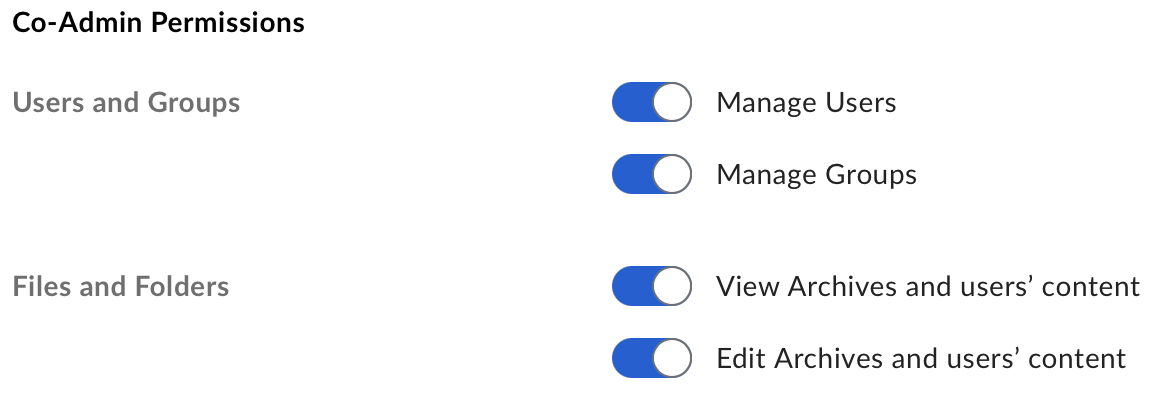
Select which co-admin permissions you want the user to have. For example:
To determine if your admin needs other permissions, review the complete Co-Admin permissions list.
- Click Save.
NoteA user cannot be both a co-admin and a group admin. When you make a user a co-admin, they become just members of any group that they are in where they were group admin.
To modify co-admin permissions:
- Go to Admin Console > Users & Groups.
- Click the Managed Users tab.
- Click the name of a managed user with a Role of Co-Admin.
- Hover over the Role and Access Permissions section and click Edit ().
- Select which permissions you want the co-admin to have and clear the permissions you do not want the co-admin to have. See Co-Admin Permissions for details about each permission.
- Click Save.
Note:
As a co-admin, you only have access to folders you own or collaborate on, and you might not see all of the managed/external user folders under Folder Collaborations in the Admin Console. Contact your admin for more information.