

- Go to Admin Console > Content.
- Select the Content Manager tab.
- Select the Expand control (
 ) next to a user’s name.
 - Select Trash (
 ).
). - Hover on a file or folder and select Restore (
 ), or select a file or folder on the list and select Restore on the top action bar. If a file cannot be restored from Trash, this function will not be available for it.
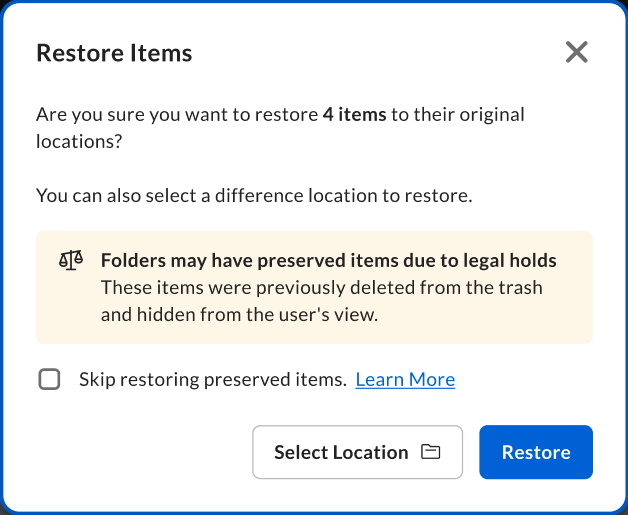
 - Restore the file to its original location by selecting Restore. (If the original location does not exist, you will be prompted to select a restore location.)
- or - Restore the file to a different location by selecting Select Location, search for a folder and select it, then select Restore.
Preserved files and folders
Some files and folders may be preserved by your organization’s legal holds or retention policies. When you try to restore a preserved file, Box displays a message indicating that the file was hidden from the user’s view. You can still restore the file.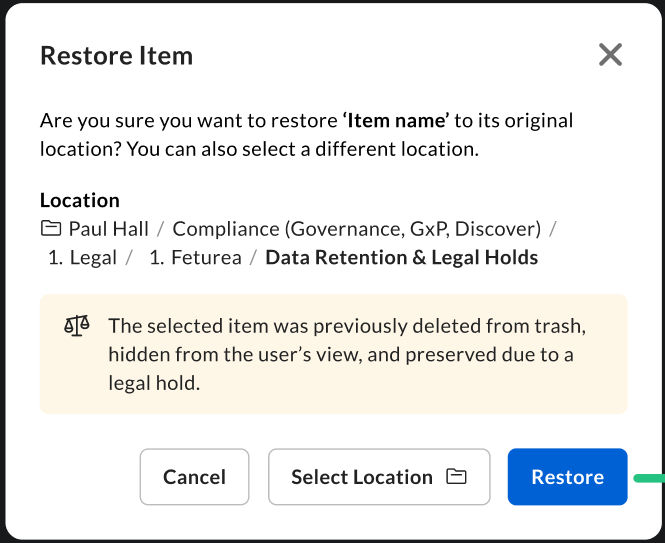
Legacy Design Differences
- In step 4, the expand icon is different.
- In step 6, hover over a file, select More Options (
 ), and then select Restore.
 - In step 7, Admins are not given an option to restore to a different location. However, the Admin must choose a different location if Restore was selected and the original location does not exist.