

Keyword search
Supported Search Syntax
Boolean Terms
OR: “OR”; search for either part of the query, OR is a default operator and takes precedence over AND, for example, query= ‘a b’ → ‘a OR b’ ; query=’a AND b c’→ ‘a AND (b OR c)’. AND: “AND” , search for documents containing both keywords using AND operator. NOT: “NOT” , NOT takes precedence over OR and AND and excludes files containing specific keyword(s), for example, ‘apple AND NOT orange’, ‘apple NOT orange → ‘apple OR (NOT orange)‘‘; queries starting from NOT are not supported.String Queries
EXACT SEARCH: “ ”, search for exactly specified sentence placing it between quotations for example, “apple juice“. FIELD_NAME: “name:”, search specifically for file/folder names only using “name:” attribute for example, “name:apple“. FIELD_CONTENTS: “contents:”, search specifically in files content only field using “contents:” attribute for example, “contents:apple“.Nested Queries
OPEN_PAREN: “(“ and CLOSE_PAREN: “)”: build a nested query by including lower level conditions between “()“special characters for example, a OR (b AND c). Punctuation and Special Characters The Box search engine ignores the following punctuation and special characters: !”#$%&’()*+,\-./:;<=>?@[\\\]^_`{|}~. If punctuation characters are within a word, the search function divides the word around the punctuation characters and returns occurrences of the multiple resultant strings, along with a concatenated version of the word. Space will result in splitting keyword into two new ones for example, ‘app le’→ ‘app OR le‘.Ignored characters
The following characters will be ignored: ’(’ - opening parenthesis alone ’)’ - closing parenthesis alone ’()’ - empty parenthesis’ ""’ - empty quotation ‘keyword ’ - whitespace at the end ’ keyword’ - whitespace at the beginning ‘field:’ - search for ‘field’ (other by name:, contents:) Examples of using ignored characters: ’)(ala AND ma) kota(’ a- outermost parenthesis will be ignored. ’)(ala AND ma)’ - first parenthesis will be ignored.Known Search Limitations
- Indexing is limited to 10 Kb
- Maximum amount of returned results: 10 k
- Maximum search query length: 512 characters for ASCII and non-ASCII, including operators. The only exceptions are for Chinese, Korean, and Japanese, where the maximum query length is 32 characters.
Searching File or Folder ID
This feature enables Admins to find a file or a folder by copying and pasting its ID. To find a file or folder based on its ID:- For a file, preview the file. For a folder, open the folder.
- Copy the item’s ID. The ID is the string of numbers that follows the last “/” character in the URL.
- In the search field at the top of the Box window, paste the ID. Box displays a suggestion to Search by File & Folder ID.
- Either select Search by File & Folder ID, or press the Enter key.
- If Admins click Search by File & Folder ID, Box returns exactly one result, if it exists.
- If Admins press the Enter key instead of clicking Search by File & Folder ID, Box returns an item related to the ID and any file that includes this shared link in its content; for example, a report.
- Box displays the Matching ID indicator in the last column on the search results.
Notes:
- A search by file ID is an exact match. Entering a partial ID will bot find a file that contains the string. For example, if a file’s ID is 1309672096744 and Admins enter 13096720967, the file with that ID will not be included in the search results.
- Admins can search for multiple IDs at once but the search query length limitation still applies. At the moment it should allow to search for about 40 IDs separated by spaces. If the query exceeds the limit, an error is displayed indicating that the query is to long.
Searching Shared Links
This feature enables Admins to quickly find requested content by pasting the shared link into the search field.Note: Searching shared links currently supports only active shared links. Admins cannot search for manually removed or expired shared links.
- Paste the shared link’s URL into the search field at the top of the Box window. Box displays a suggestion to search by shared link.
- Either select Search by Shared Link, or press the Enter key.
- If Admins click Search by Shared Link, Box returns exactly one result, if it exists.
- If Admins press the Enter key instead of clicking Search by Shared Link, Box returns an item related to the shared link and any file that includes this shared link in its content; for example a report.
- Box displays the Matching Link indicator in the last column on the search results.
Note: Admins can search for multiple shared links at once but the search query length limitation still applies. At the moment it should allow to search for about eight shared links separated by spaces. If the query exceeds the limit, an error is displayed indicating that the query is to long.
Search Filters
This section describes the Advanced Filters, keyword requirements, and supported search syntax Admins can use in Content Manager search.Advanced Filters
Advanced filters allows users to narrow the scope of search by specifying multiple search criteria. Filtering Search Results- In the search bar, select Filters (
 ).
). - In the Filters sidebar, select one or more filters.
- Select Search.
- In the search bar, select Filters ().
- Select Clear All.
- Audio
- Box Note
- Document
- Drawing
- Image
- Presentation
- Spreadsheet
- Video
- 3D
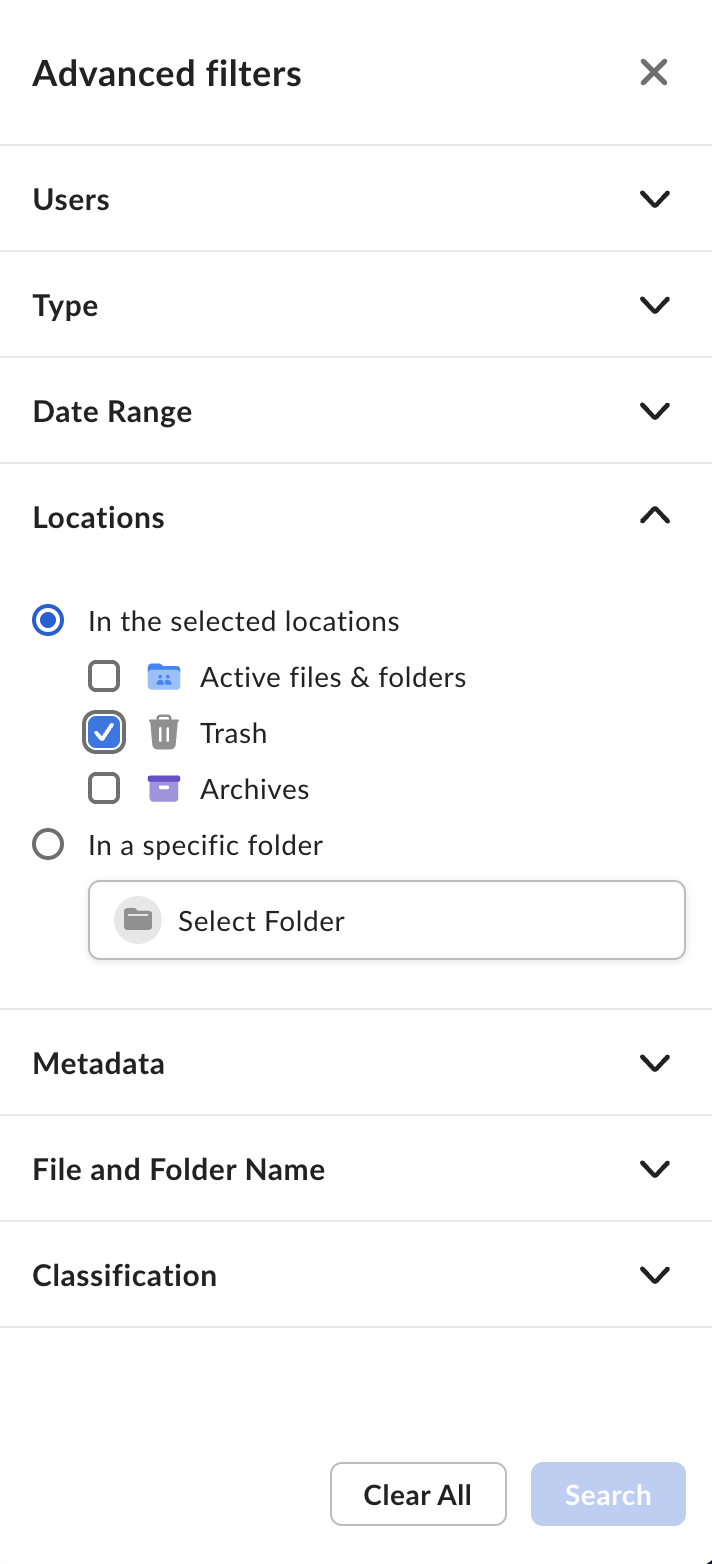
- In specific folder returns only active content from specific folder meeting other criteria.
- Archive is available for only E-Advanced accounts.
- Depending on use case, you can check or uncheck any combination of checkboxes. By default, search returns results from all locations, and you can distinguish content from archive and trash by the visual badge on the file’s icon. The breadcrumb for trashed items indicates the trashed item’s original location.
Keyword Requirements
The only filters that work without a keyword are Name and Metadata. In all other cases it is required to provide a Keyword together with additional filter. This is order to limit very broad searches. At the moment it is not possible to search with the following:- Keyword and all filters set to default values
- File type filter only (without a keyword, name or Metadata)
- Date range filter only (without a keyword, name or Metadata)
- Date range+ file type filters only (without a keyword, name or Metadata)
- Custodian filter only (without a keyword, name or Metadata)
- Custodian+ file type filters only (without a keyword, name or Metadata)
- Folder location filter only (without a keyword, name or Metadata)
- Folder location + file type filters only (without a keyword, name or Metadata)
- Folder location + date range filters only (without a keyword, name or Metadata)
- Folder location + custodian filters only (without a keyword, name or Metadata)